A crisis project built from scratch, without any use case or reference base: describe Albi and its cathedral with the AI assistants, add a firefighter with his r-io4U account, a frozen fire alert and a smoke sensor, then let r-io detect the fire, deduce a solution, drive the tasks until the alert is gone, and export the project.
What this scenario demonstrates
The use cases shipped with r-io are finished models. This walkthrough shows how such a model is made: the context (a territory, a building, a role, its functions, the actors), the anticipated crisis (an alert and its objective, kept frozen) and the sensor that turns anticipation into an incident. From there the rest of the platform works on its own: detection, deduction, human tasks, supervision.
It also shows a conditional process: a function output typed by a firefighter decides whether the next function runs.
01 · Step
Create the crisis project
Everything starts from an empty r-io: no use case is loaded. The project is created from the Crisis domain and kept free of any reference base, so that every node of the situation is built during this walkthrough.
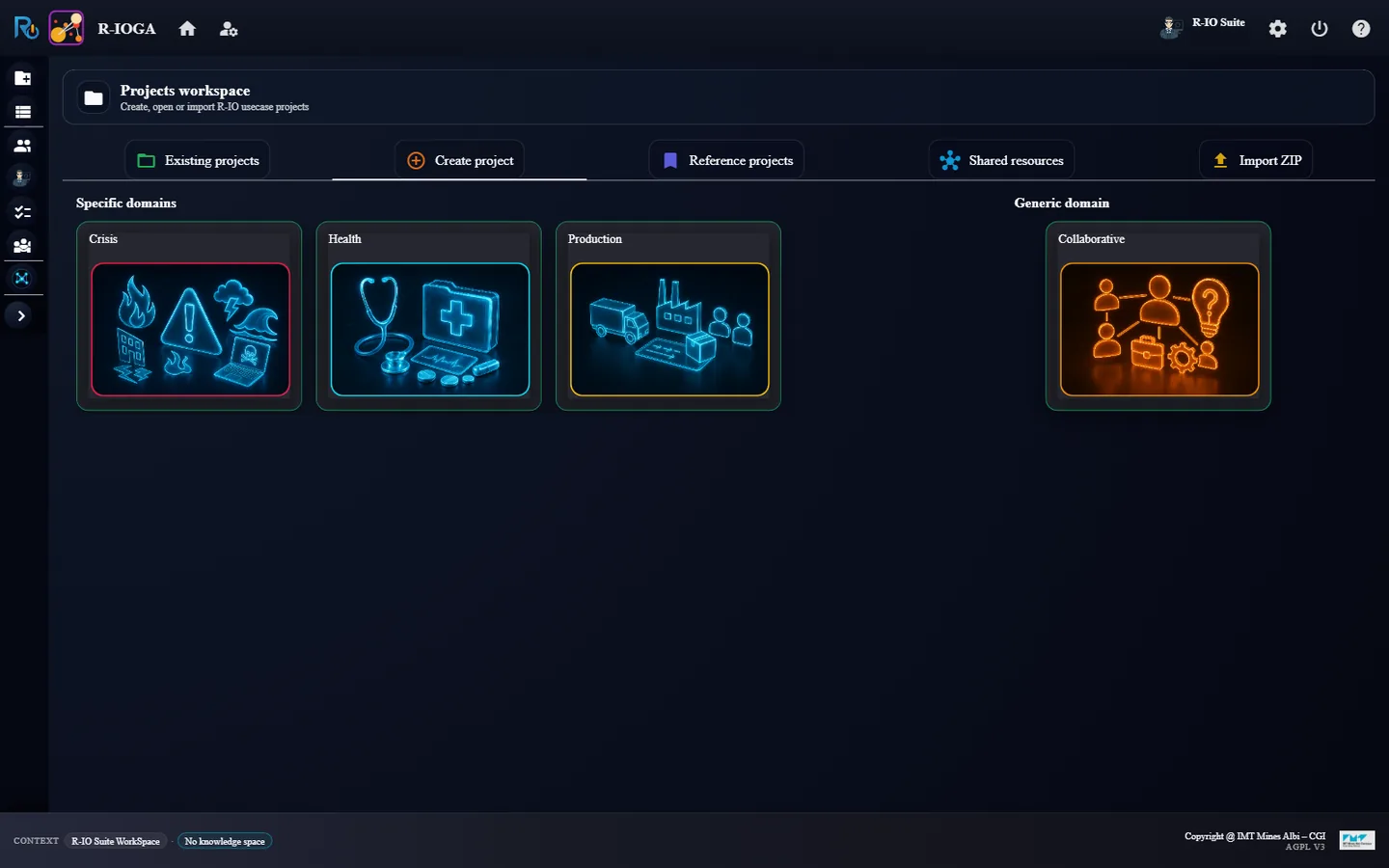
In r-ioga, open the Projects workspace, tab Create project, and click the Crisis card.
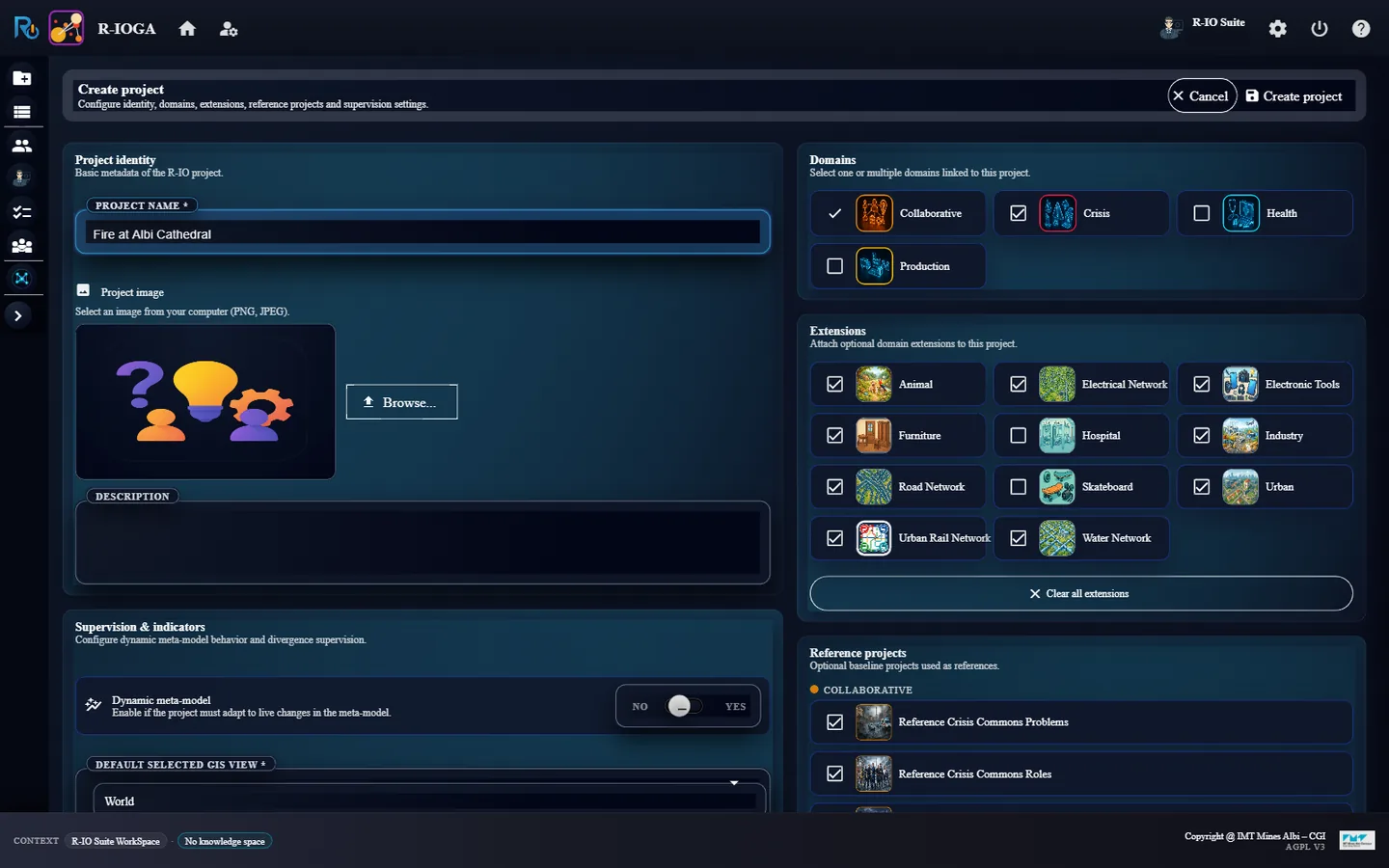
Replace the default name My project with Fire at Albi Cathedral. Choose the name now: it identifies the knowledge space and cannot be changed afterwards.
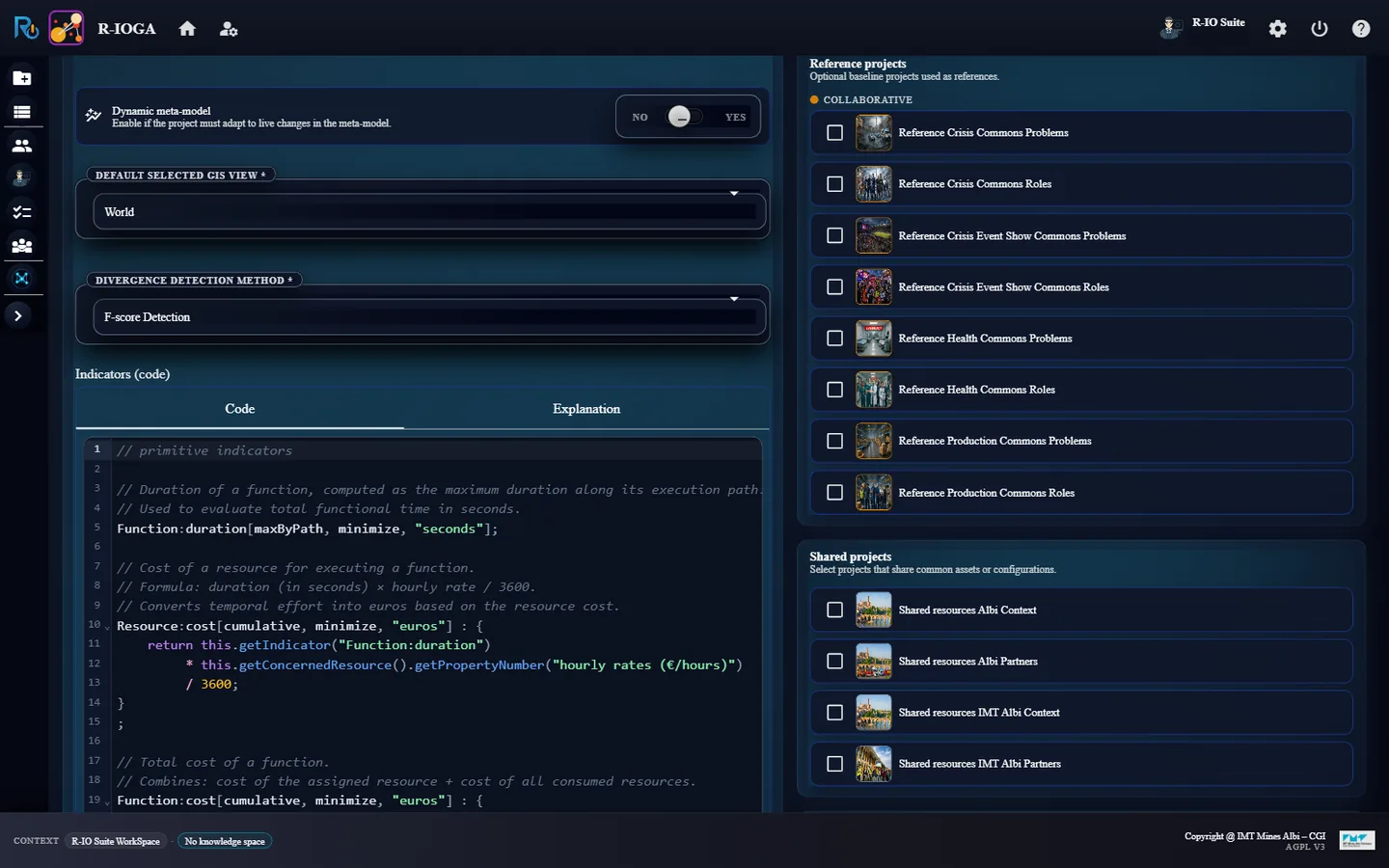
In the Reference projects card, click Clear all references.
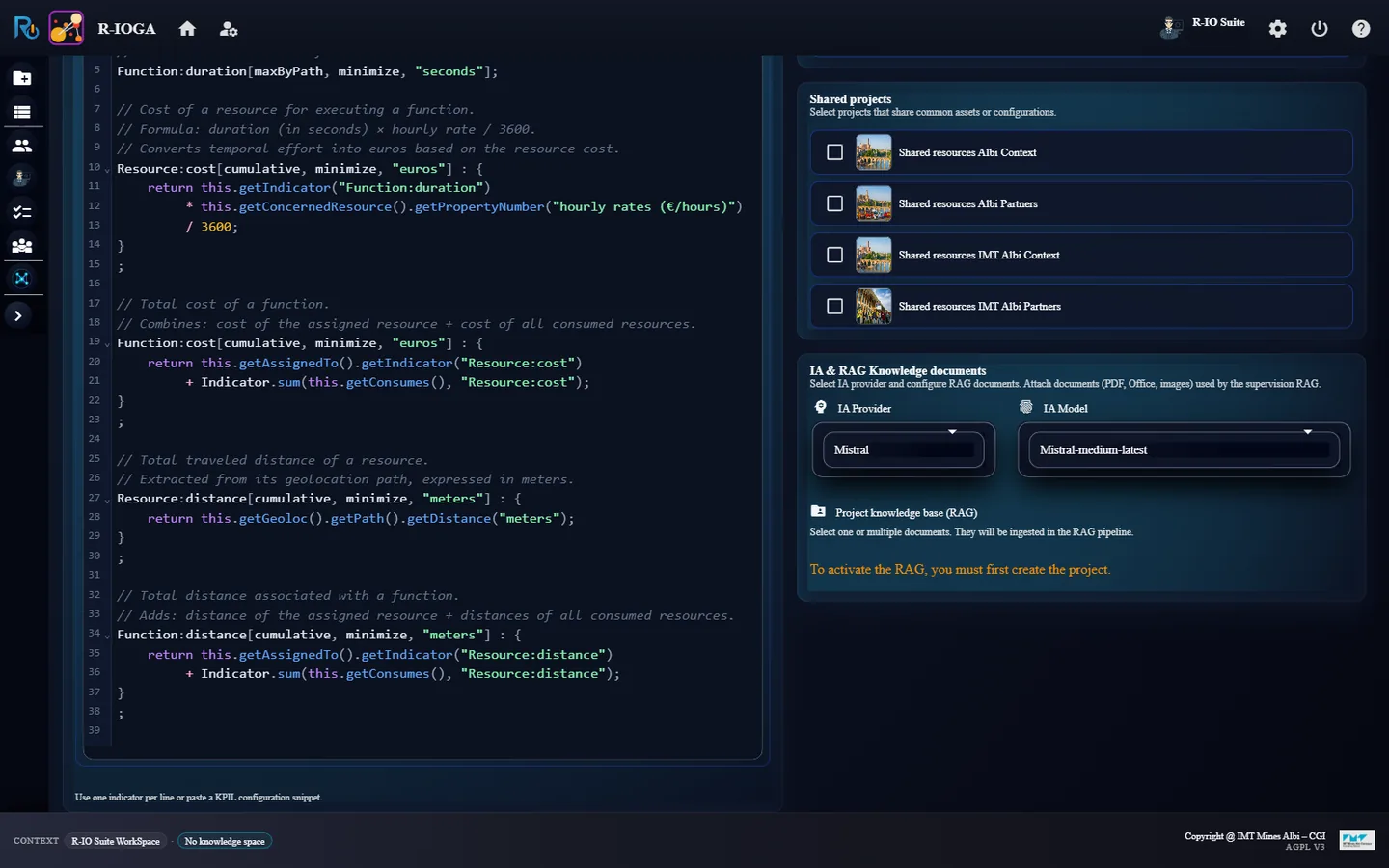
In IA & RAG Knowledge documents, choose the AI provider Albert (its model gemma-4-31b-it is proposed by default), then click Create project. If its key turns out to be rejected (an assistant fails with an invalid API key), switch the project to OpenAI: Project List, Edit project, IA Provider, Save changes.
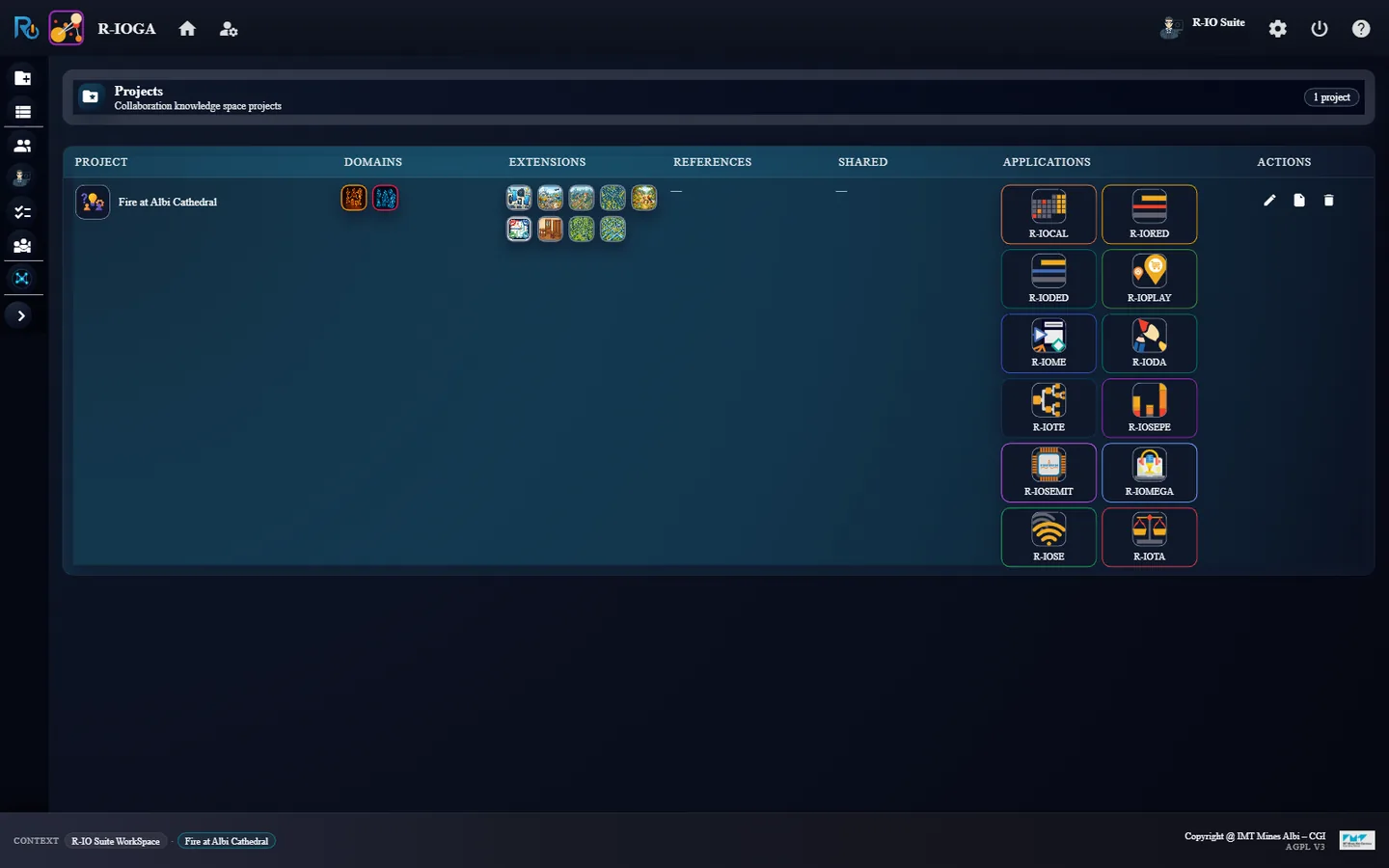
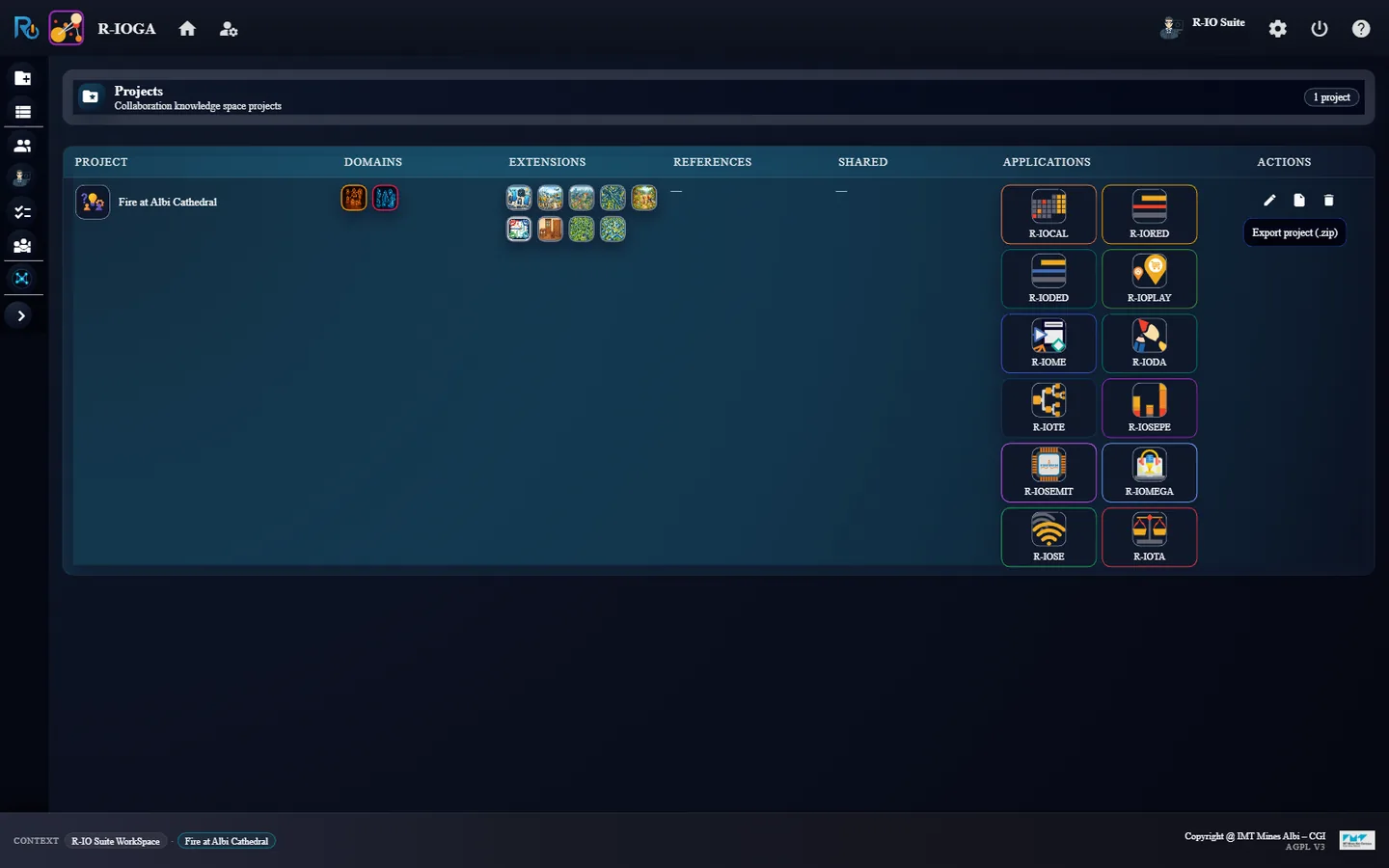
r-ioga - the domains offered to create a project.The creation form, renamed Fire at Albi Cathedral, with the Crisis extensions preselected.Clear all references: no reference base is attached.The AI provider used by the assistants of the project: Albert, with the model gemma-4-31b-it.Project List: the new project, no reference, and its twelve application launchers.
ResultProject List shows Fire at Albi Cathedral with the Collaborative and Crisis domains, an empty References column and twelve launchers in Applications. Every application opened from this row works in the context of the project.
02 · Step
Describe the city with the AI Creator Assistant
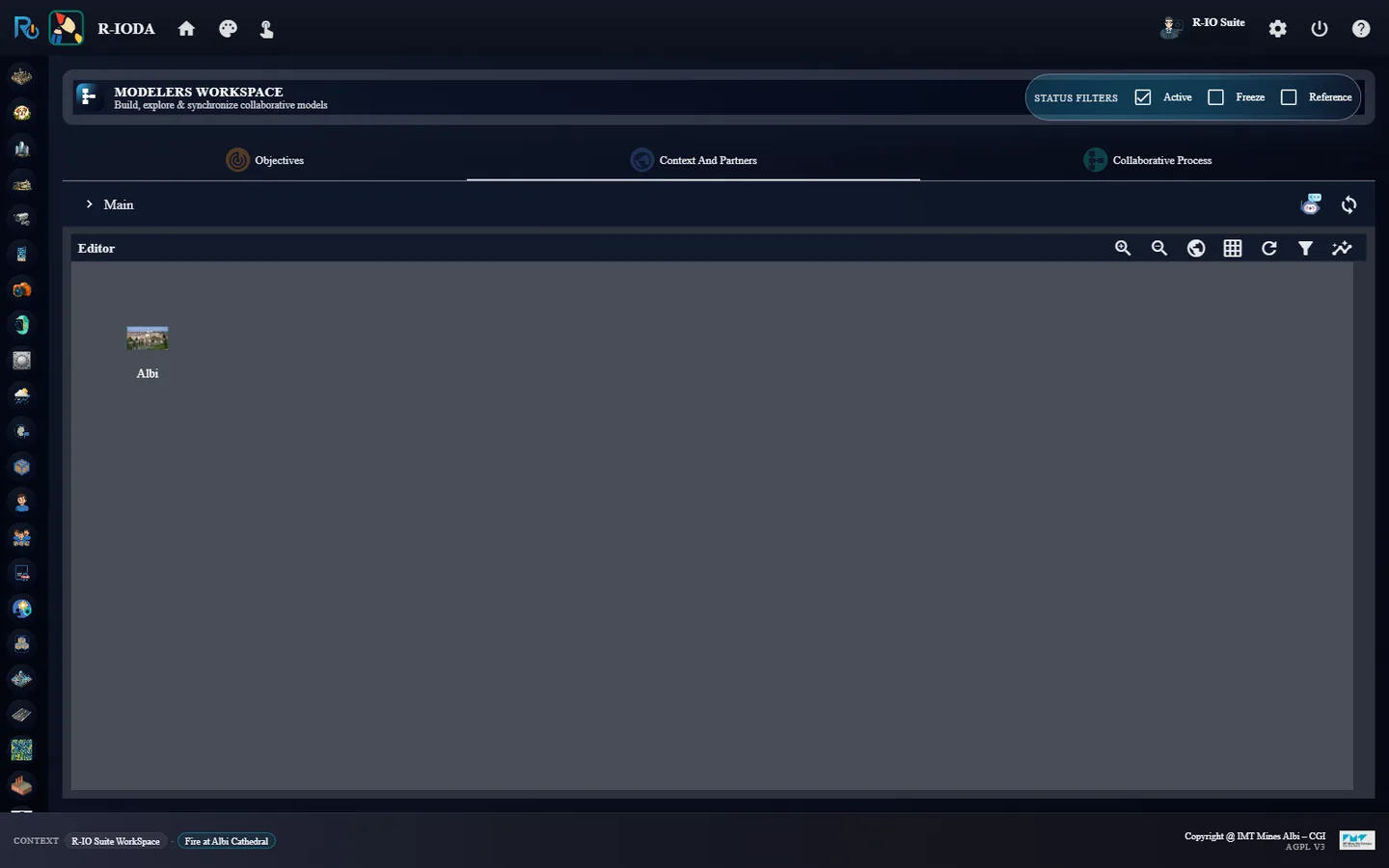
The AI Creator Assistant of r-ioda creates instances of the metamodel from a short description. For places it geocodes the address and brings back the outline and a photo.
Launch r-ioda from the Applications column and open the Context And Partners tab.
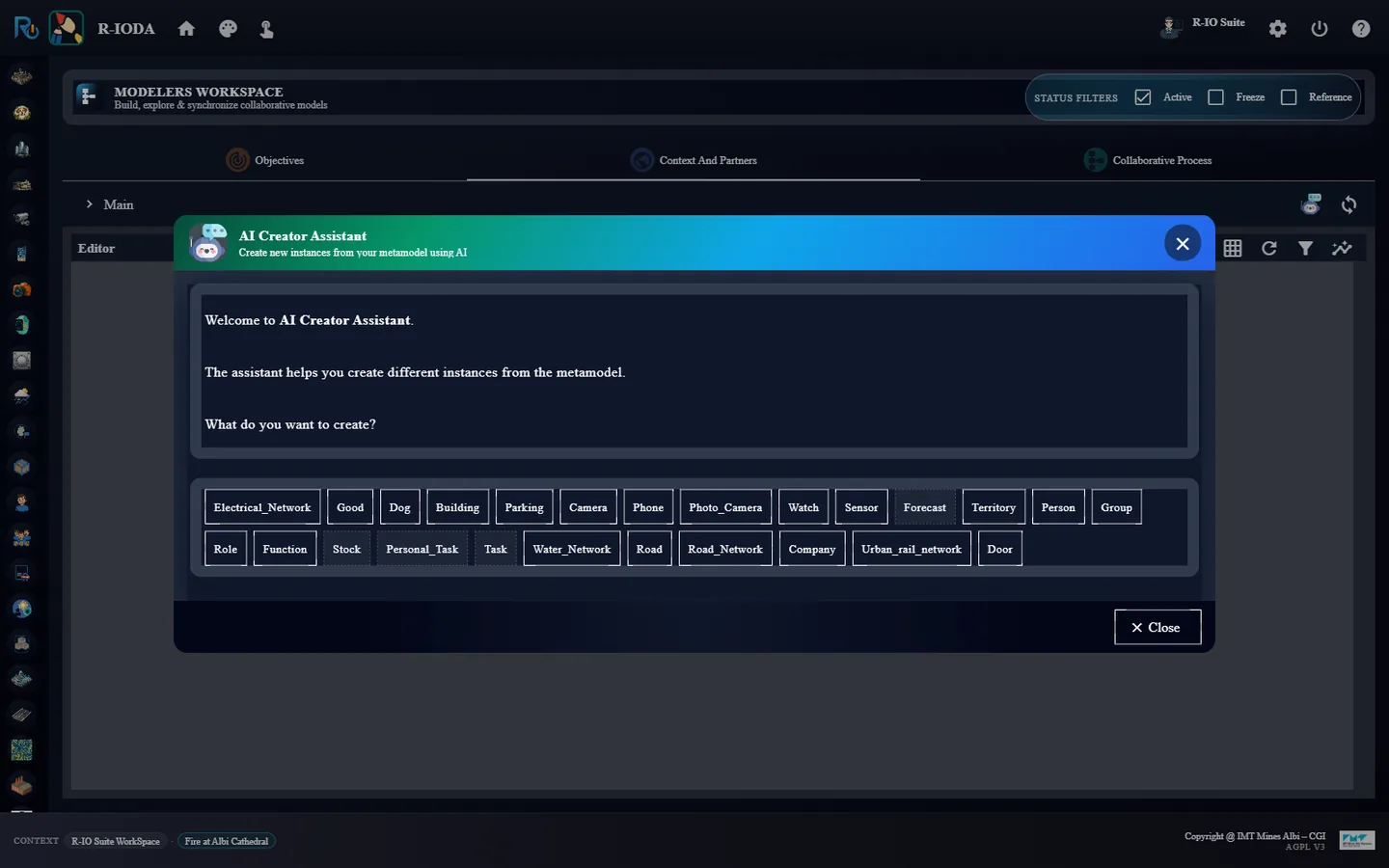
Click the robot icon AI Creator Assistant, then Territory.
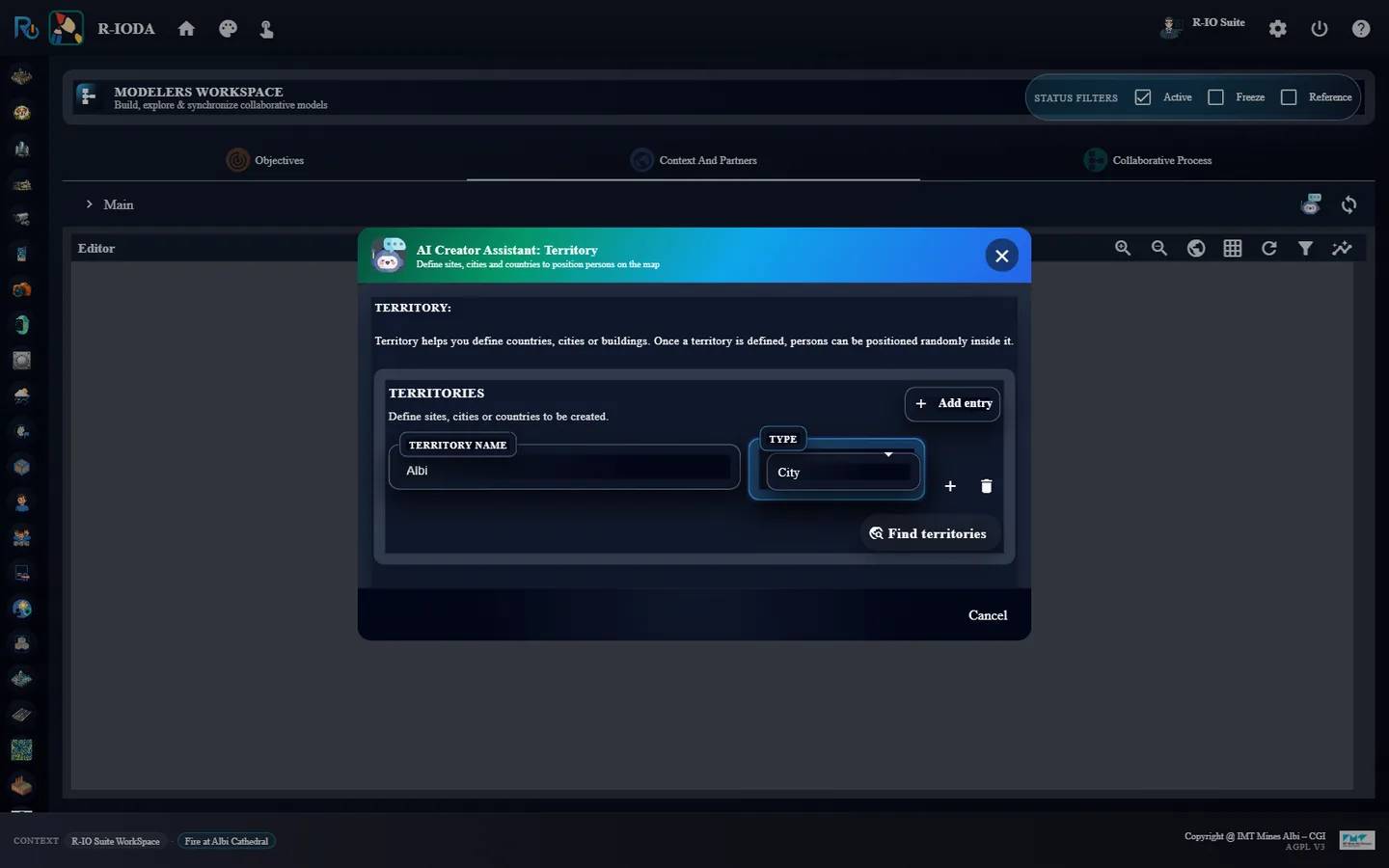
Enter Albi, type City, and click Find territories.
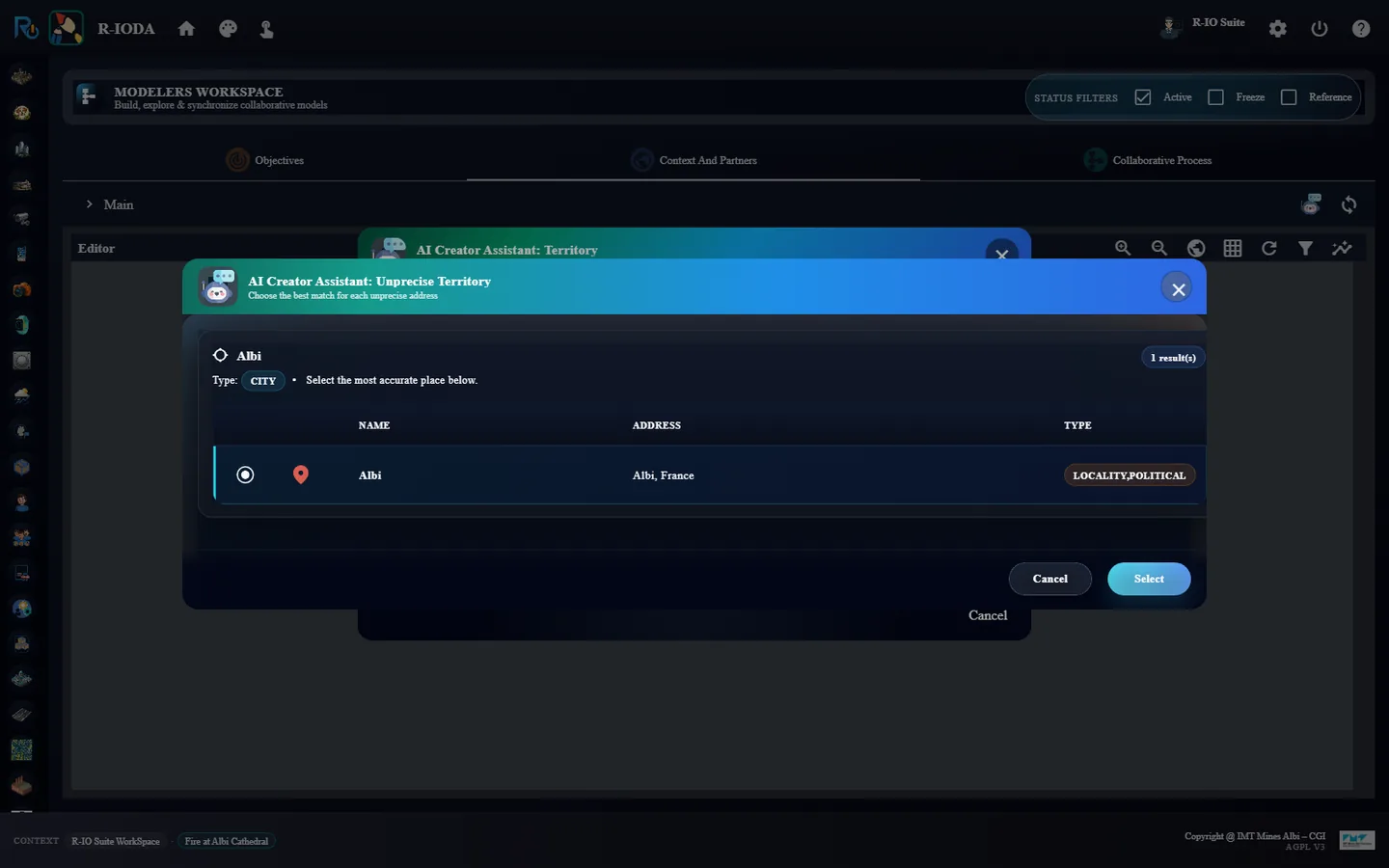
Keep the proposed place Albi, France, click Select, then Push.
r-ioda - the concepts the assistant can create in Context And Partners.Albi, as a city.The geocoding match to confirm.The Albi territory, with its photo.
ResultThe Albi territory is created in the Active space, with its city outline and a photo.
03 · Step
Add the cathedral and fix it onto Albi
The building is created the same way. A Fixed_Onto relation then says where it stands.
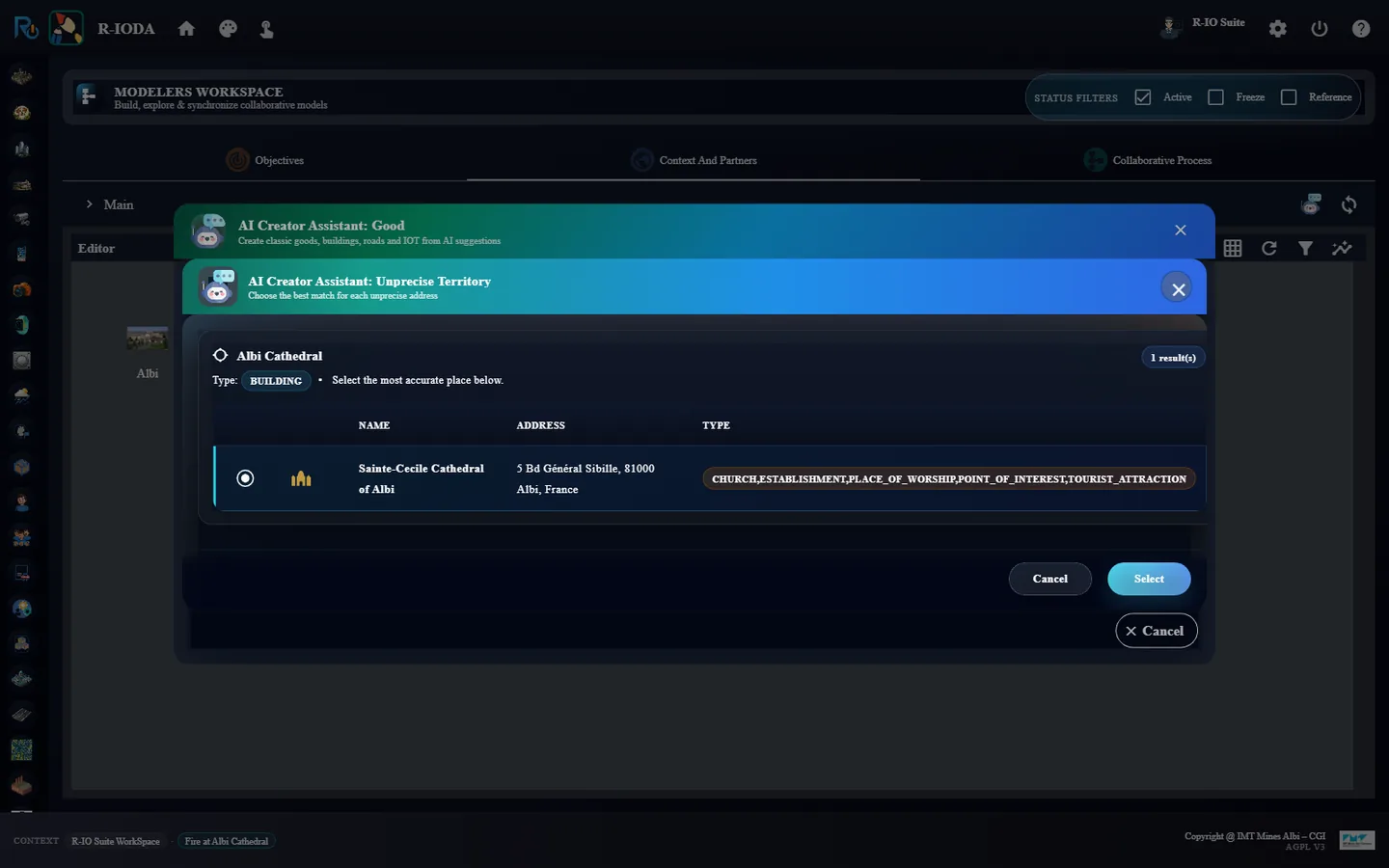
Open the AI Creator Assistant again, choose Building, enter Albi Cathedral and click Find buildings.
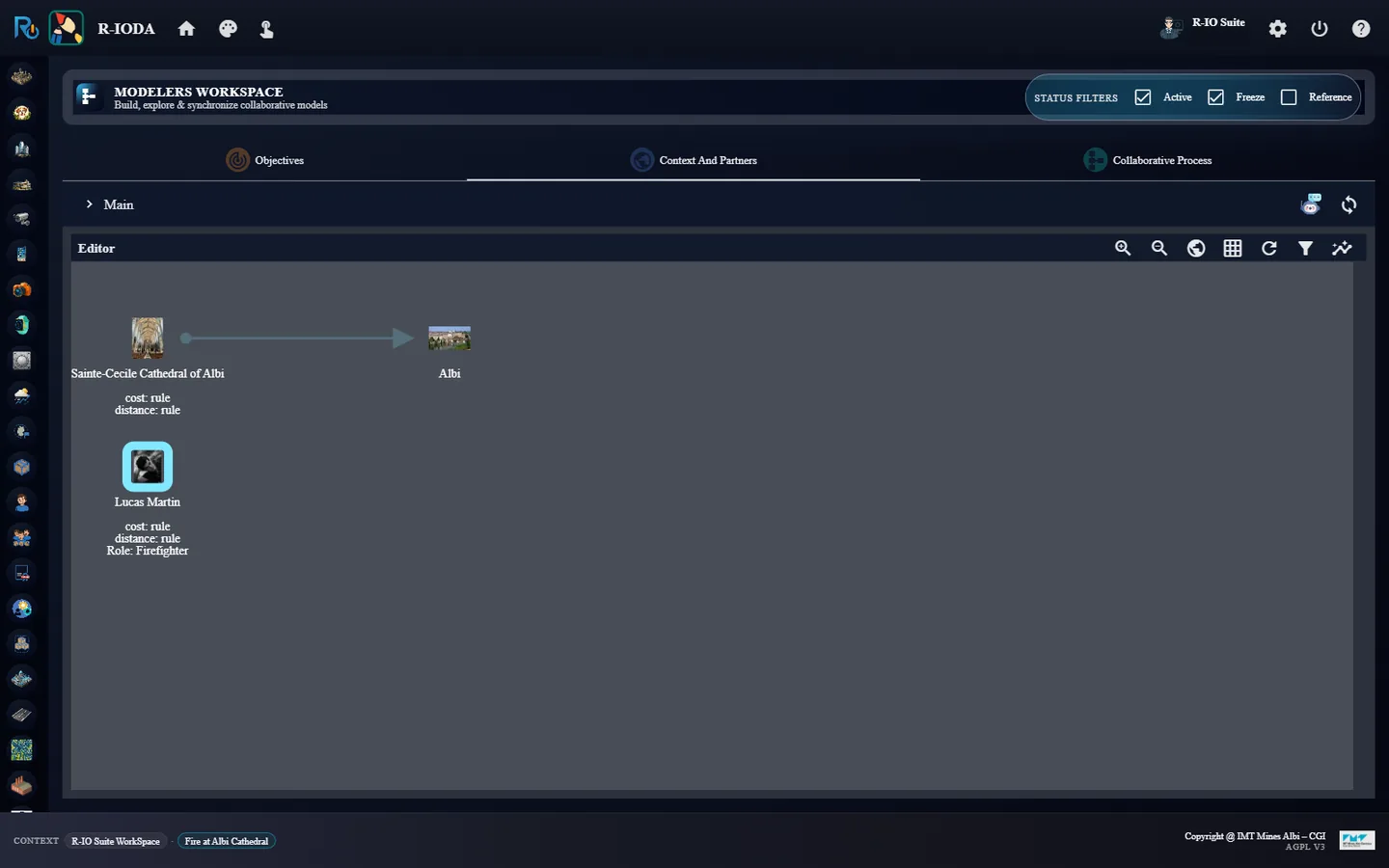
Select Sainte-Cecile Cathedral of Albi and push it.
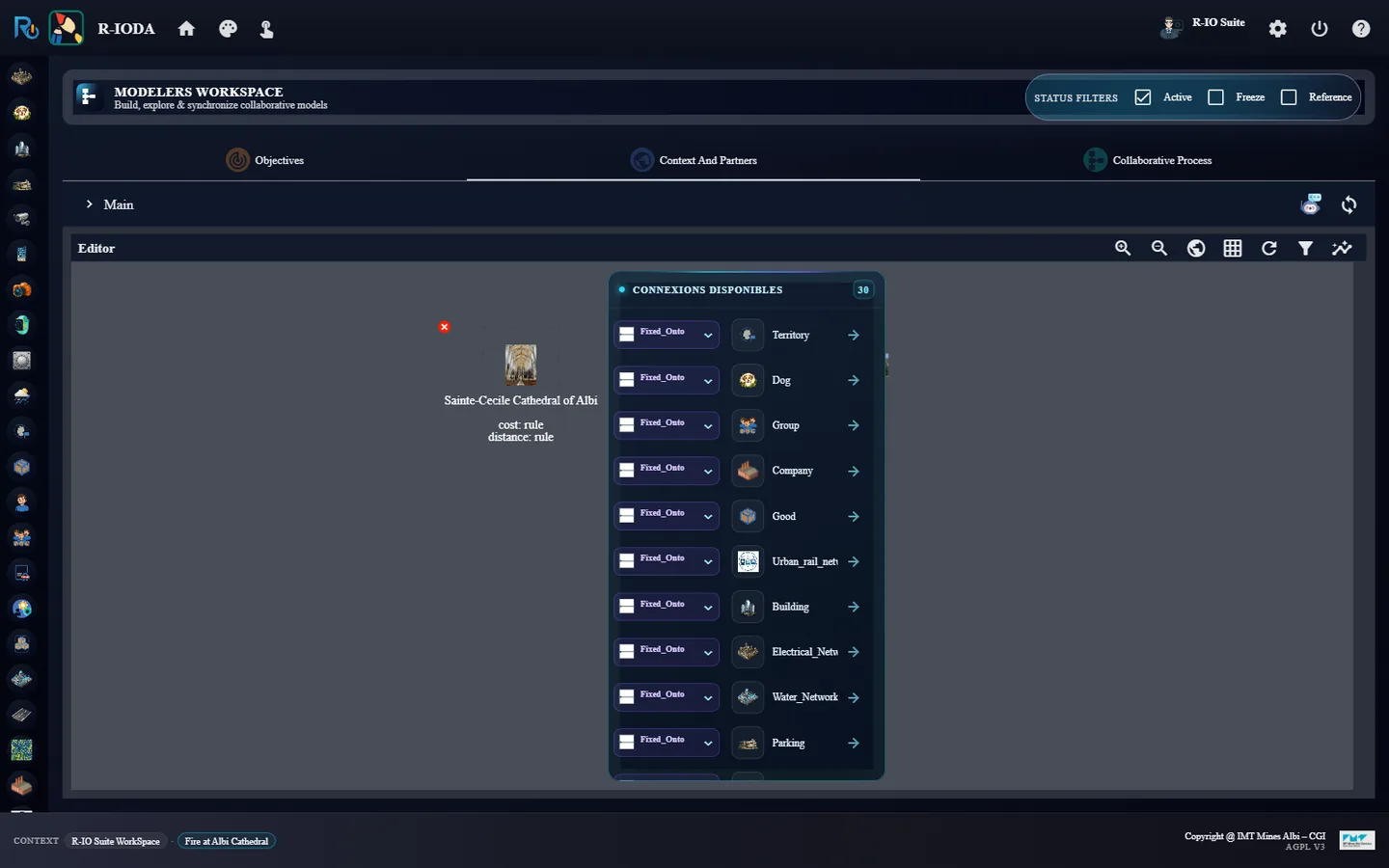
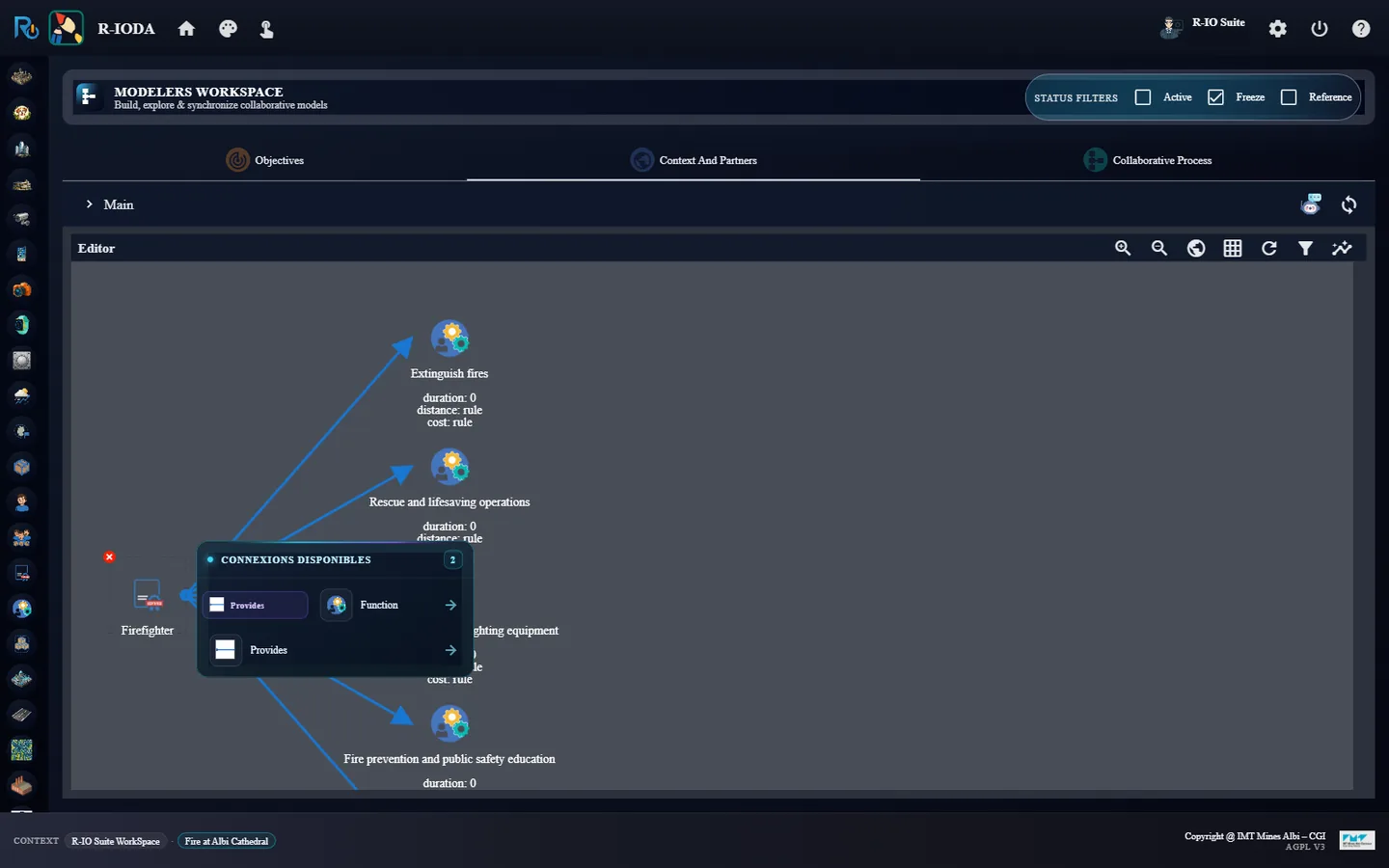
Right-click the cathedral: the Connexions disponibles menu lists the relations it can carry. Click Fixed_Onto.
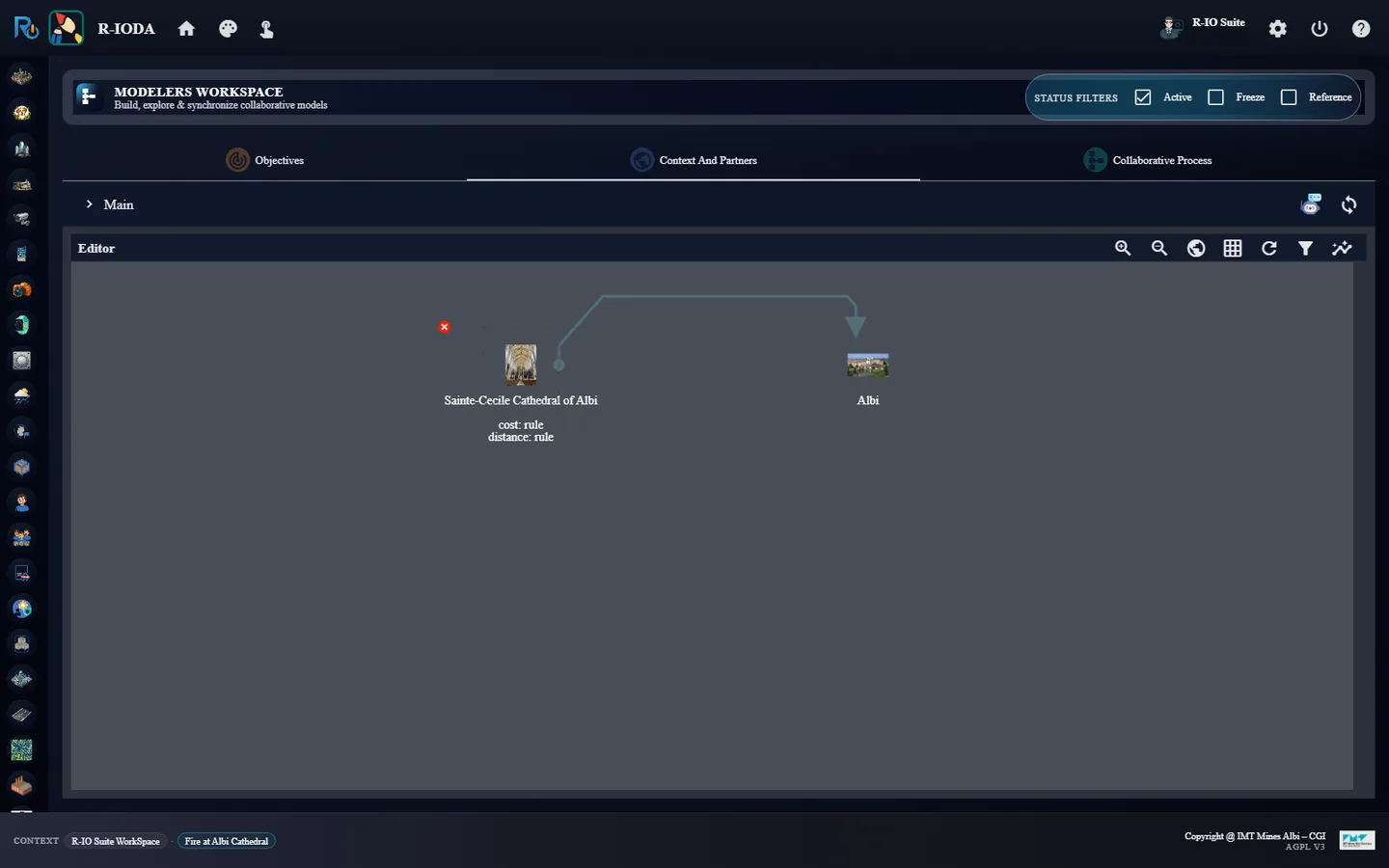
Drag the free end of the new arrow onto Albi.
The cathedral found by the geocoding.The relations available from the cathedral.Sainte-Cecile Cathedral of Albi, Fixed_Onto Albi.
ResultThe cathedral is fixed onto Albi: its geometry will later place the sensor and the alert on the map.
04 · Step
Check the geolocation in r-ioplay
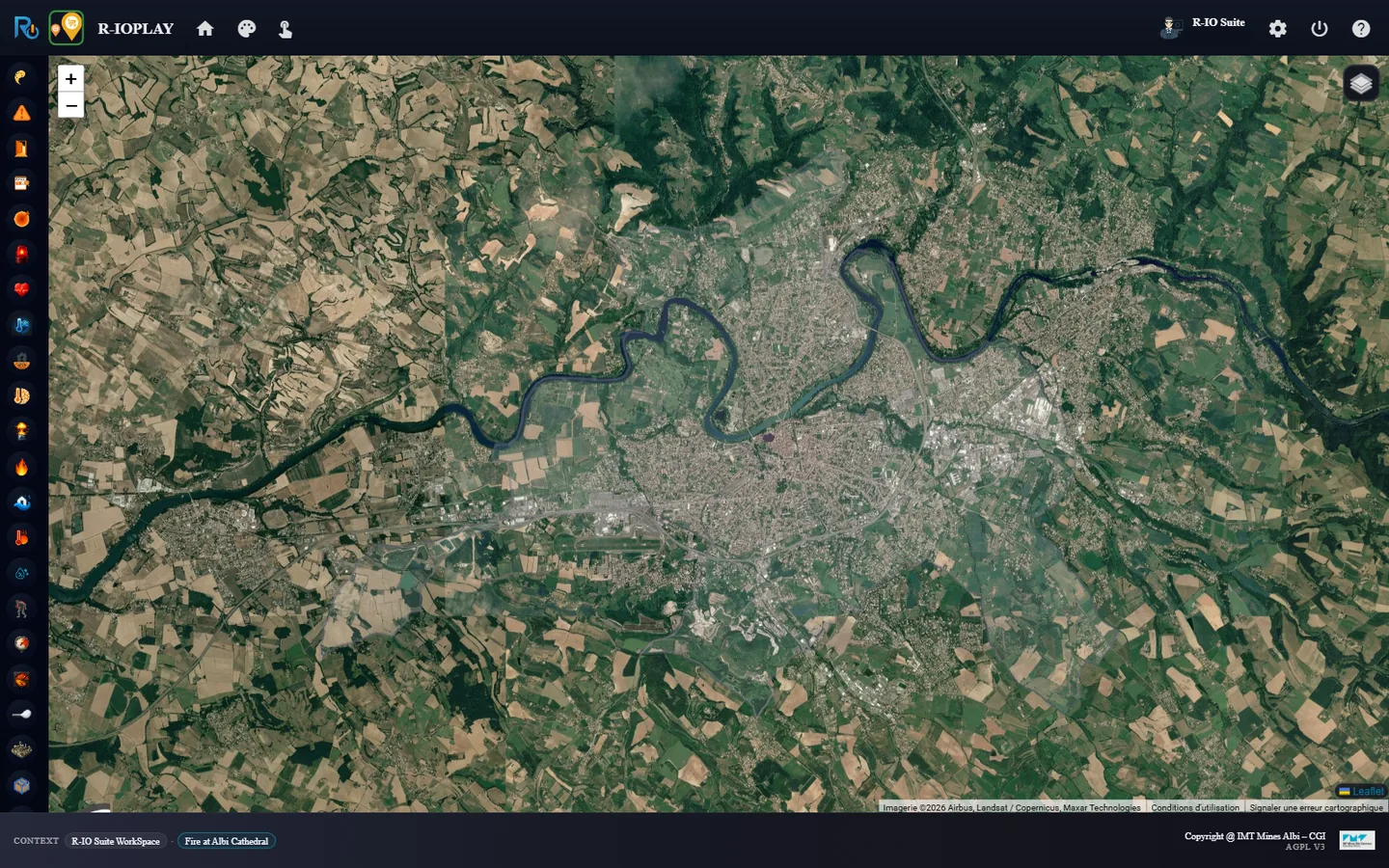
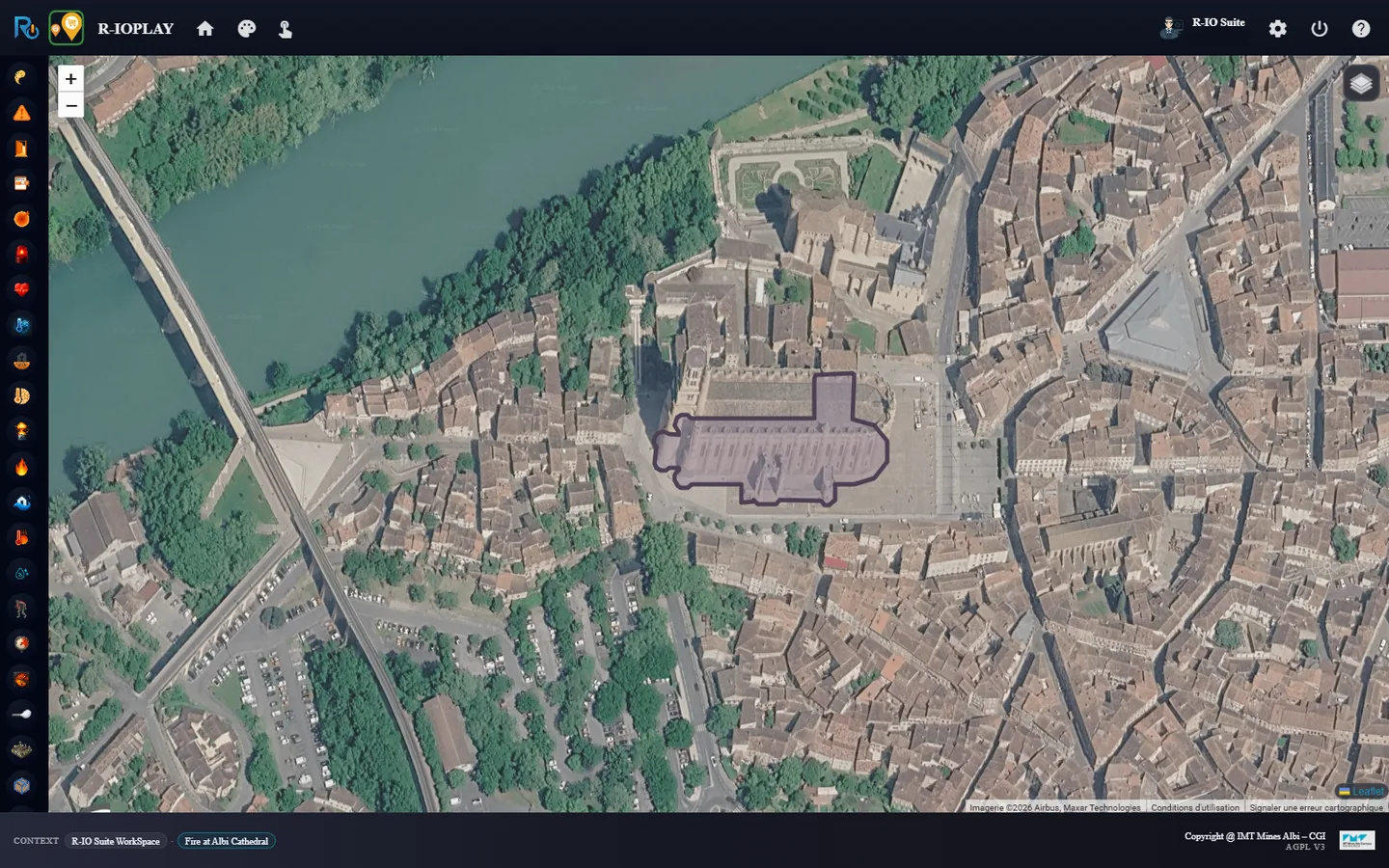
The two places created by the assistant are real geographic shapes, not just icons on a diagram. r-ioplay, the map of the project, shows them over the satellite view.
From Project List, launch r-ioplay: the map opens on the territory of the project.
Zoom on the old town, by the Tarn, to find the cathedral.
r-ioplay - the outline of the commune of Albi; the small shape in the old town, by the Tarn, is the cathedral.The area of Sainte-Cecile Cathedral, on the bank of the Tarn. This time the OpenStreetMap service did not answer: the area is the rectangle returned by Google around the building.
ResultAlbi is the outline of the commune and the cathedral the footprint of the building, both brought back by the geocoding. When the OpenStreetMap service does not answer, the building falls back on the rectangle returned by Google, a little wider than the building. The sensor fixed onto the cathedral and the fire alert will be drawn at this very place. The assistant gives each area a random greyish tint that gets stronger as the area gets smaller: the city very pale and very transparent, a site a little stronger, a building stronger still, so that the building stays readable over the city.
05 · Step
Ask the assistant for a firefighter role
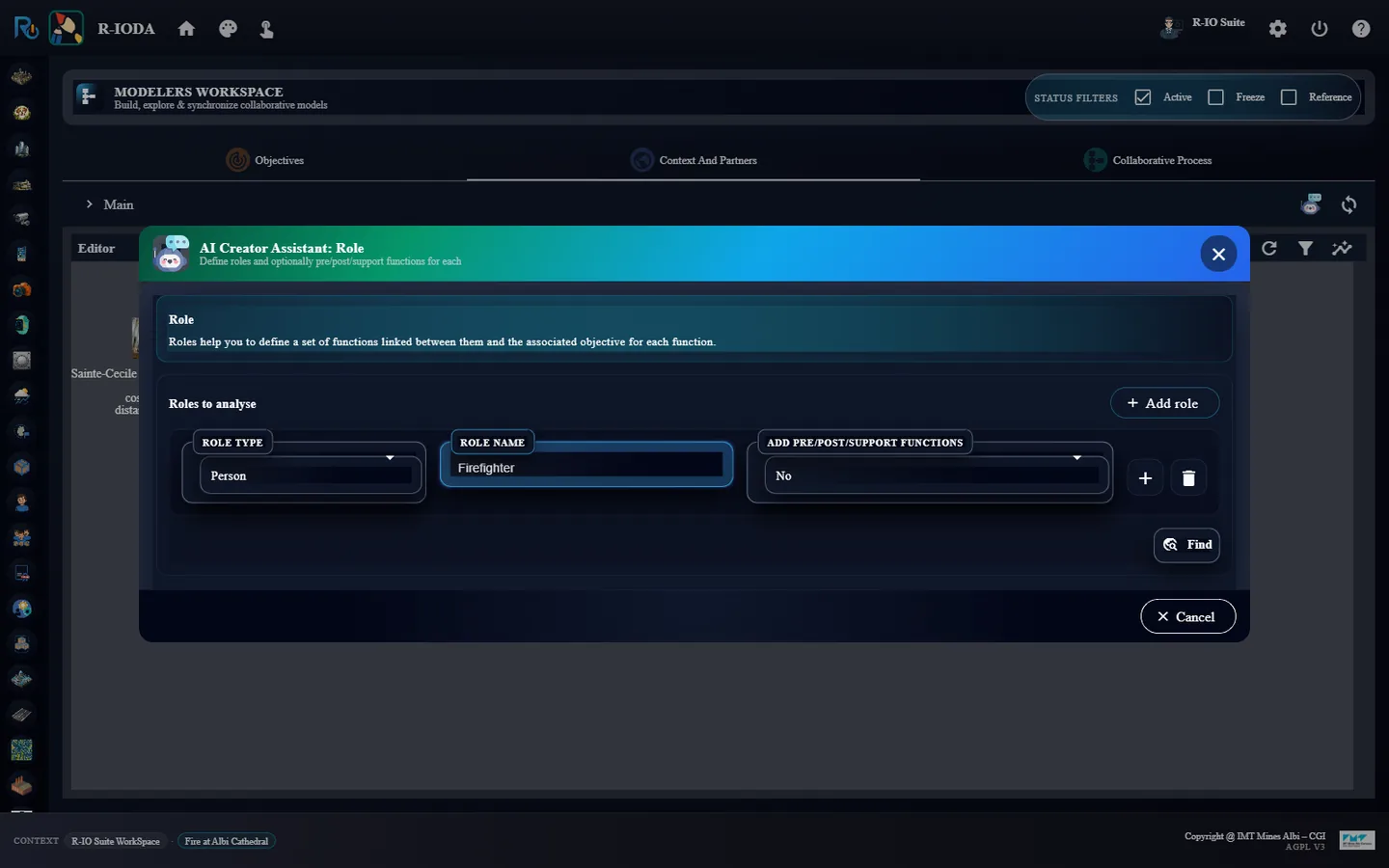
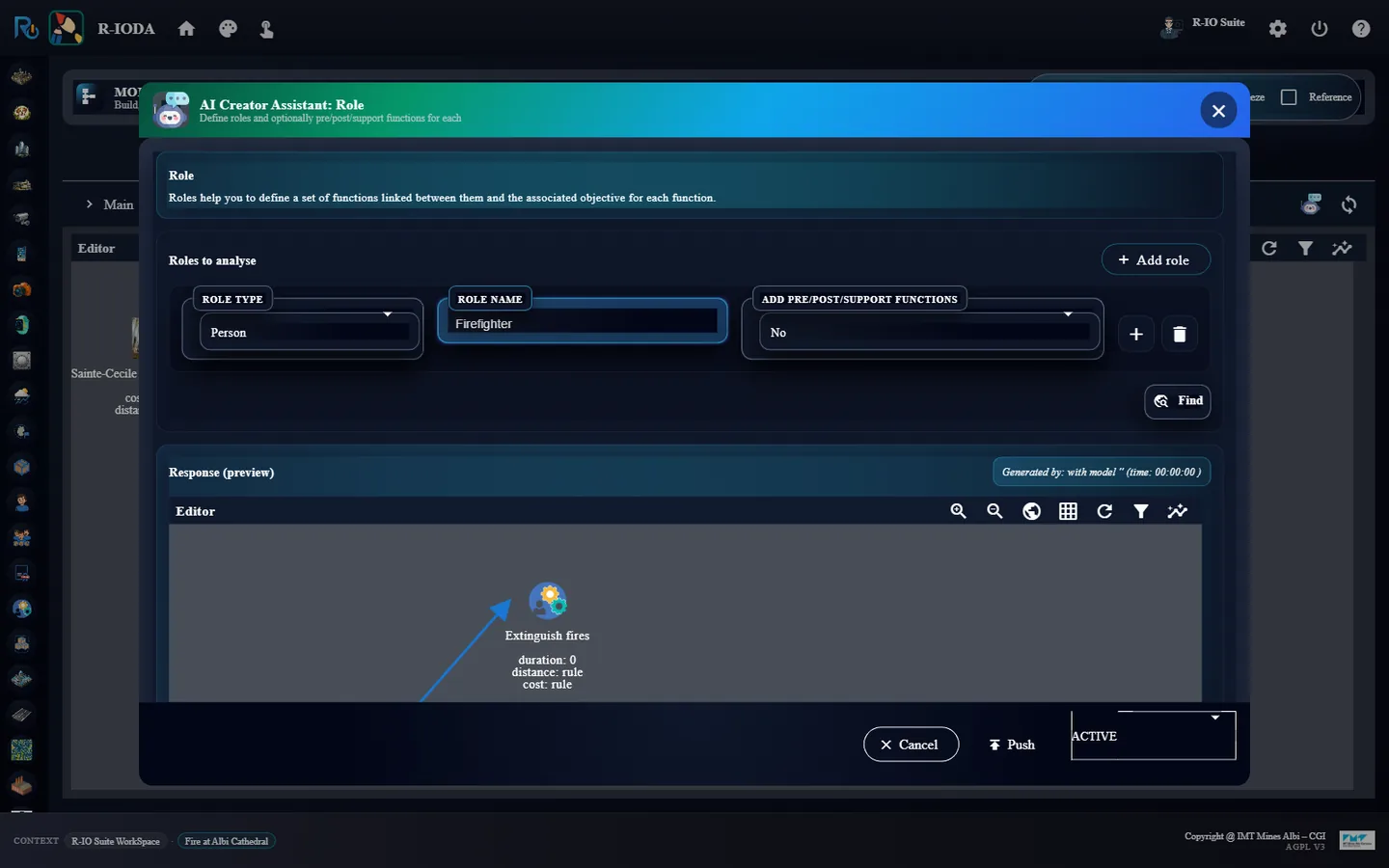
A role groups the functions an actor can perform. The assistant asks the configured LLM which functions a firefighter provides: the exact list changes from one run to another.
Open the AI Creator Assistant, choose Role, keep the type Person and enter Firefighter, then click Find.
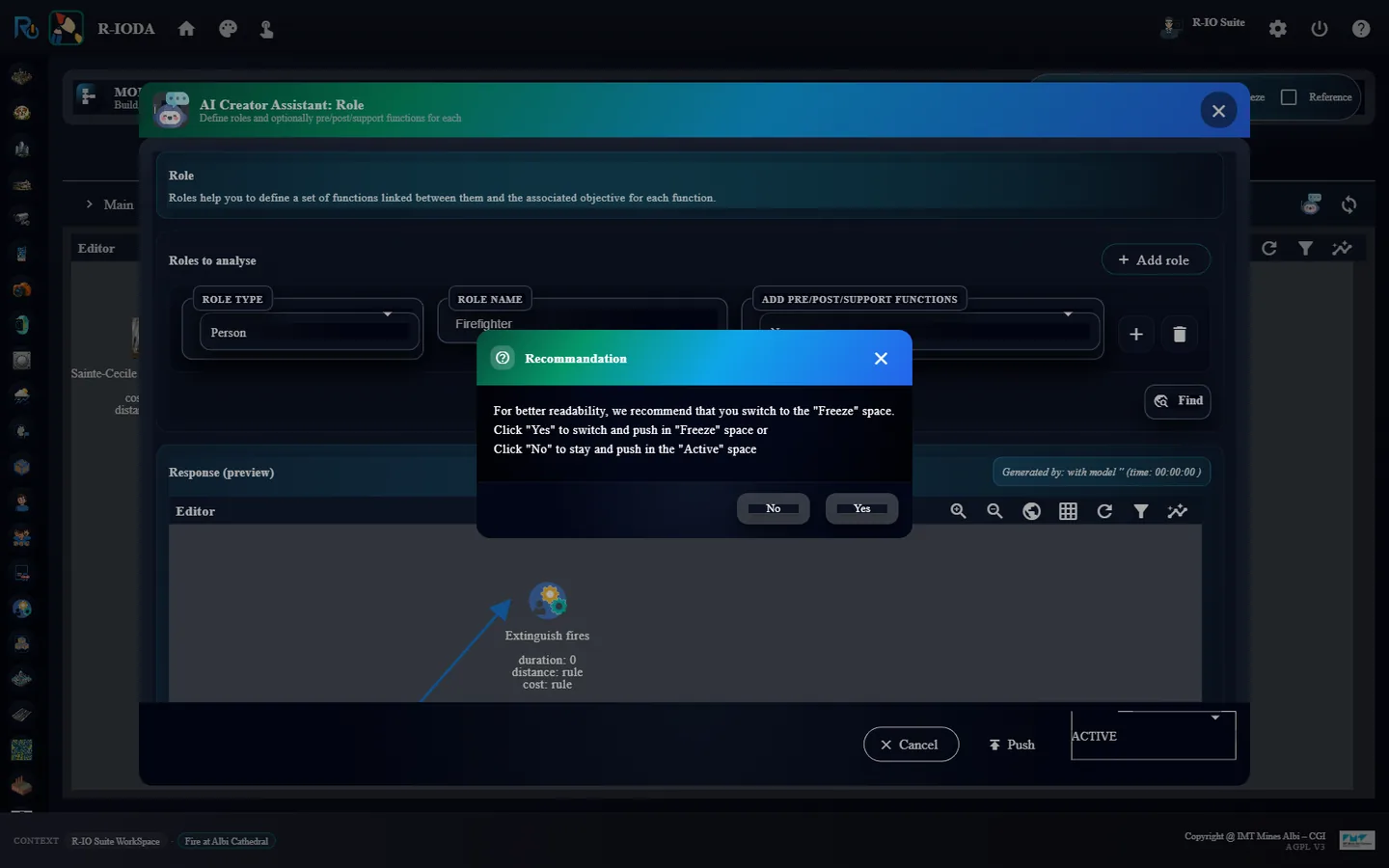
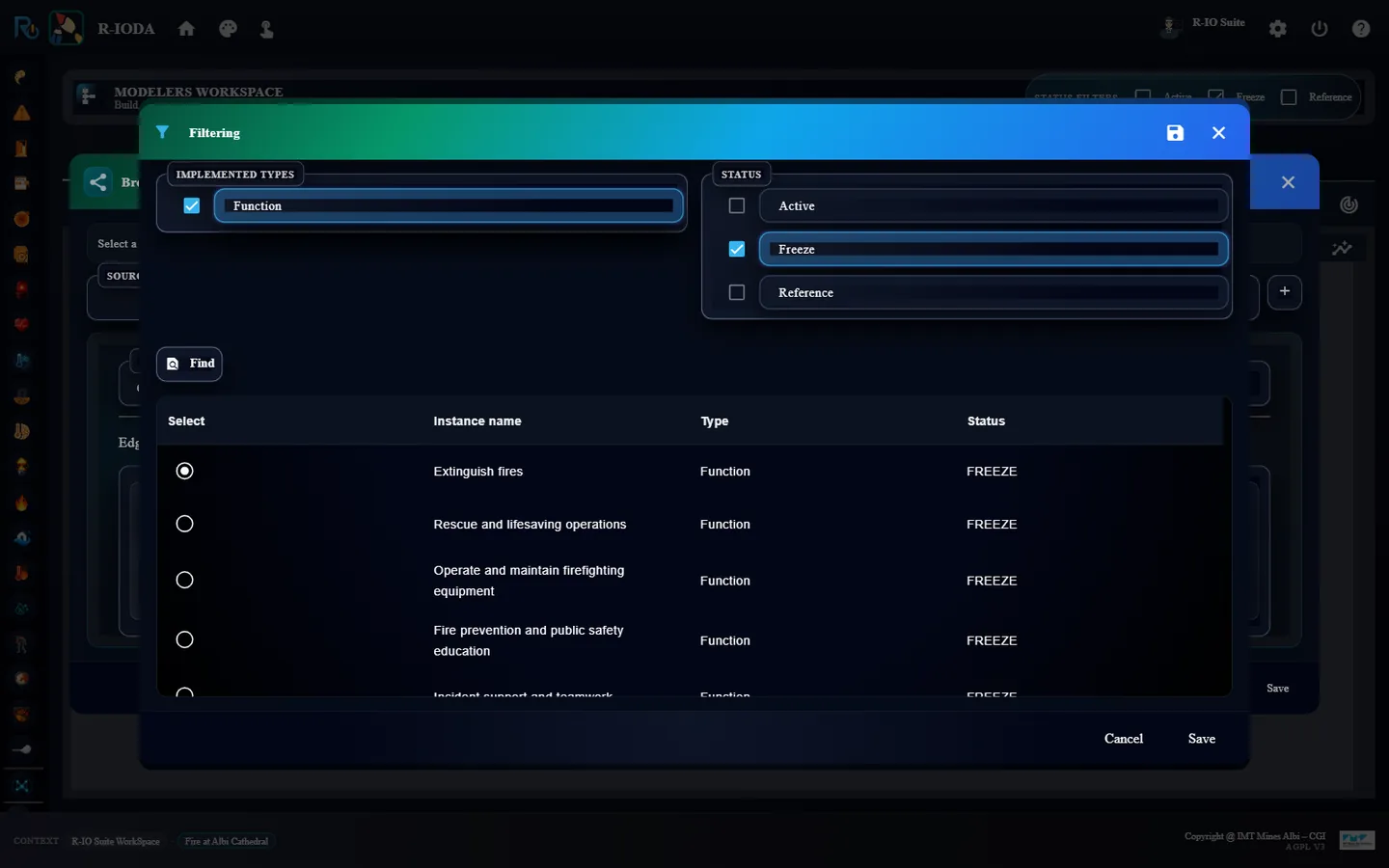
Click Push. r-ioda recommends storing roles and functions in the Freeze space, the knowledge the deduction draws on: answer Yes.
Check only the Freeze status filter to see them.
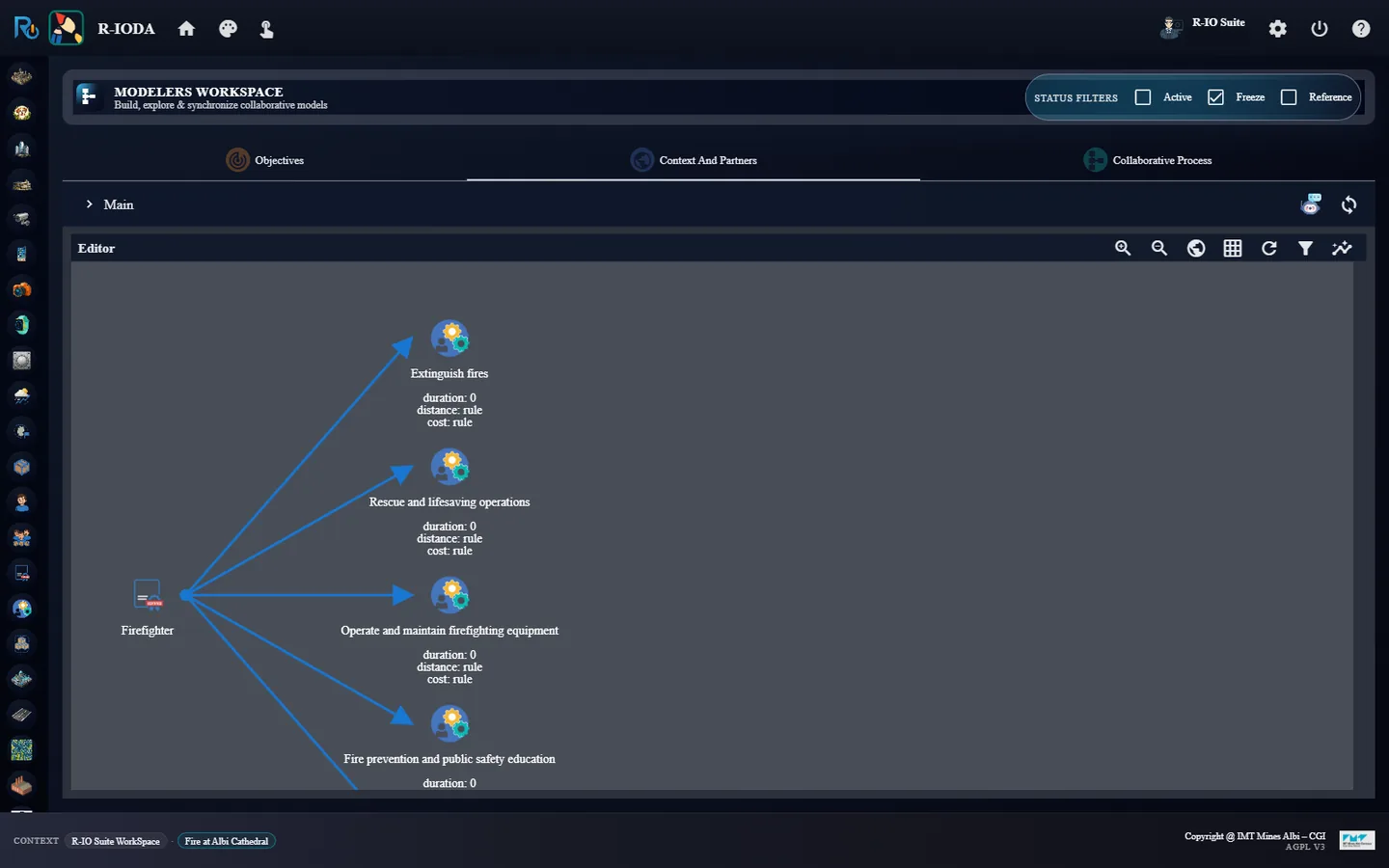
A Person role named Firefighter.The functions proposed by the LLM.The recommendation to push into the Freeze space.Firefighter and its functions, in the Freeze space.
ResultThe Firefighter role provides four functions, all frozen: Fire Suppression, Search and Rescue, Emergency Medical Response and Hazardous Materials Mitigation. The names come from the LLM: with OpenAI the extinguishing function is usually called Extinguish fires. The rest of this walkthrough uses the extinguishing function proposed here, Fire Suppression.
06 · Step
Add Confirm Fire and its condition
Before fighting a fire, a firefighter must confirm it. This function is added by hand, with an output variable, and Fire Suppression needs it: the fire is only fought once it is confirmed.
Right-click Firefighter and choose Provides → Function. Double-click the new function and name it Confirm Fire.
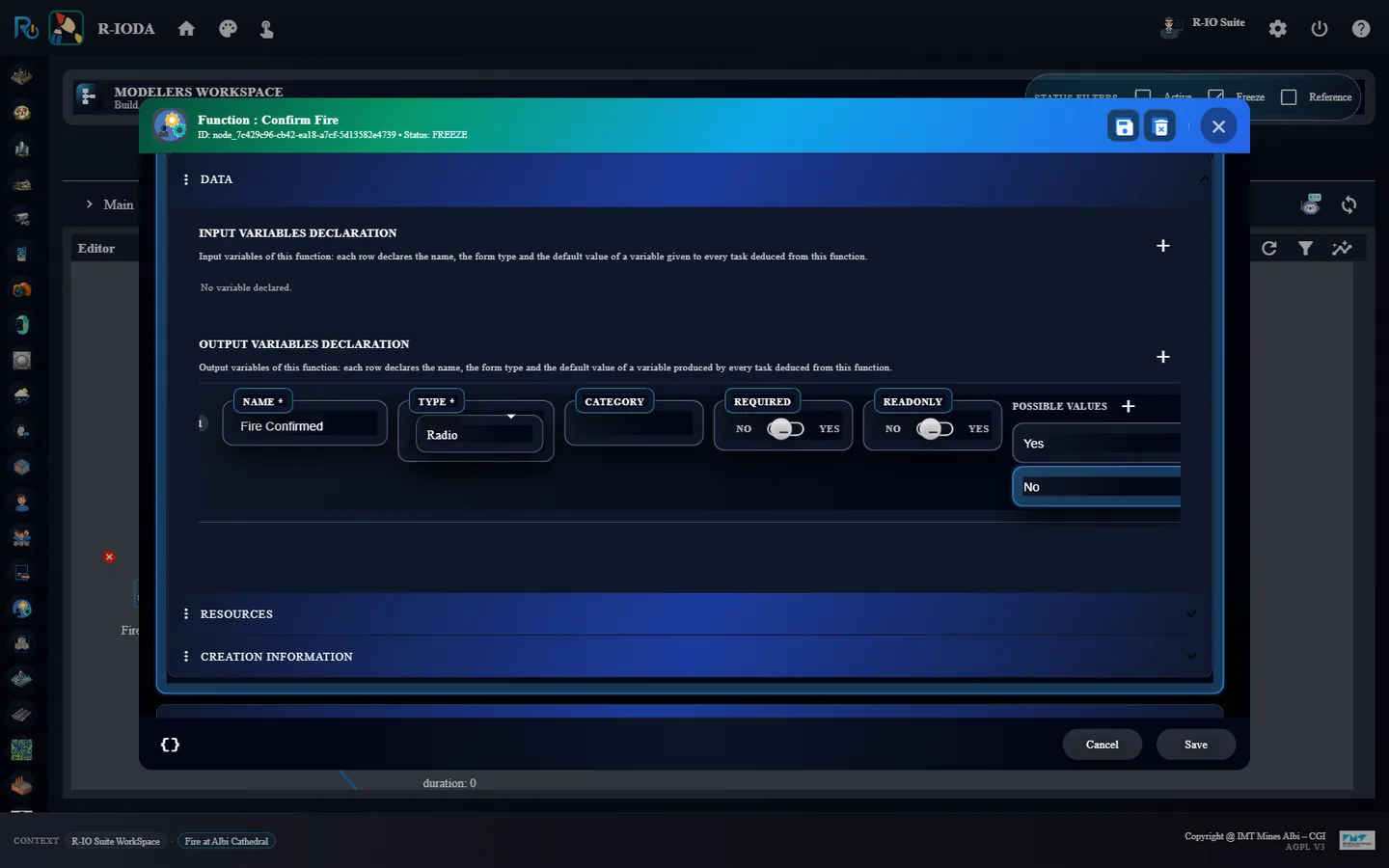
In DATA, Output variables declaration, declare a variable Fire Confirmed of type Radio with the possible values Yes and No, then Save.
Right-click Fire Suppression, choose Needs and drop the arrow on Confirm Fire.
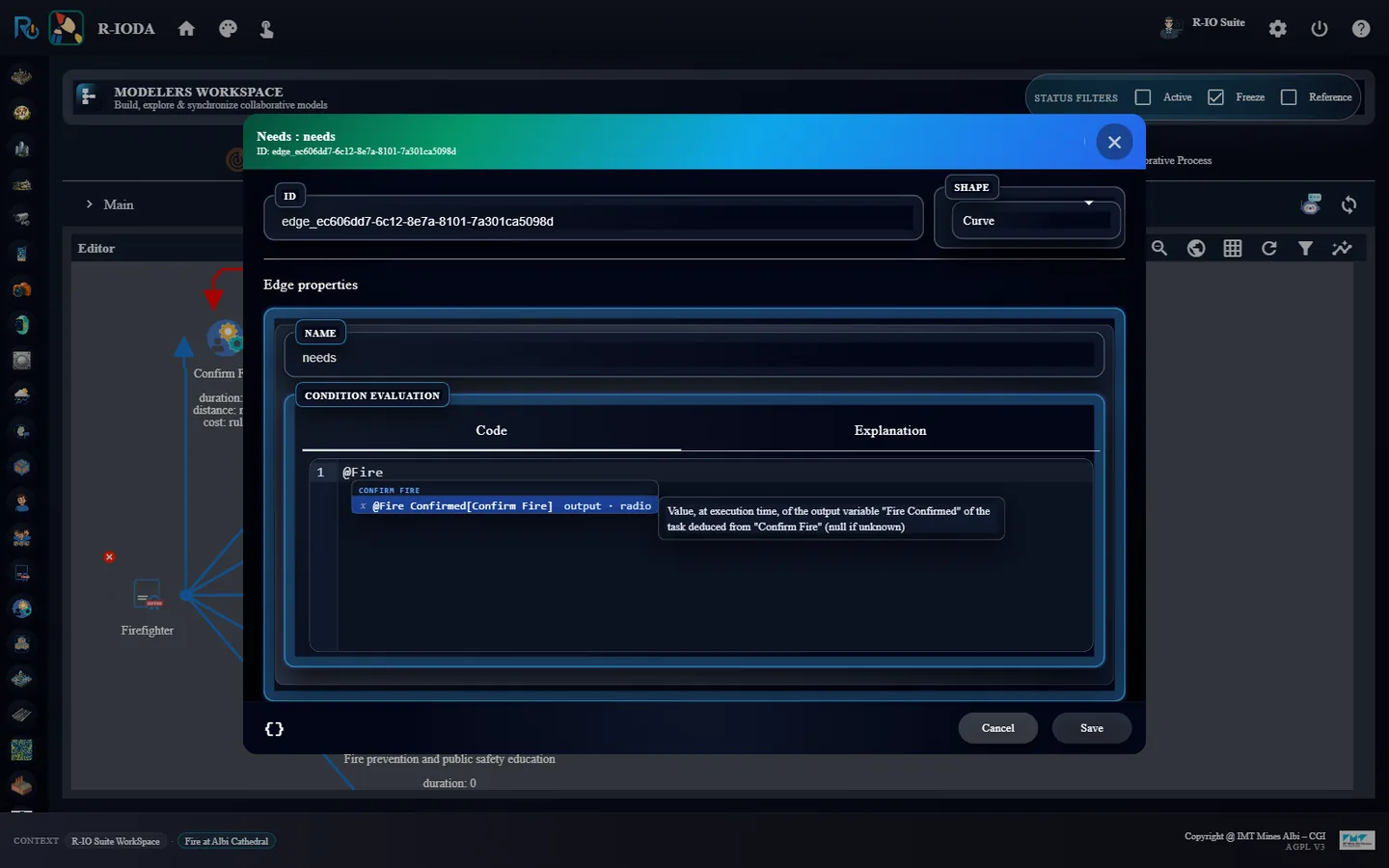
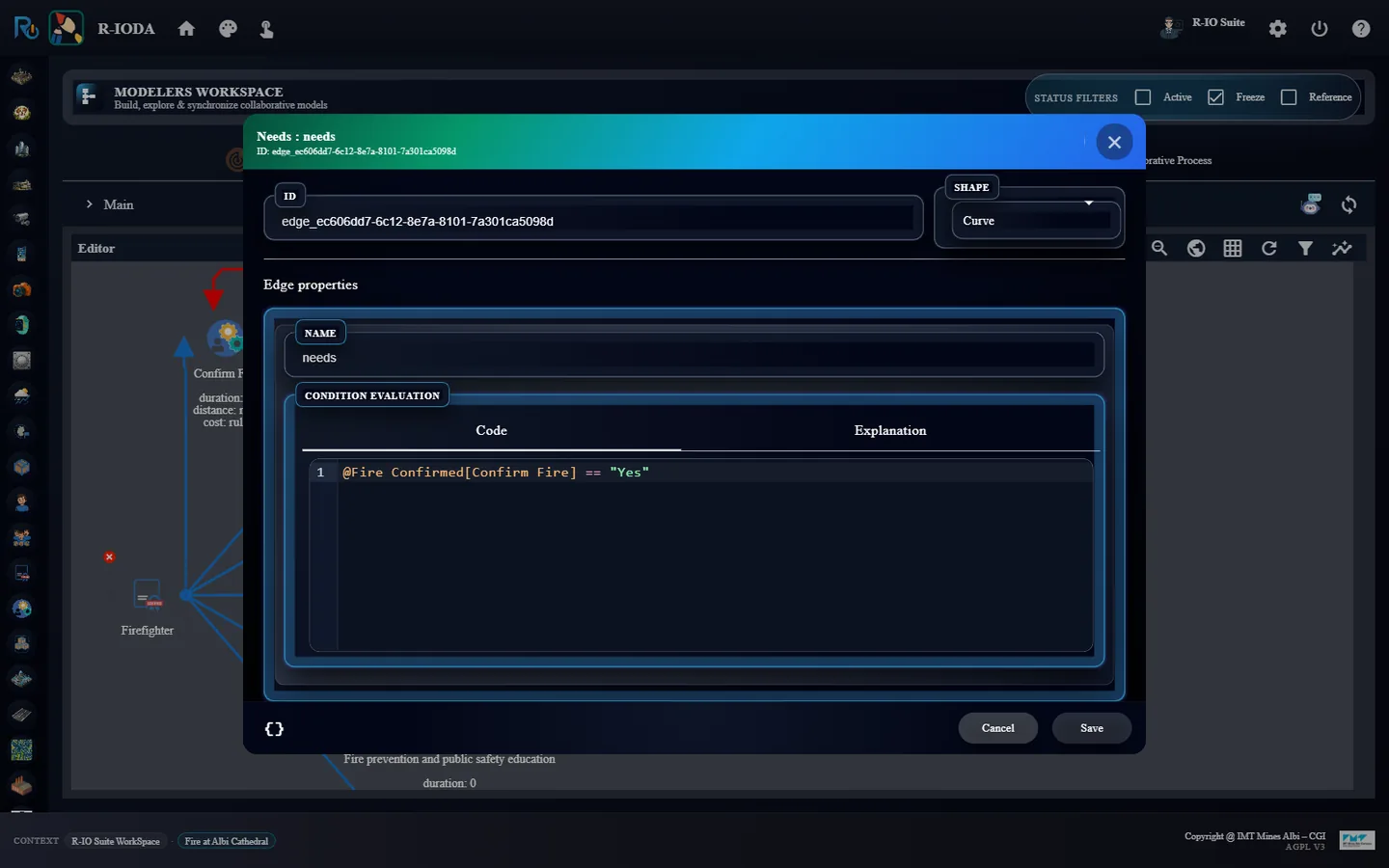
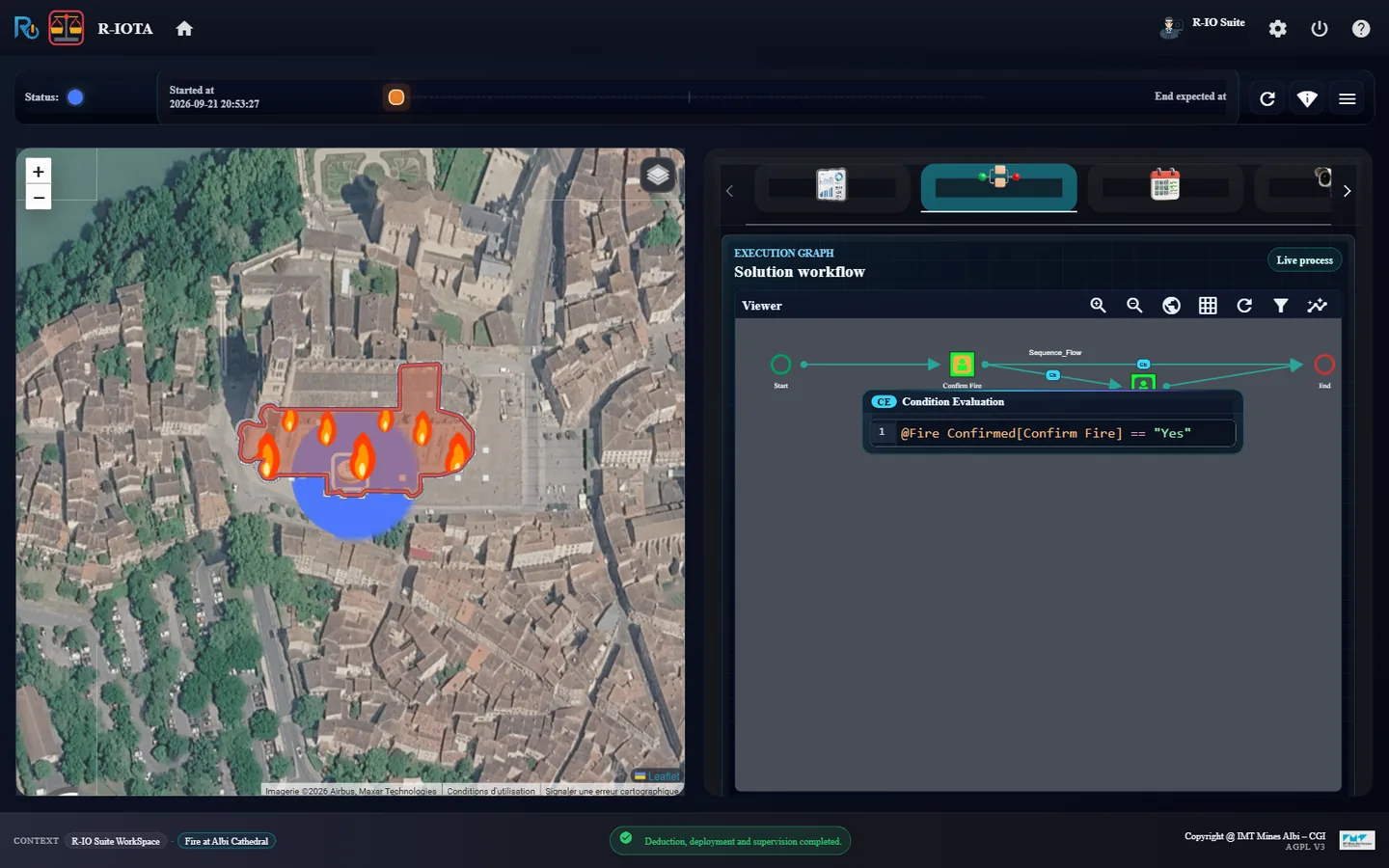
Double-click the Needs edge. In Condition Evaluation, type @: the editor proposes @Fire Confirmed[Confirm Fire]. Complete it into @Fire Confirmed[Confirm Fire] == "Yes" and Save.
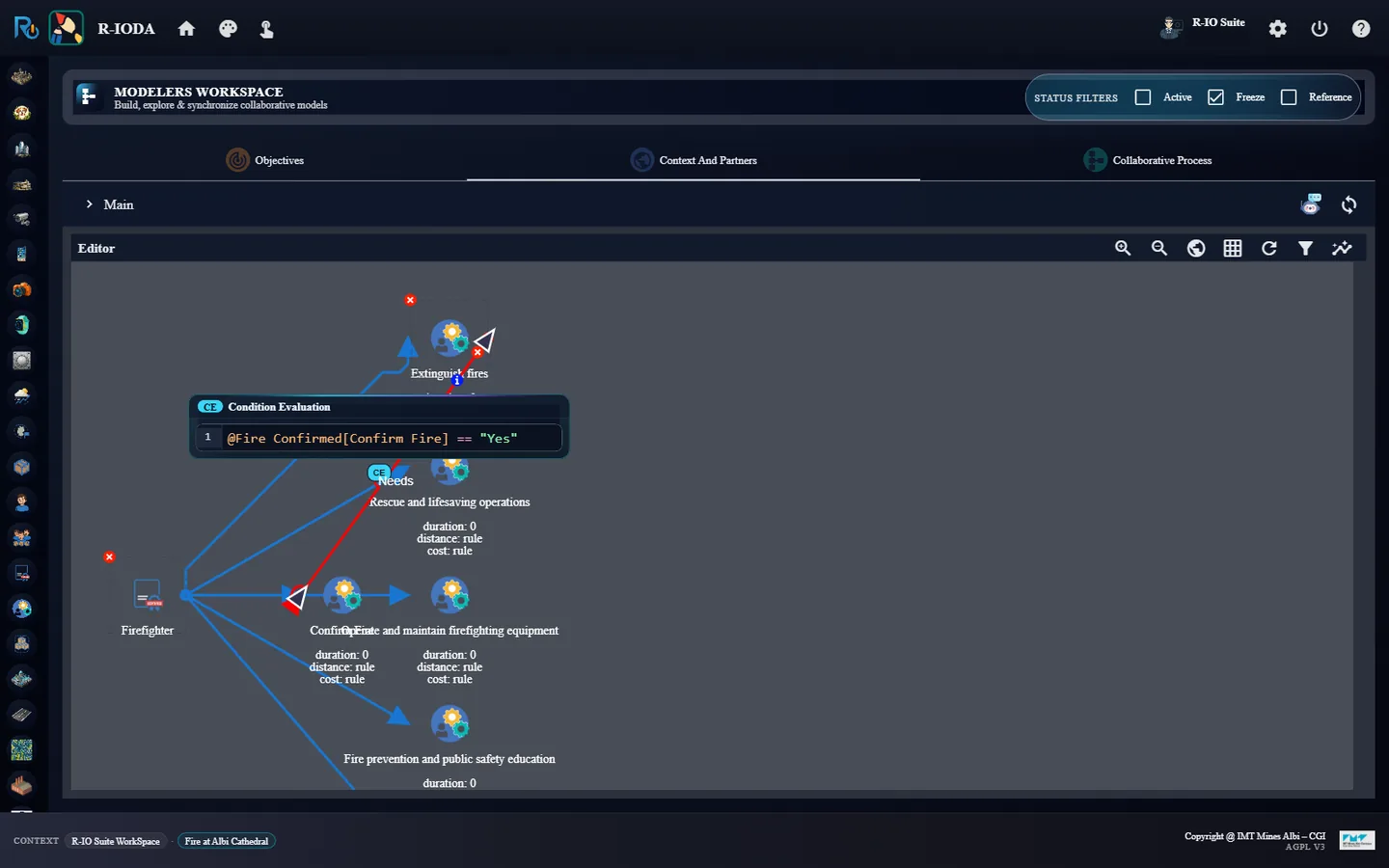
Provides → Function from the role.The Radio output variable Fire Confirmed, Yes or No.The editor proposes the output variables of the linked functions.The condition of the Needs edge, a single 2L expression.Fire Suppression needs Confirm Fire; the CE badge marks the edge carrying a condition, and hovering it shows the code.
ResultFire SuppressionNeedsConfirm Fire: whenever the deduction retains the extinction, it adds the confirmation before it. The condition of the edge, a single boolean expression, @Fire Confirmed[Confirm Fire] == "Yes", guards Fire Suppression: the variable is read on the task deduced from Confirm Fire when the process runs. In the diagram a CE badge (Condition Evaluation) marks the edge, and hovering it shows the code.
07 · Step
Add the firefighter and his r-io4U account
Actors are persons holding a role. The assistant creates one with a face and positions it in the chosen territory; the person is then renamed with a fixed name so that the login is known in advance, and linked to an application user who will do the person’s tasks in r-io4U, the mobile application.
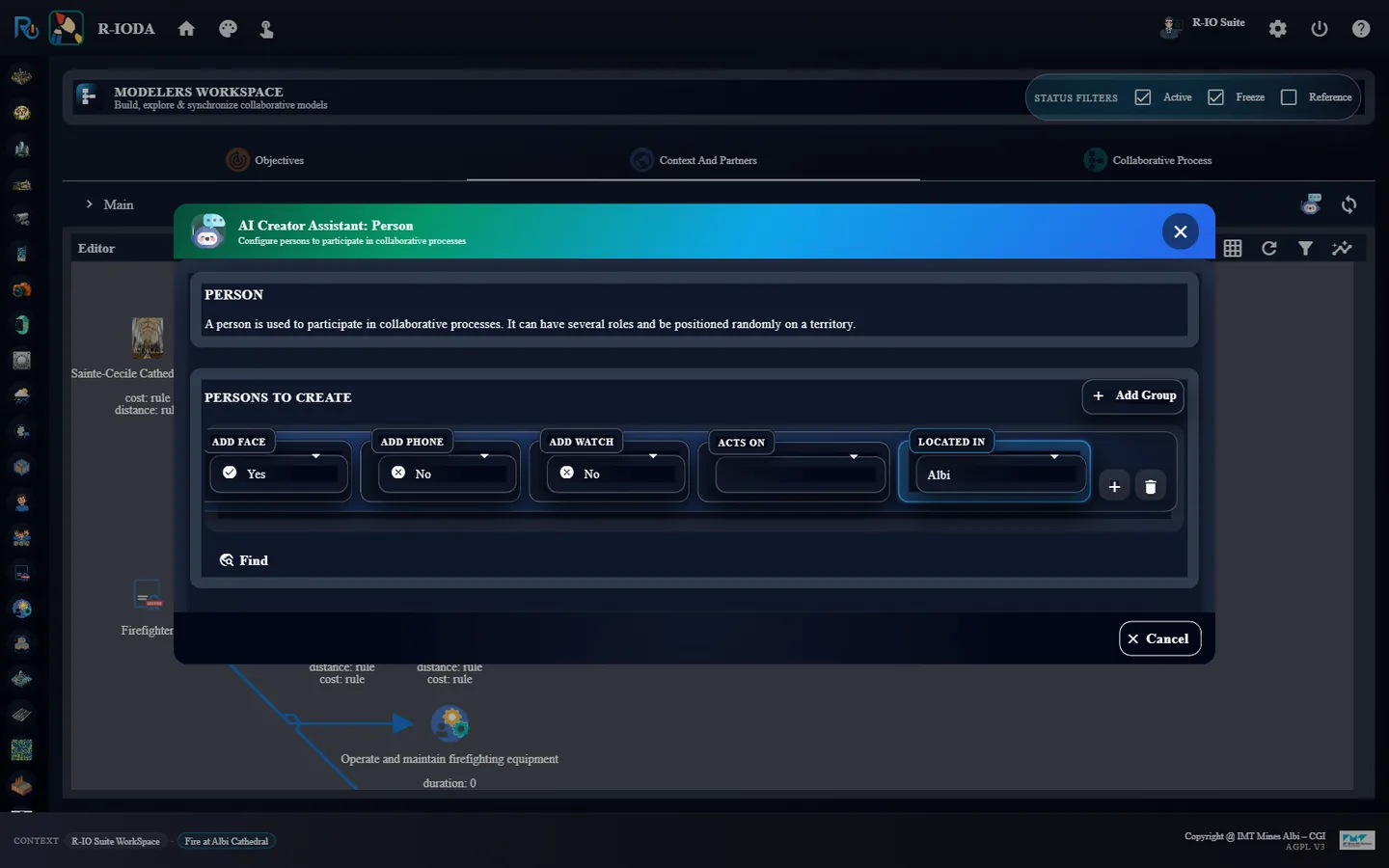
Check the Active filter again (keep Freeze) and open the AI Creator Assistant, Person.
Set Number of persons in group to 1, Roles to Firefighter, Located in to Albi, click Find, then Push.
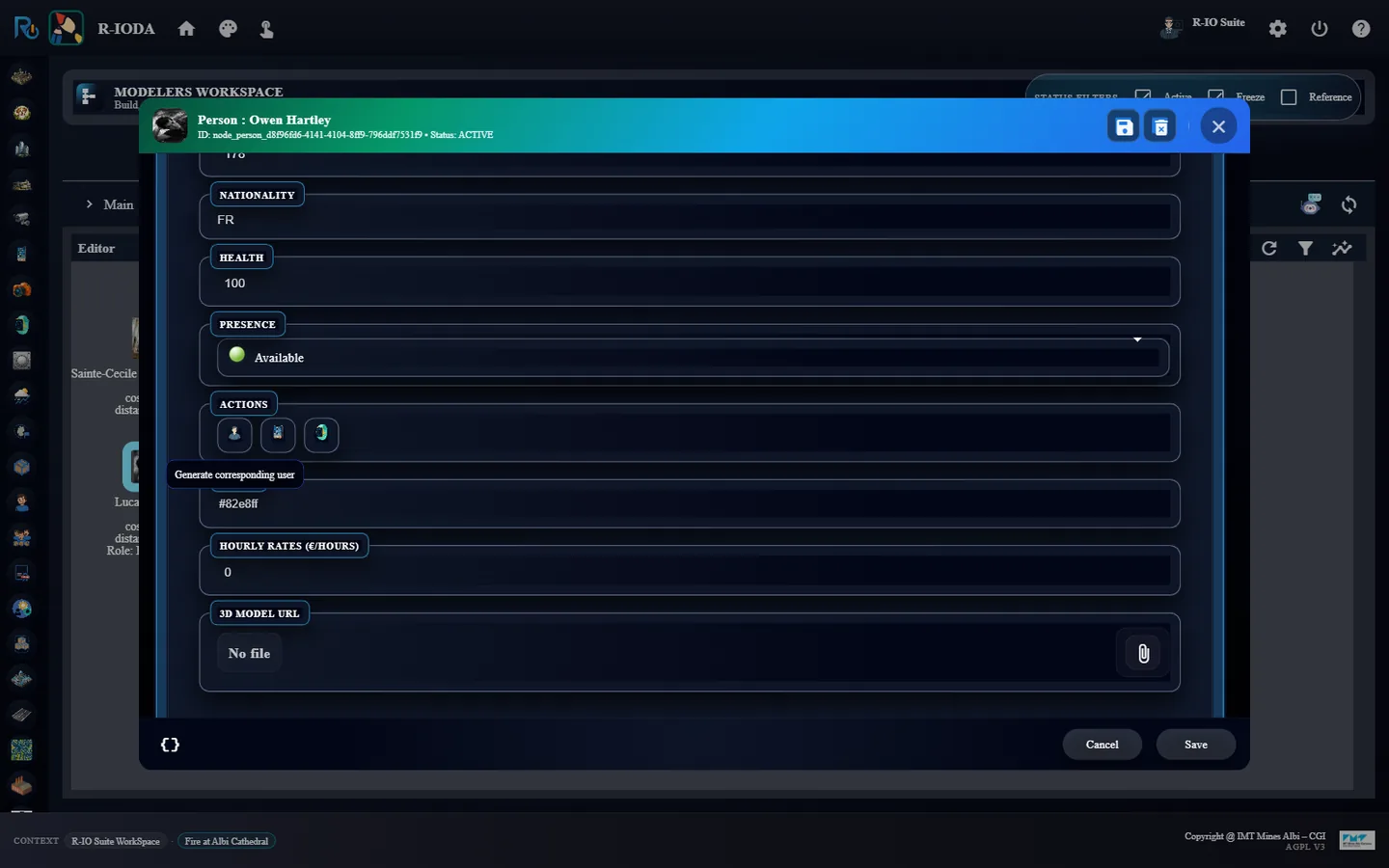
Open the person and rename it Owen Hartley when the generated person is a man (firstName Owen, lastName Hartley), Olivia Hartley when it is a woman: the login is the same. Save, then open the person again: the name and the dialog title follow the first and last names once saved. In REQUIRED INFORMATION, ACTIONS, click Generate corresponding user.
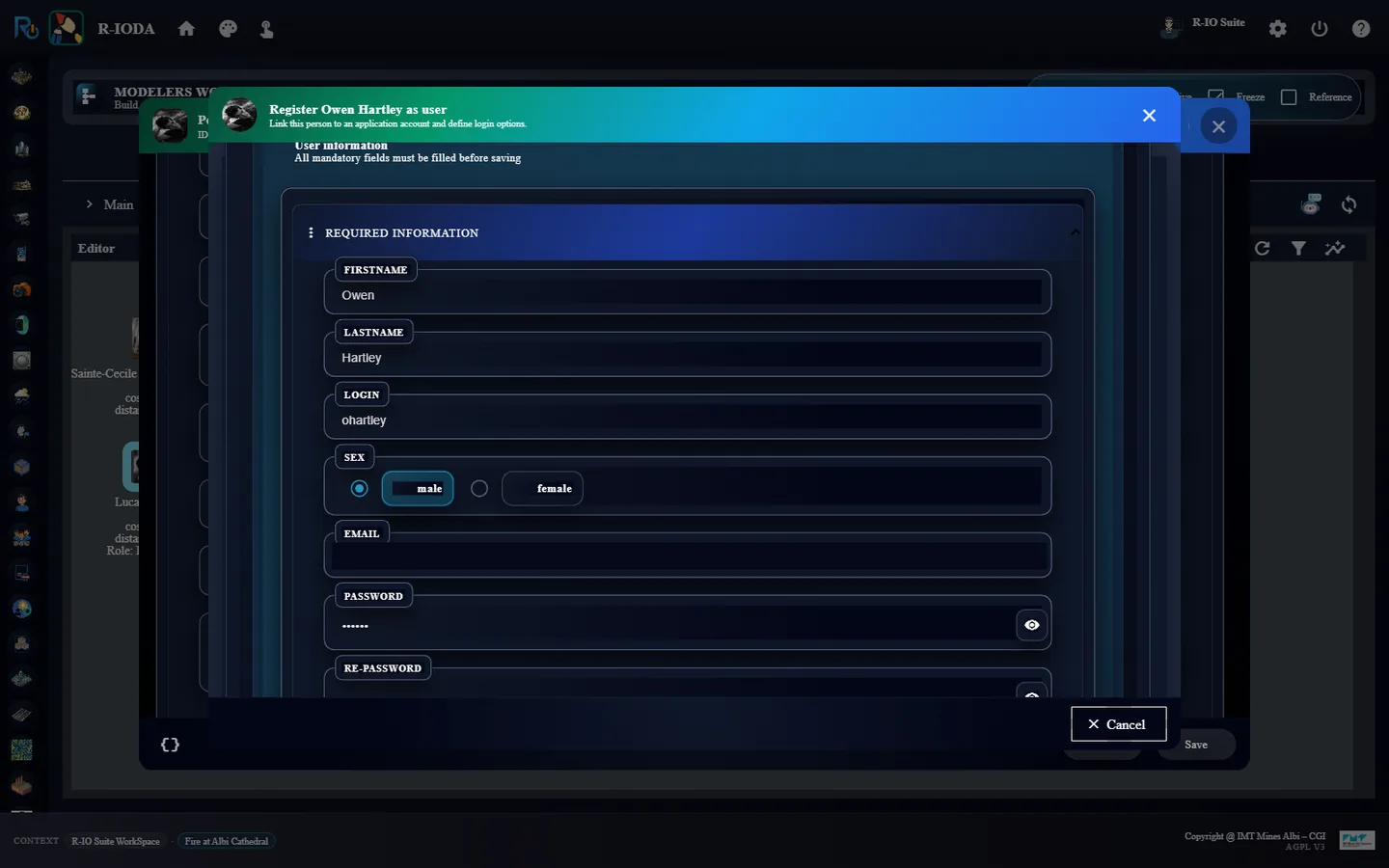
The Register … as user dialog proposes the login ohartley (first letter of the first name followed by the last name) and the default password shown at the top of the dialog: click Save, then Save the person.
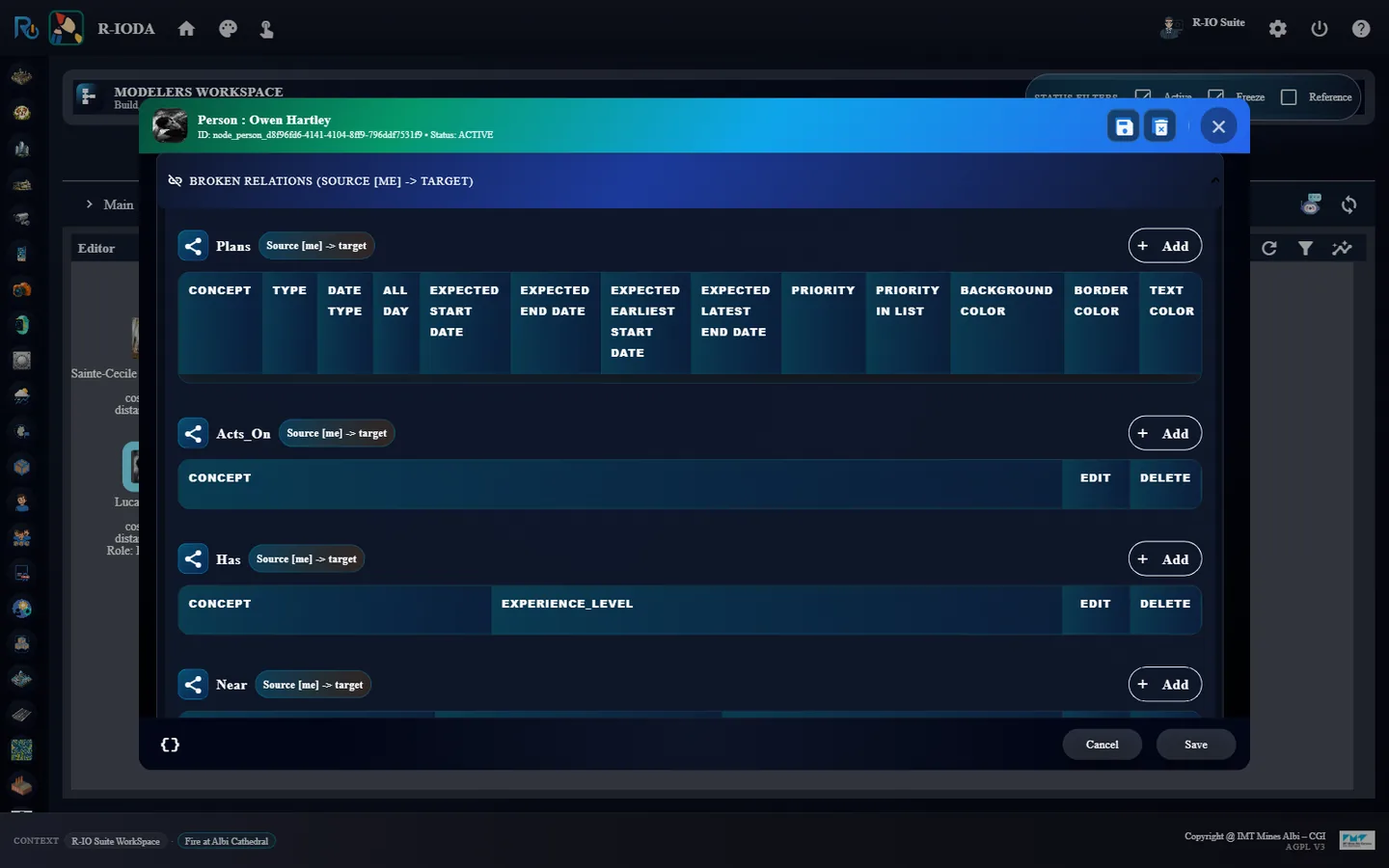
One person with the Firefighter role, located in Albi.The active context: Albi, the cathedral and the generated firefighter with his role, still under the name invented by the LLM.Renamed Owen Hartley, the dialog title follows the new name; the Generate corresponding user action in REQUIRED INFORMATION.The user to register: login ohartley, password preset (e-mail hidden).The person is now Assigned_To his user (broken relations, before saving).
ResultOne active person holds the Firefighter role and owns an r-io4U account: the tasks deduced for the firefighters will be assigned to him and appear on his phone.
08 · Step
Prepare the fire alert and its objective
A crisis is anticipated before it happens: a frozen alert describes the fire that could break out, and a frozen objective describes how it is treated. Both stay frozen: each time a sensor detects the fire, an active copy of them is created, and the frozen pair remains for the next time.
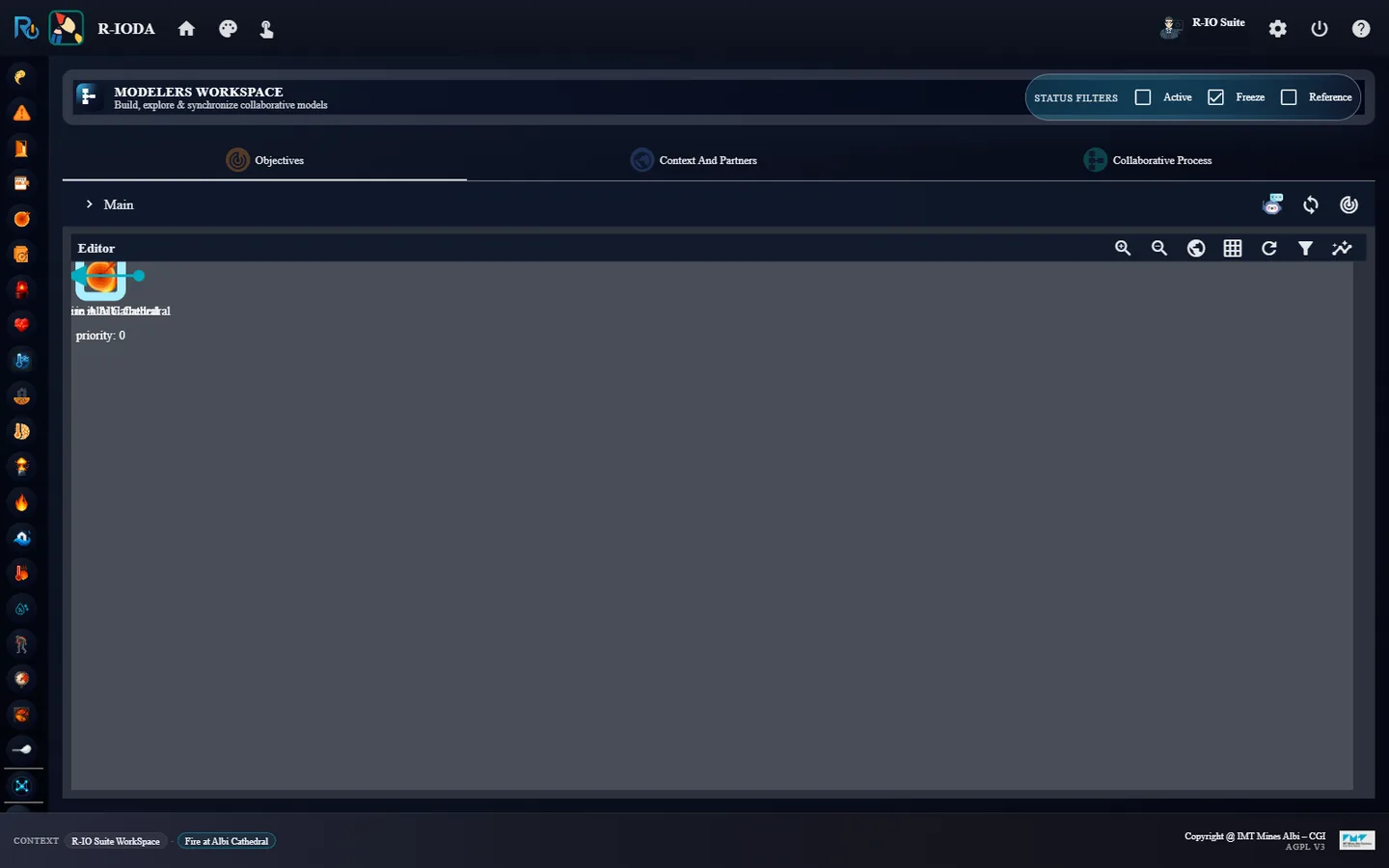
Open the Objectives tab and check only the Freeze filter.
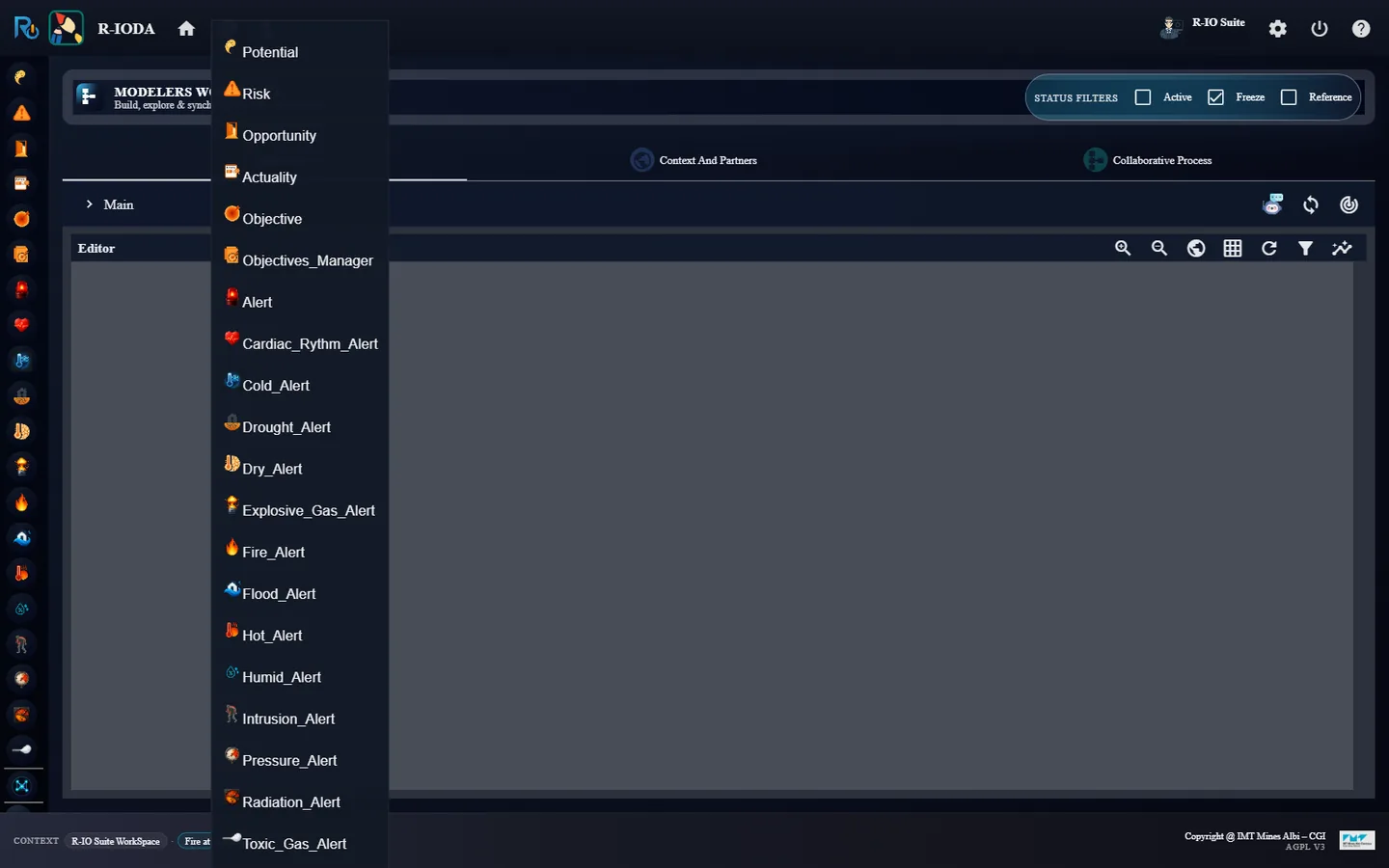
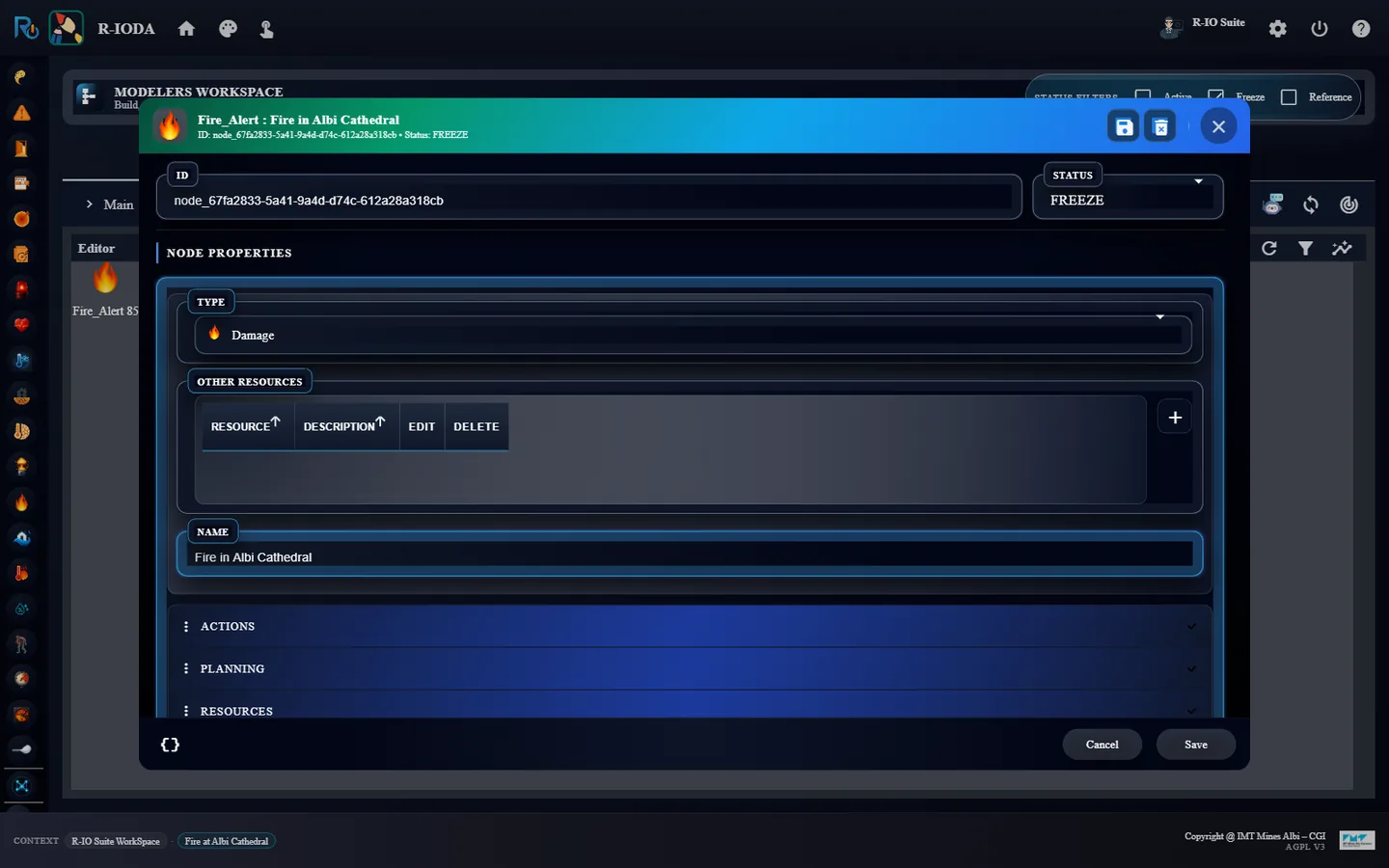
In the header Palette menu, click Fire_Alert. Double-click the new node, name it Fire in Albi Cathedral and Save.
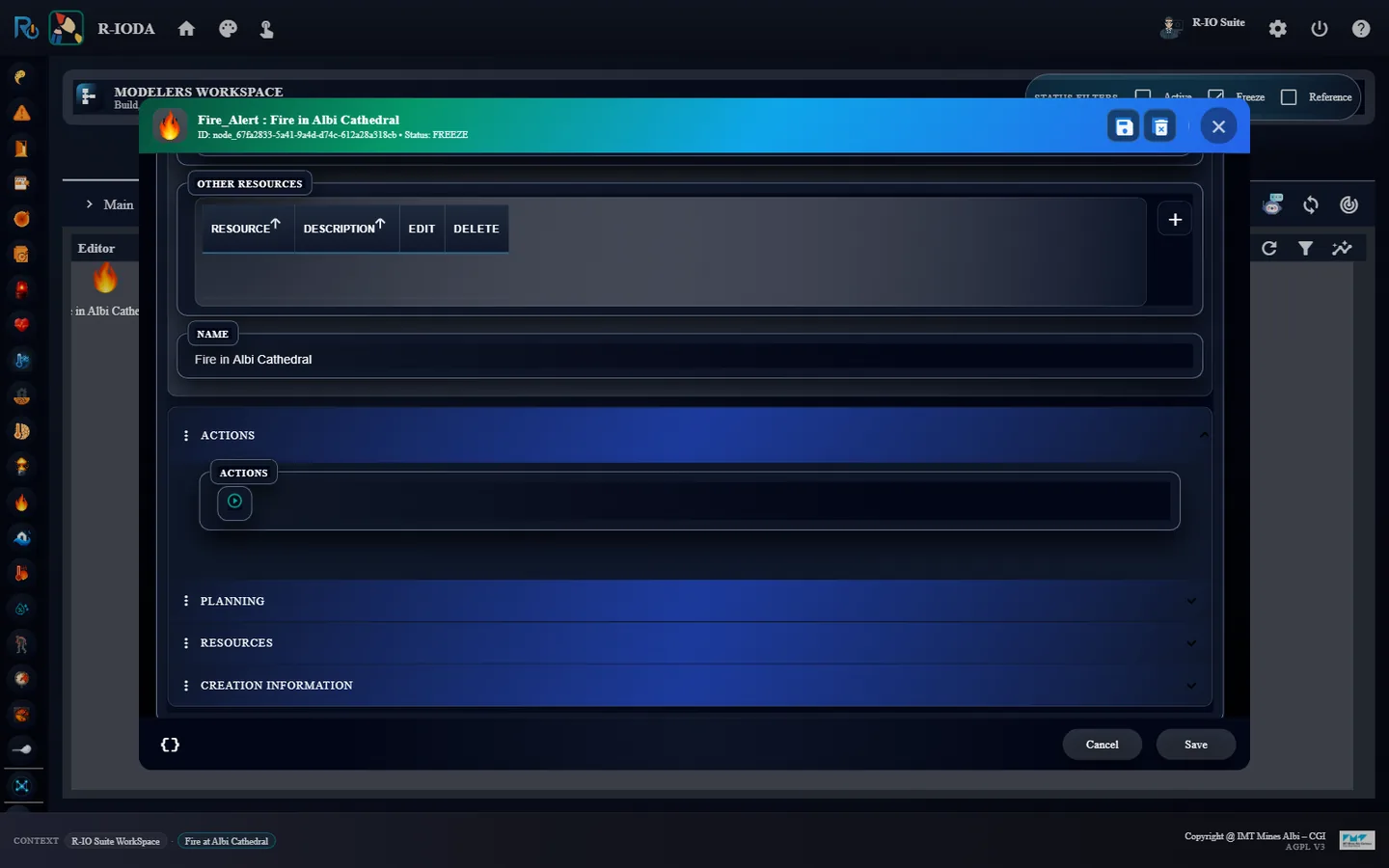
Double-click it again and, in ACTIONS, click Generate associated objective.
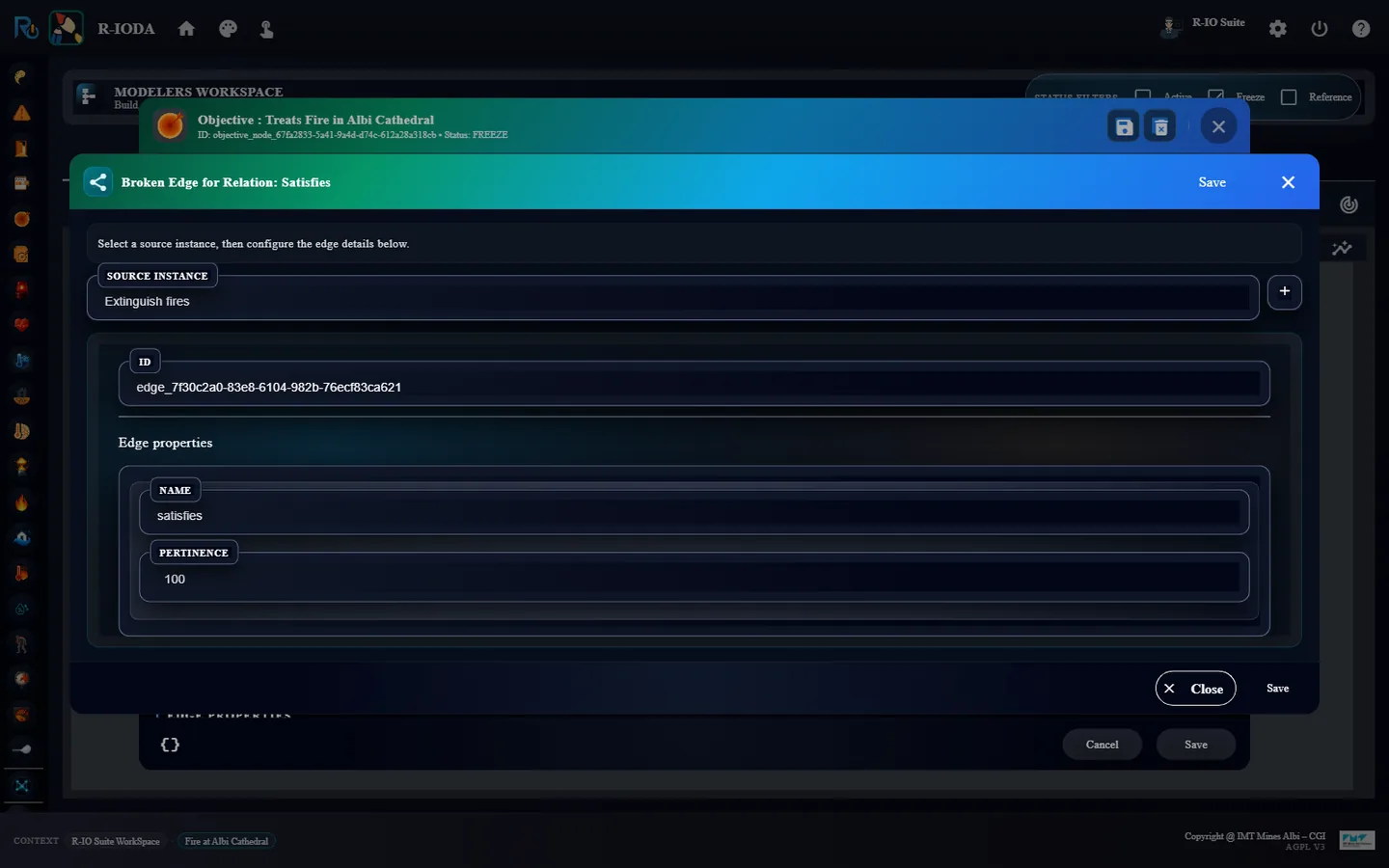
Double-click the objective Treats Fire in Albi Cathedral. In Broken relations (target [me] <- source), table Satisfies, click Add, choose the source instance Fire Suppression and save each dialog.
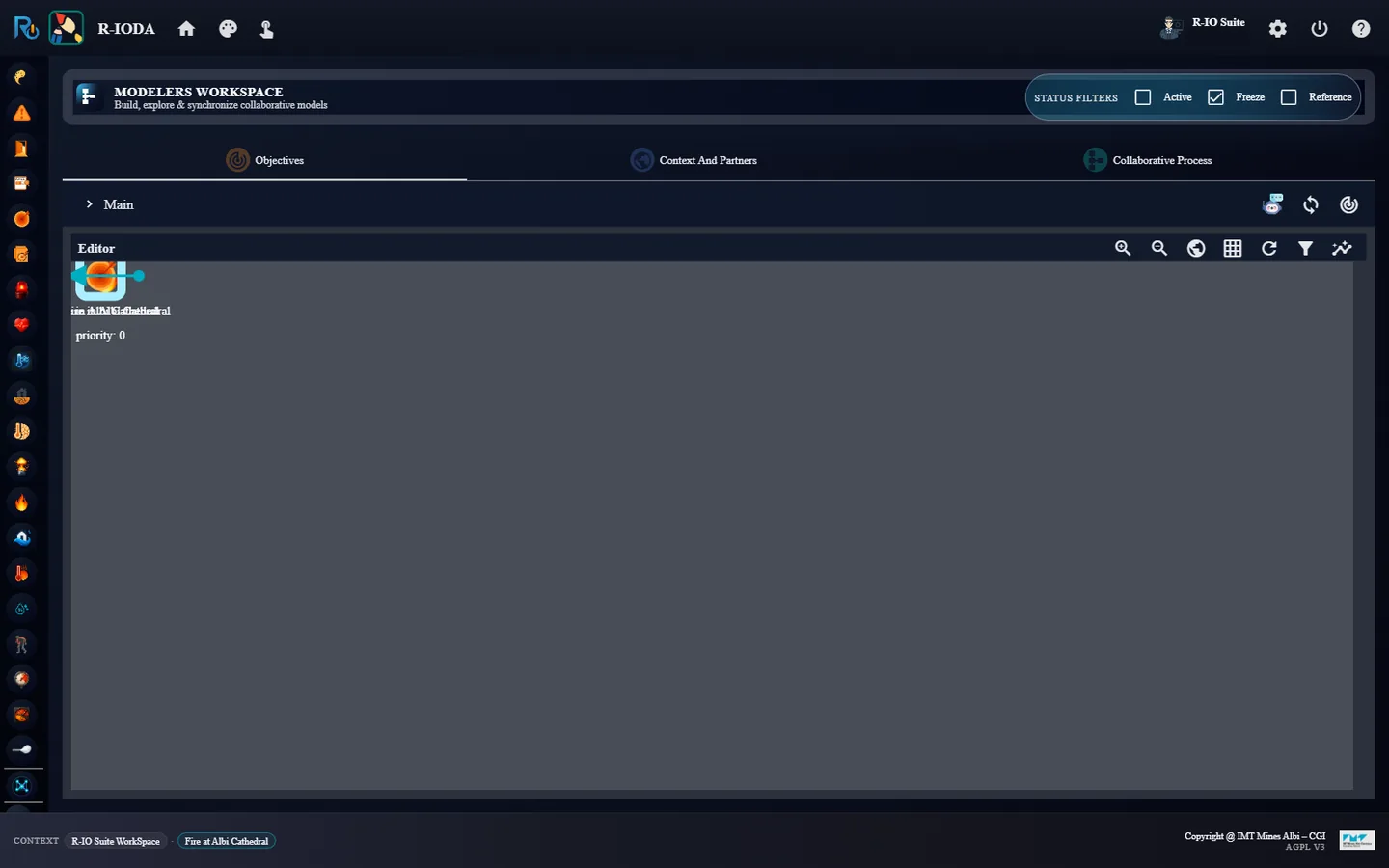
The Fire_Alert concept in the palette.The frozen alert, named Fire in Albi Cathedral.Generate associated objective.Treats Fire in Albi Cathedral, frozen, linked by Treats.Choosing Fire Suppression as the source of Satisfies.The objective is satisfied by Fire Suppression.The frozen objectives view: the alert and its Treats objective. Satisfies is a broken edge: its source, Fire Suppression, lives in Context And Partners.
ResultTwo frozen nodes: the alert Fire in Albi Cathedral and its objective Treats Fire in Albi Cathedral, which Fire Suppression satisfies: the objective is treated by the action that puts the fire out, and the confirmation comes with it through Needs. The satisfaction is a broken edge because the function lives in another view.
09 · Step
Install a smoke sensor on the cathedral
The last piece is the sensor that watches the frozen alert. A dedicated sensor sends a boolean; its rule raises an active alert near the frozen alert it references when the value becomes true.
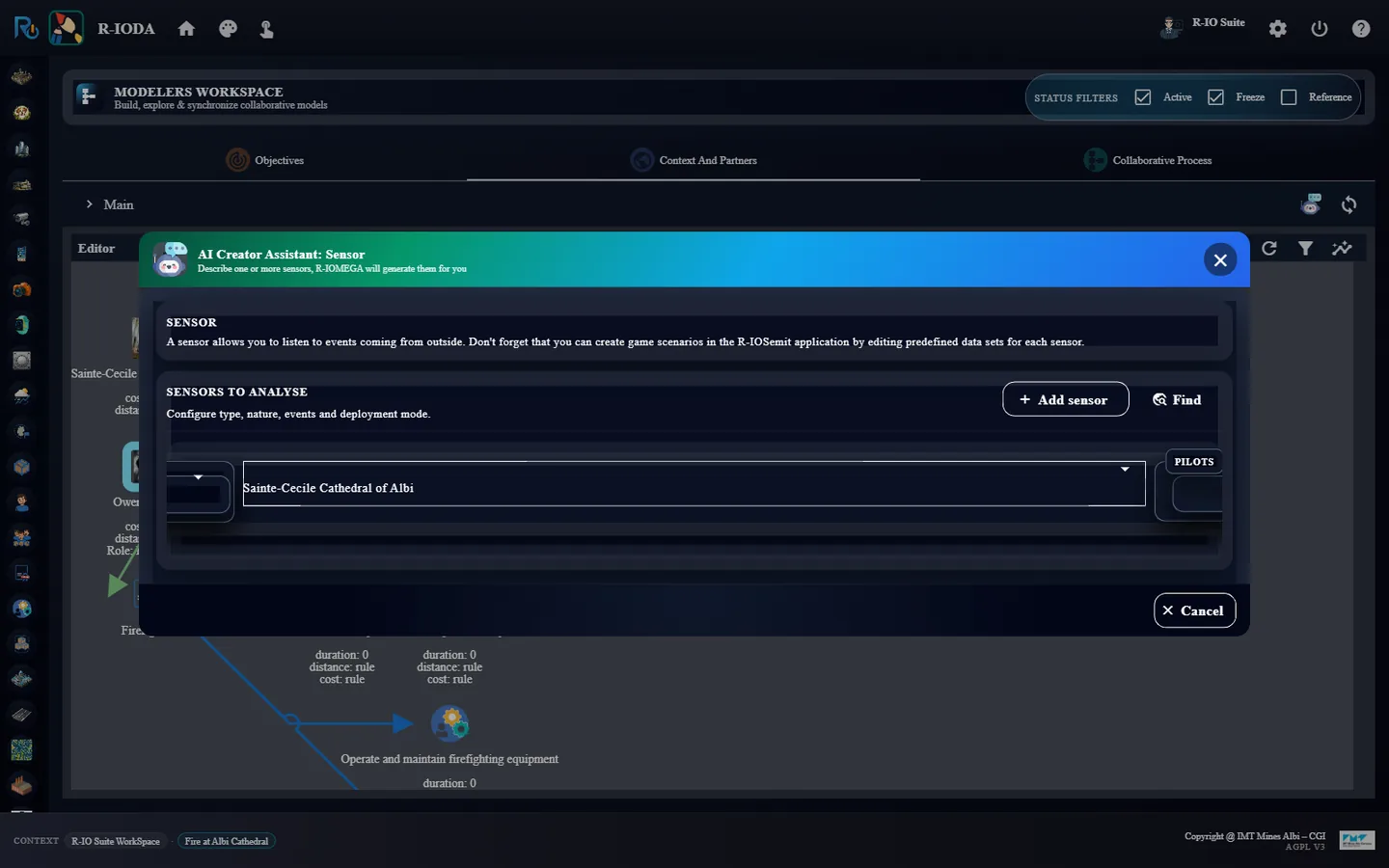
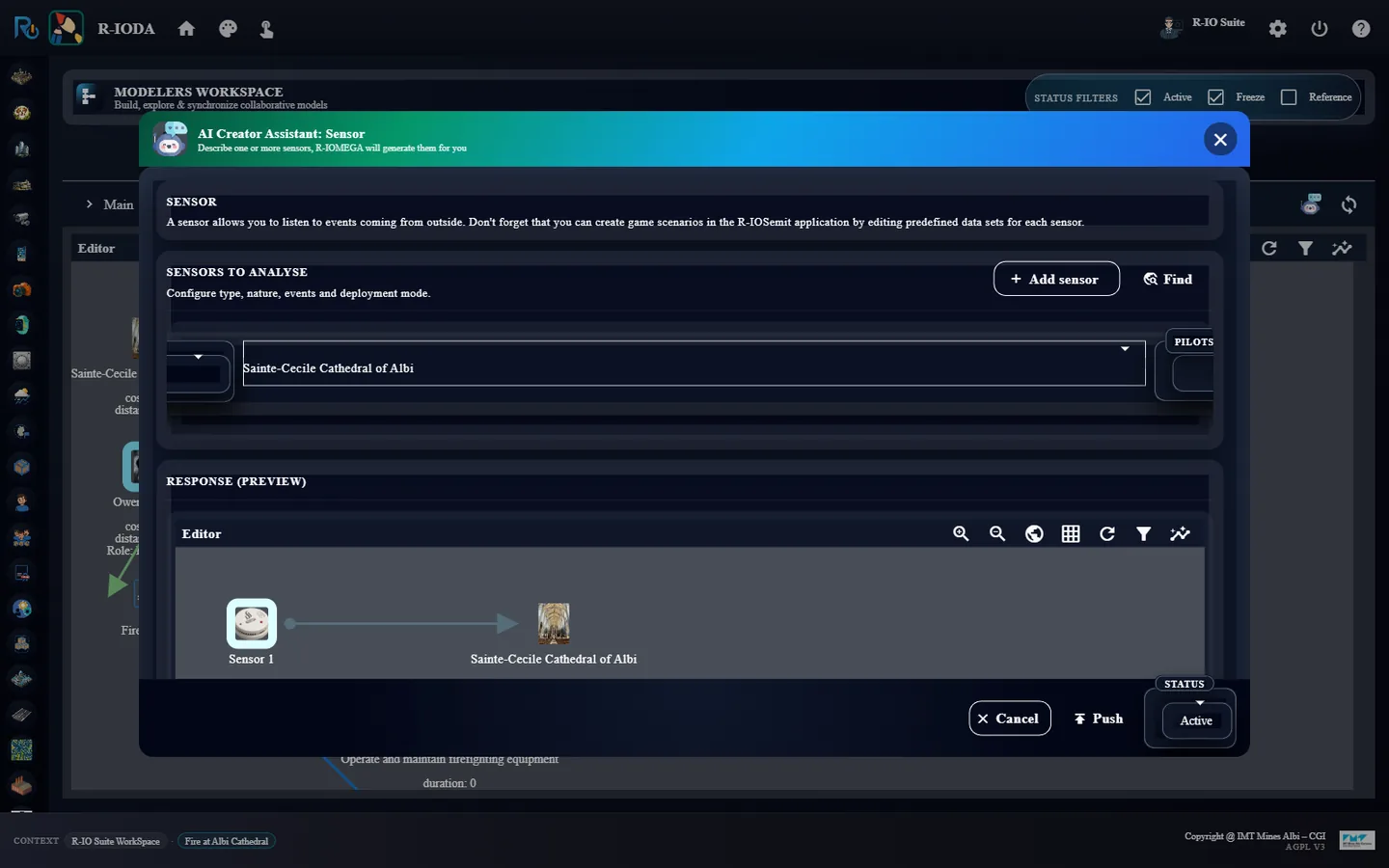
Back in Context And Partners, with the Active filter checked, open the AI Creator Assistant, Sensor.
Choose the type Dedicated (nature Smoke), the event type Fire In Albi Cathedral, the mode Fixed Onto Asset and the asset Sainte-Cecile Cathedral of Albi, then Find and Push.
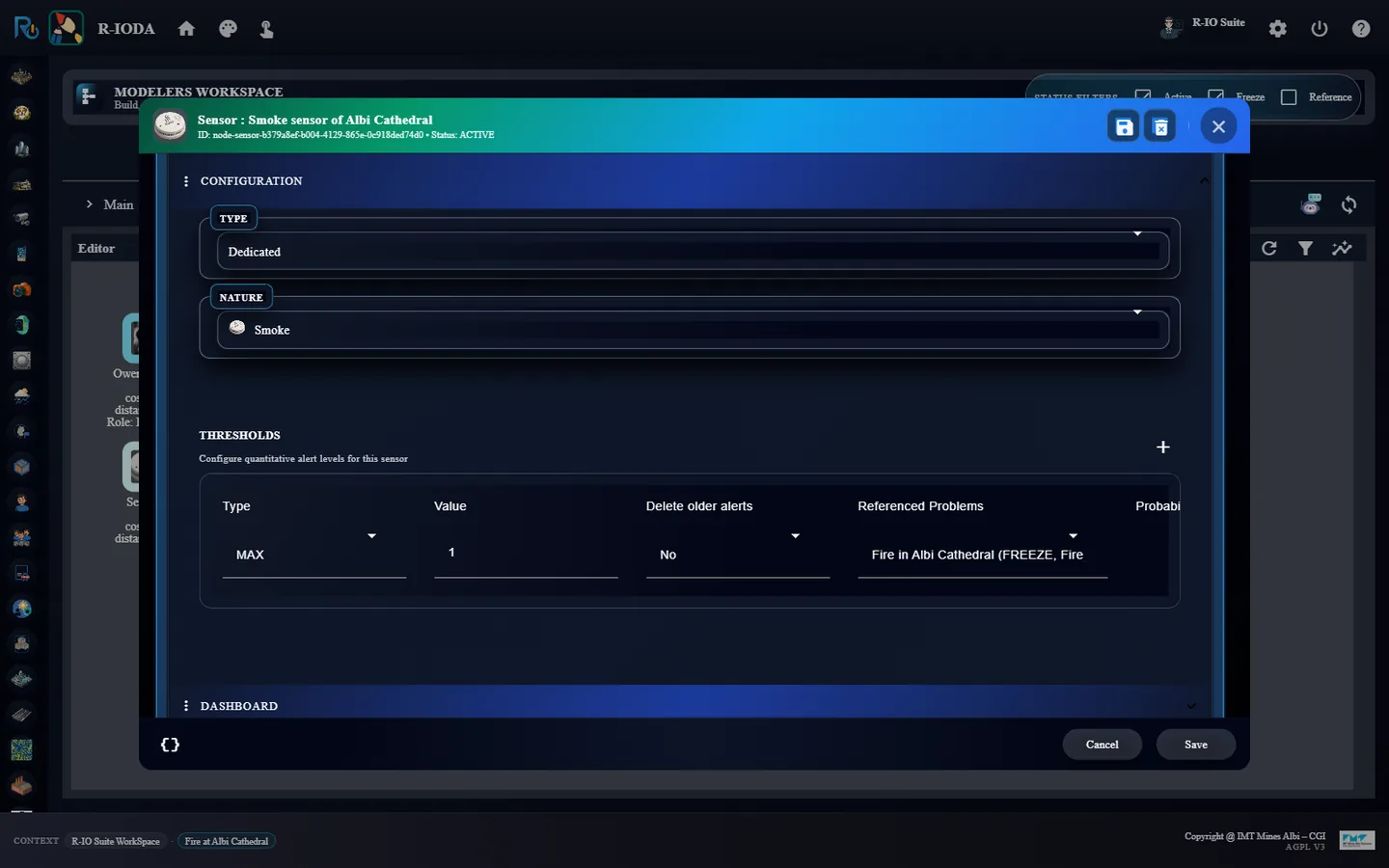
Double-click the sensor and rename it Smoke sensor of Albi Cathedral.
A dedicated smoke sensor referencing the frozen alert.The sensor, fixed onto the cathedral.Its threshold references Fire in Albi Cathedral (FREEZE, Fire_Alert).
ResultThe sensor carries a MAX threshold that references Fire in Albi Cathedral (FREEZE, Fire_Alert). Saving it deploys its CEP rule.
10 · Step
Check that nothing is burning yet
The situation is described, but nothing has happened.
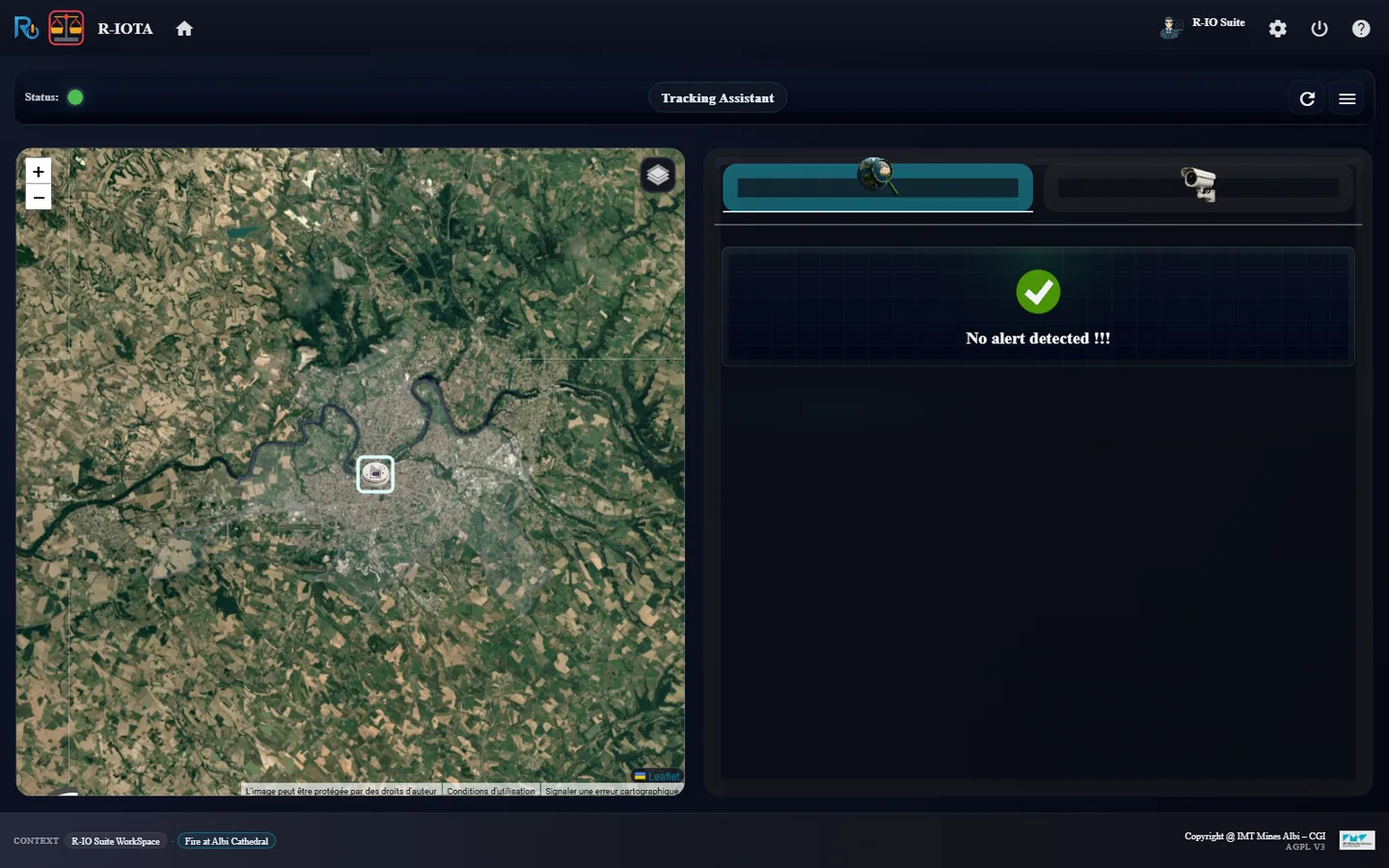
Launch r-iota from Project List.
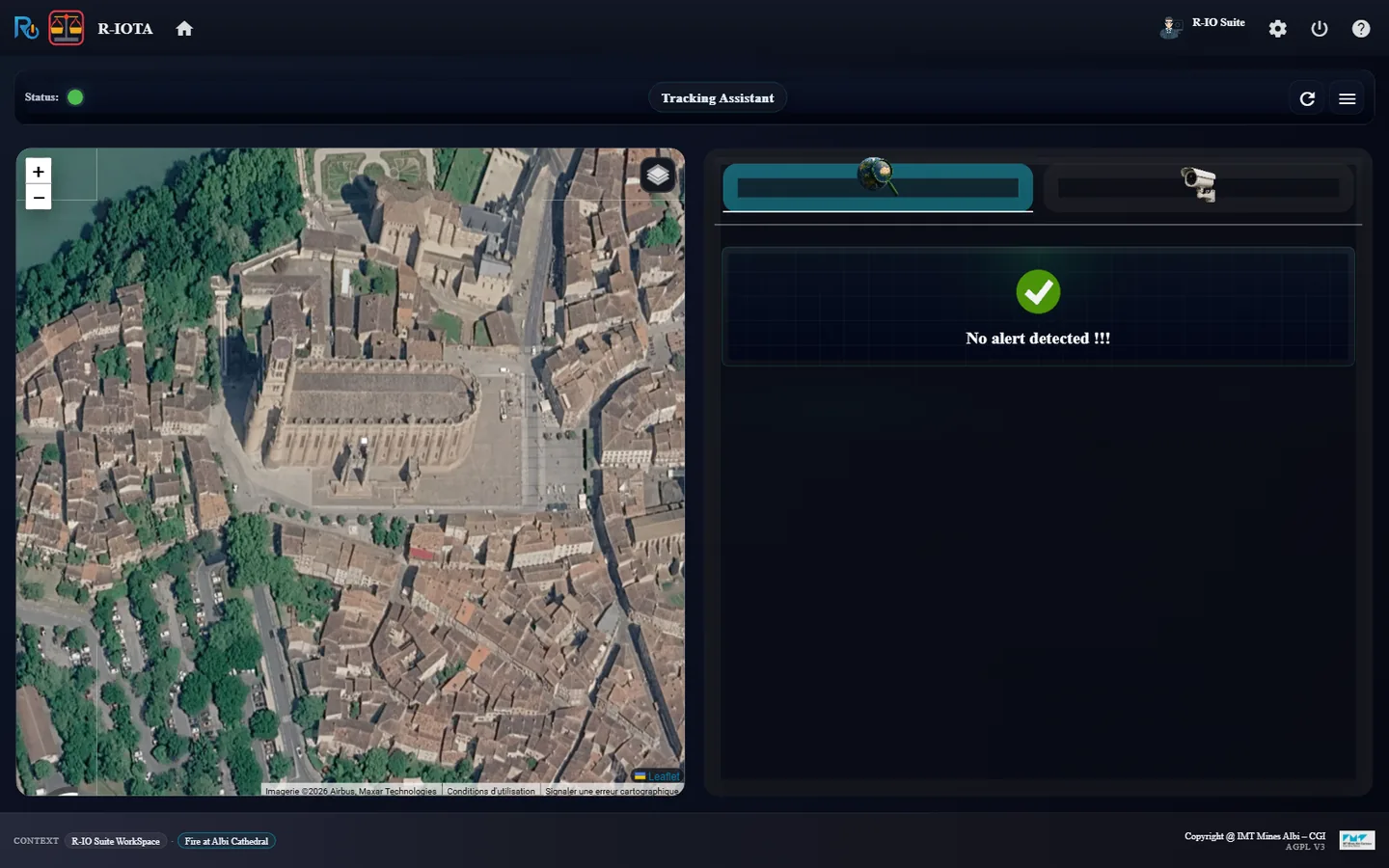
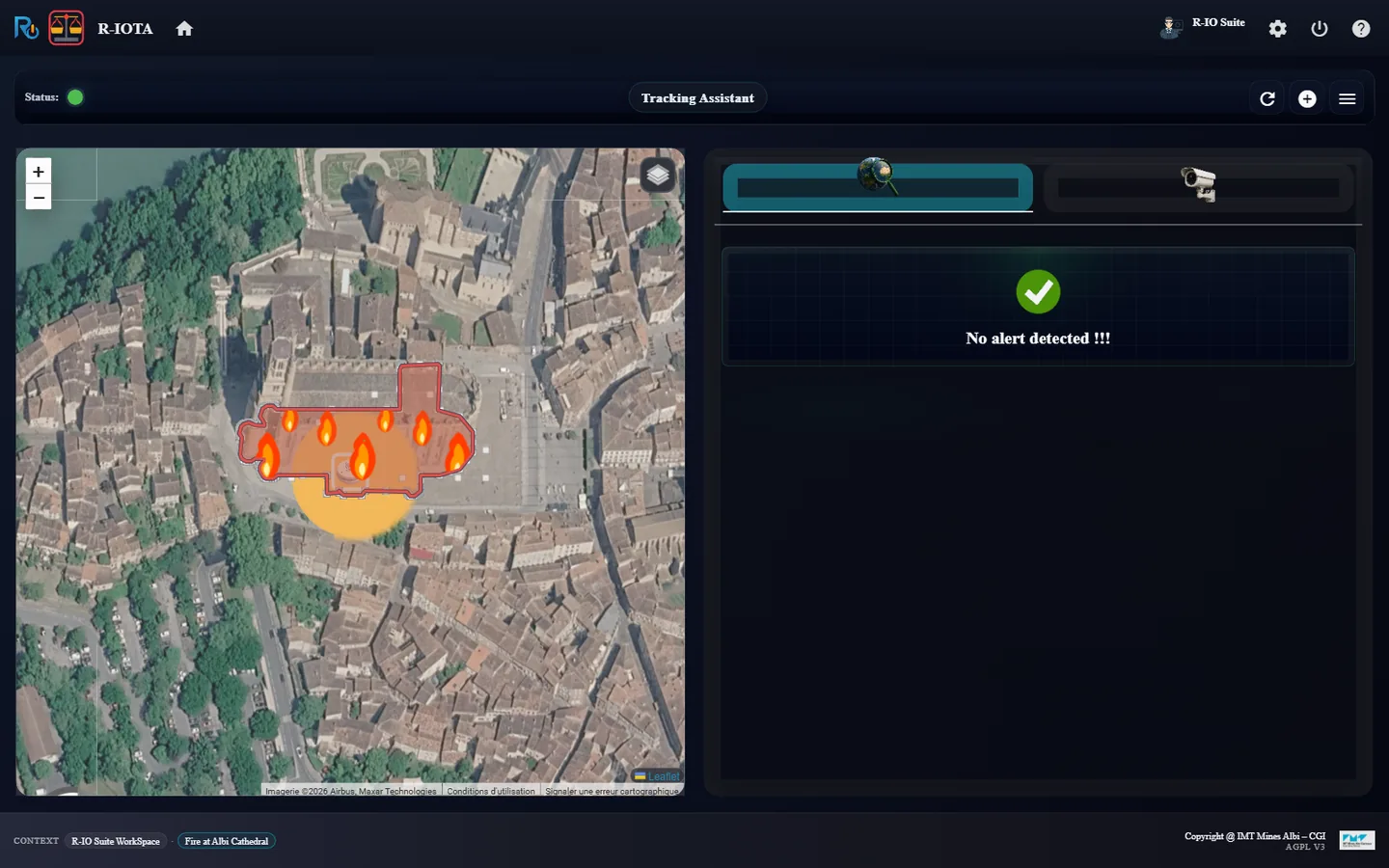
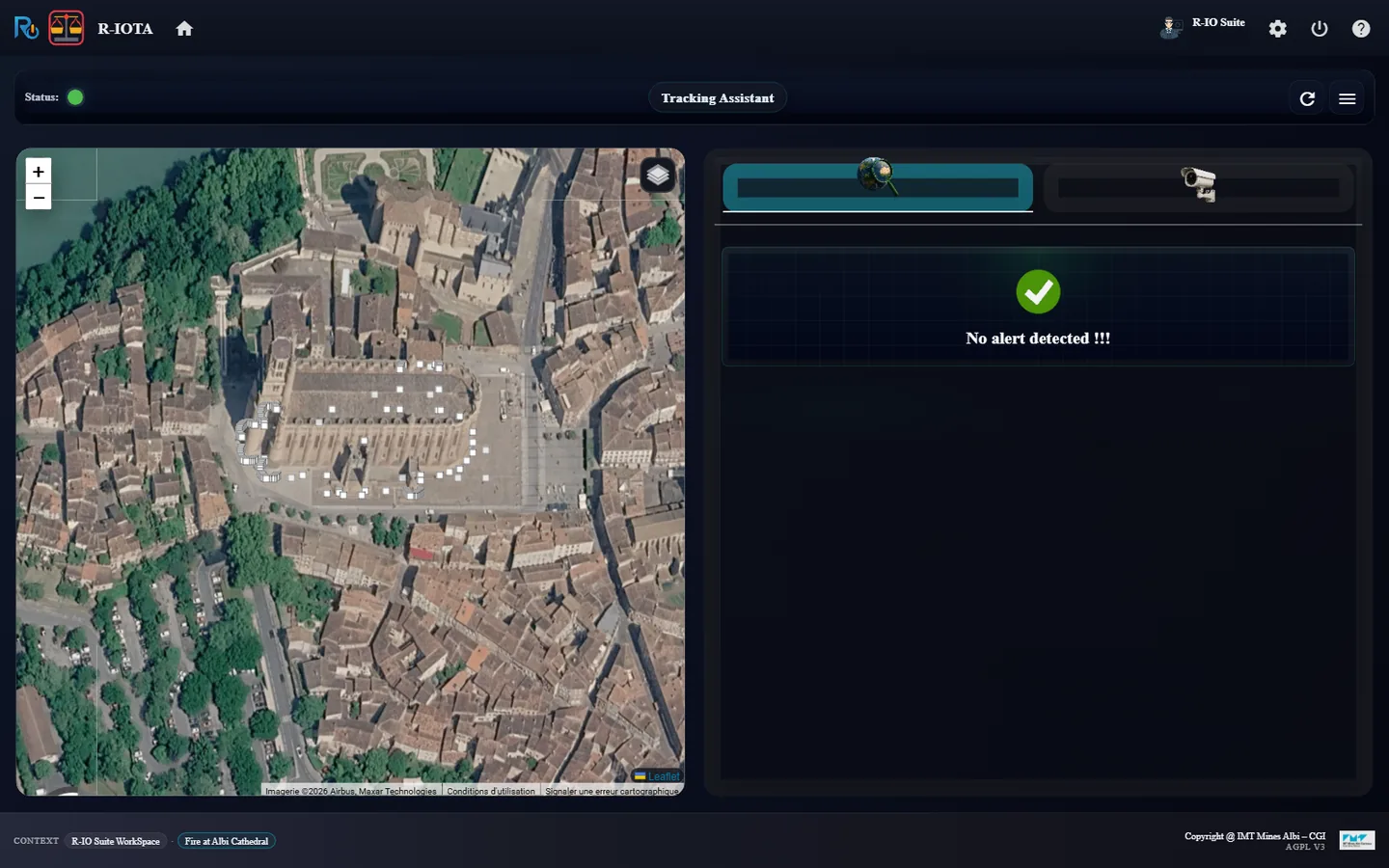
r-iota - no alert, green status, Albi, the sensor and the firefighter on the map.
Resultr-iota shows No alert detected and a green status. The frozen alert is knowledge, not an incident.
11 · Step
Turn the smoke sensor on
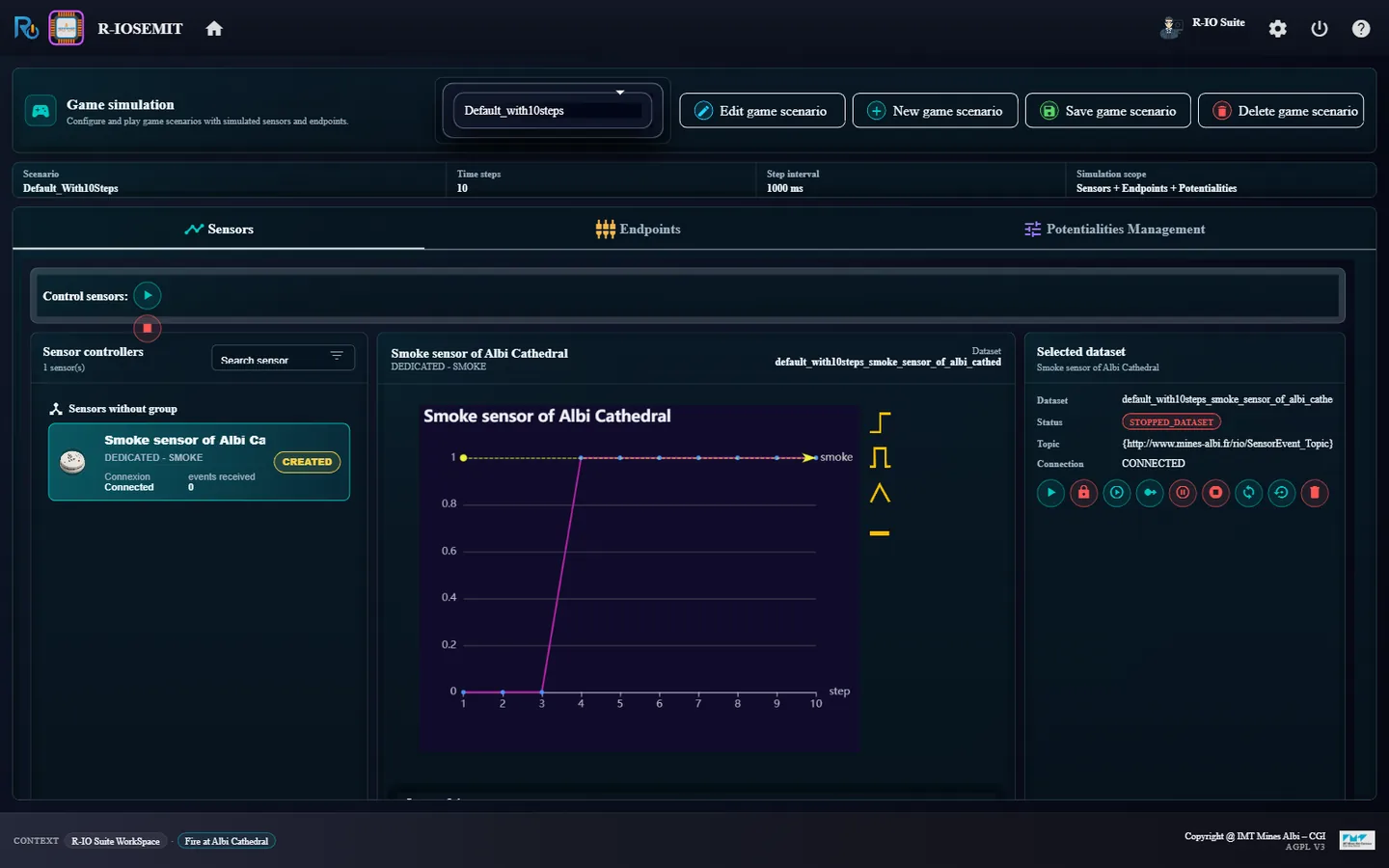
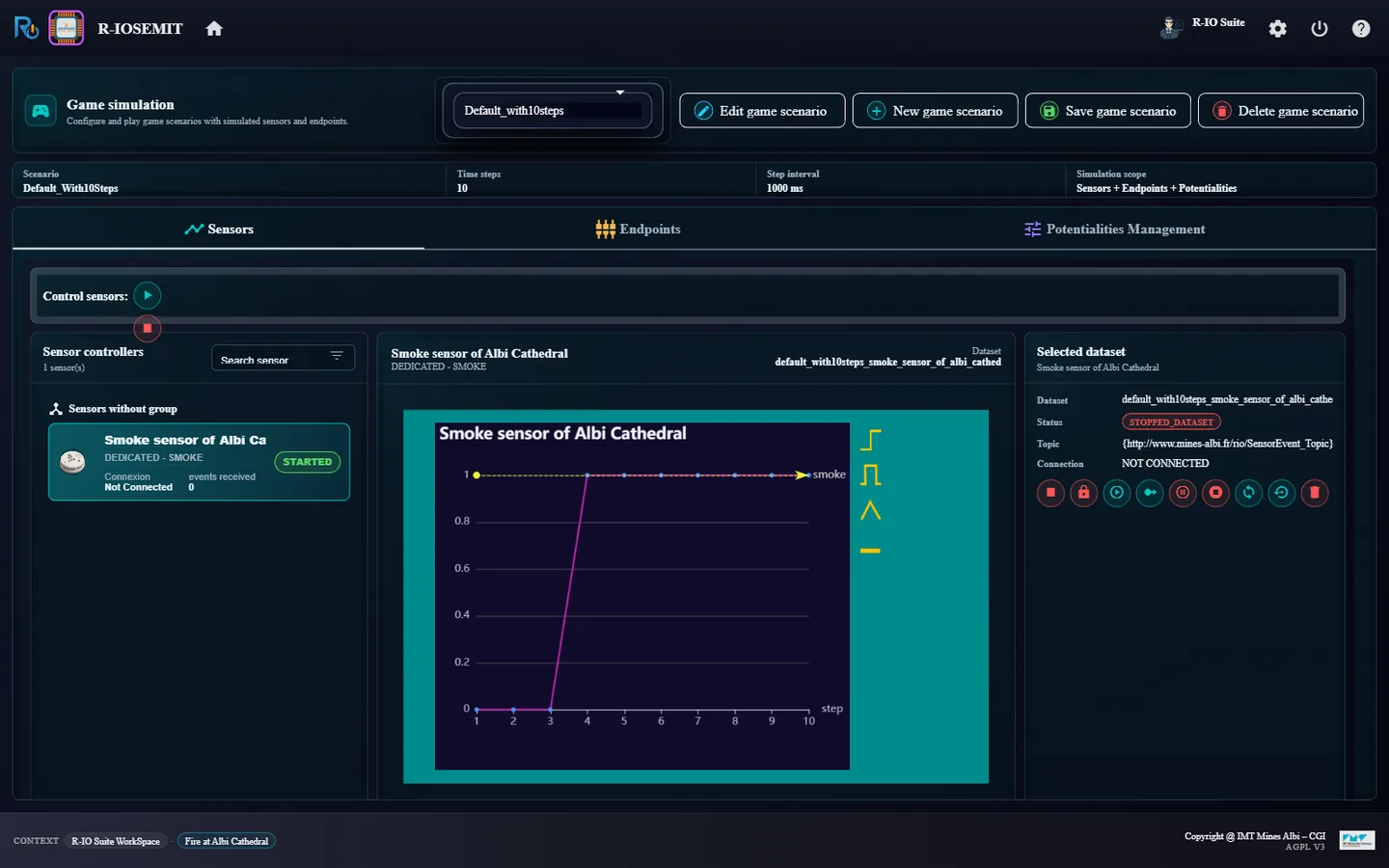
r-iosemit plays game scenarios: dates on a timeline, each one carrying the actualities or sensor values to emit. The sensor actuality comes from the CEP rule of the sensor: planning it at a date makes the sensor cross its threshold at that date.
Launch r-iosemit: there is no game scenario yet. Click Create a scenario, name it Fire at Albi Cathedral and click Save. The DATA tab shows the smoke sensor and the dataset generated for the scenario.
In TIMELINE, click Add an actuality or a message…, set a date a few minutes after the start, select the sensor actuality Fire in Albi Cathedral at Sainte-Cecile Cathedral of Albi (rule R1, false → true), click Save, then save the scenario (disk icon).
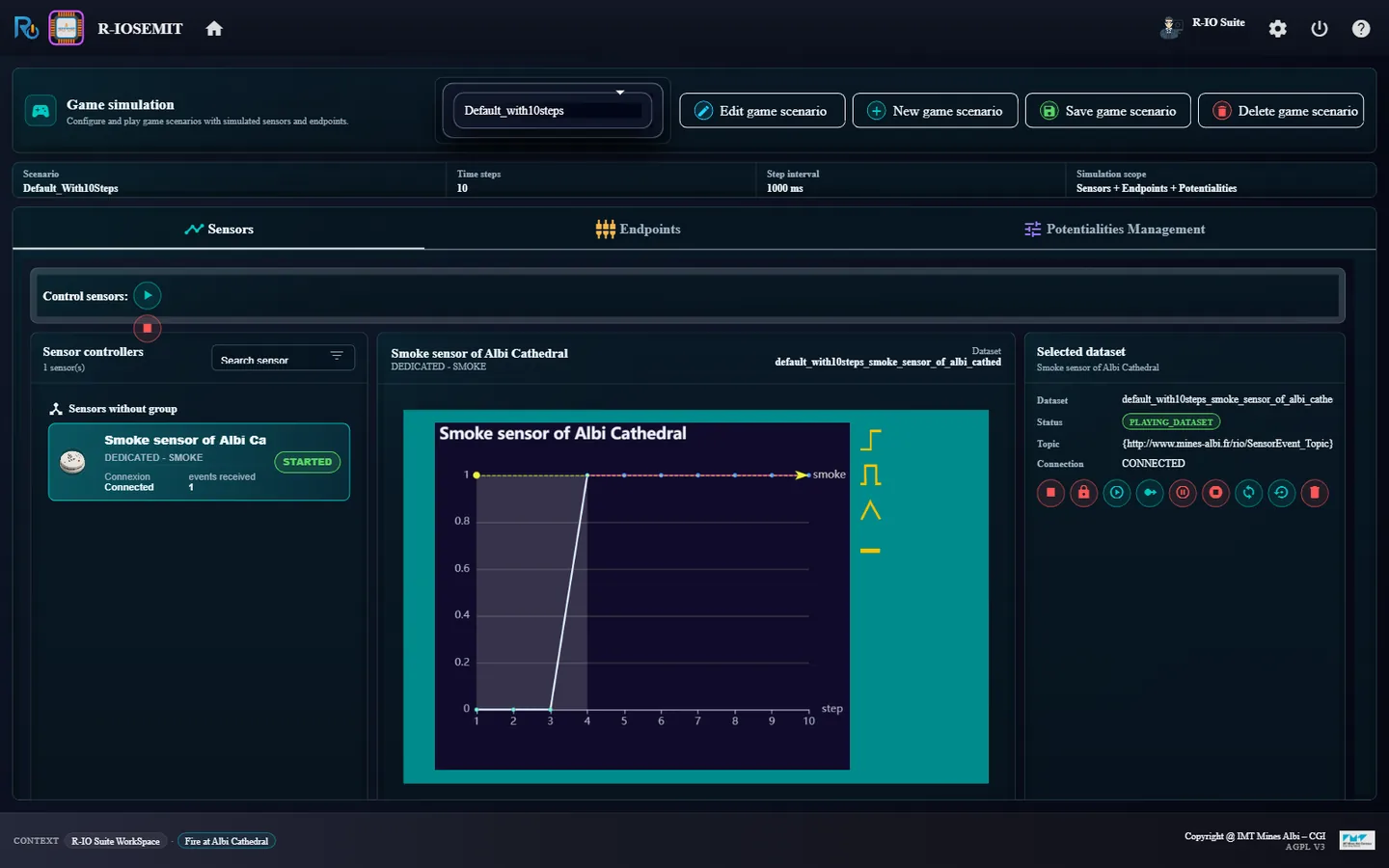
Click Next step: the sensor starts and receives the two values of the date.
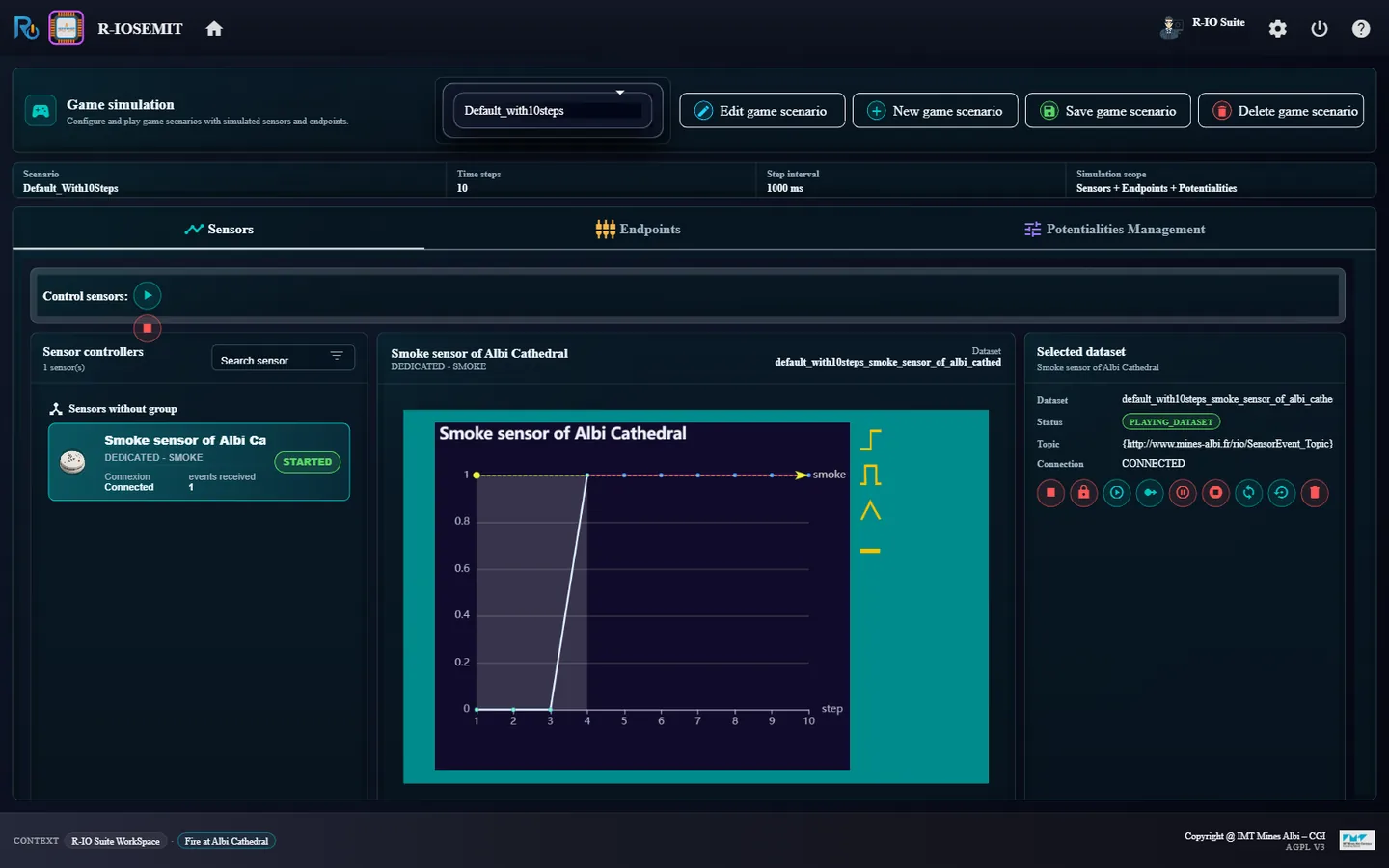
r-iosemit - the smoke sensor and the dataset generated for the scenario Fire at Albi Cathedral.Planning the sensor actuality: Fire in Albi Cathedral at Sainte-Cecile Cathedral of Albi, rule R1, false to true.After Next step: the sensor is started and has received its two values; the smoke value is true.
ResultWhen the date is played, the value switches from false to true. The CEP rule of the sensor fires. The frozen alert impacts no good under the sensor: it is an anticipated crisis, not the incident itself. The rule therefore creates a new active alert, Fire in Albi Cathedral at Sainte-Cecile Cathedral of Albi, which impacts the cathedral and is Near the frozen alert; its objective is an active copy of the frozen one, Near it too, through which the deduction finds Fire Suppression. The frozen alert and objective stay untouched. (A frozen alert that impacts a good the sensor is fixed onto would be activated in place instead.)
12 · Step
Find a solution
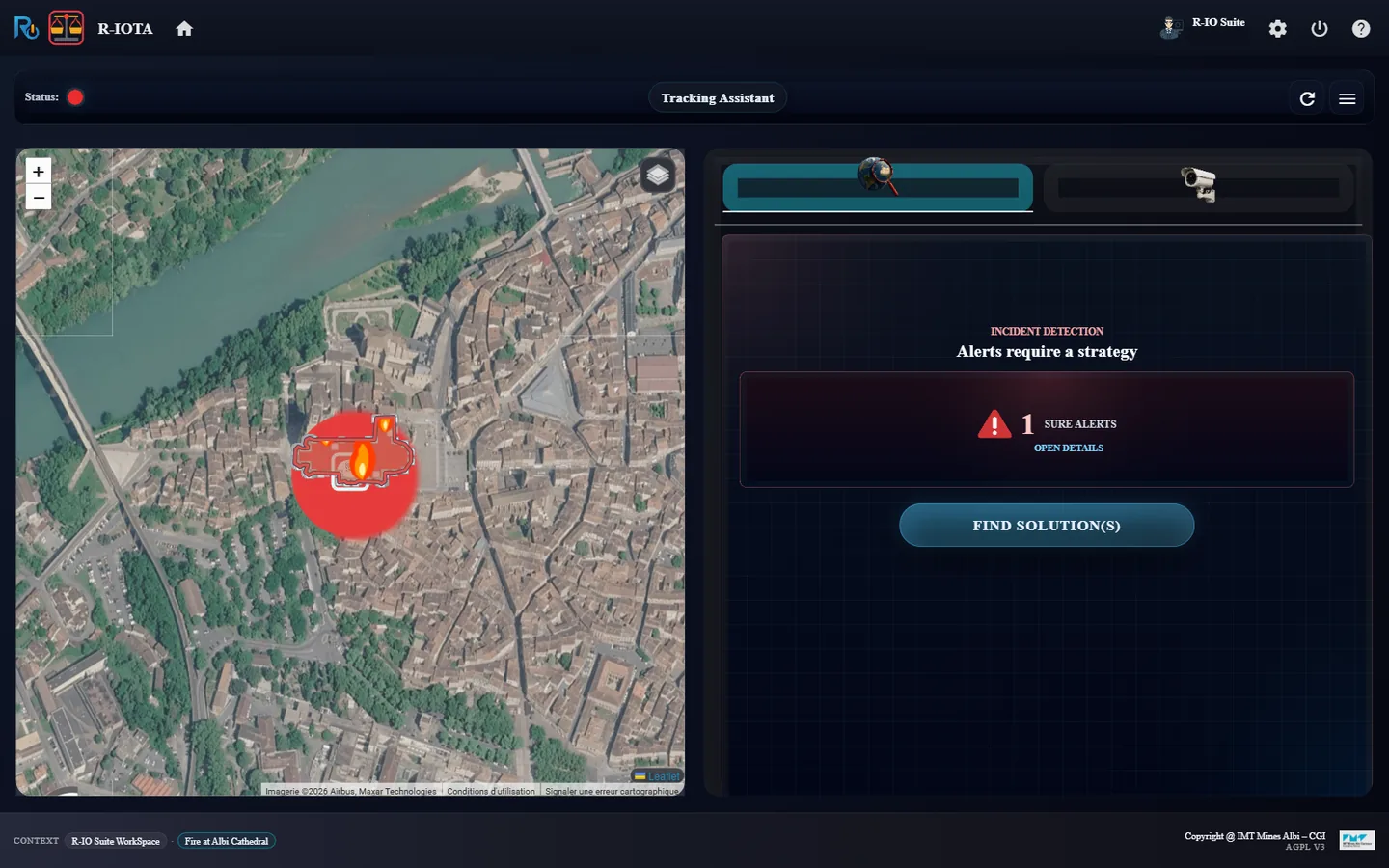
The fire is a sure alert. The deduction looks for functions that satisfy its objective and for actors able to perform them, then deploys and supervises the process.
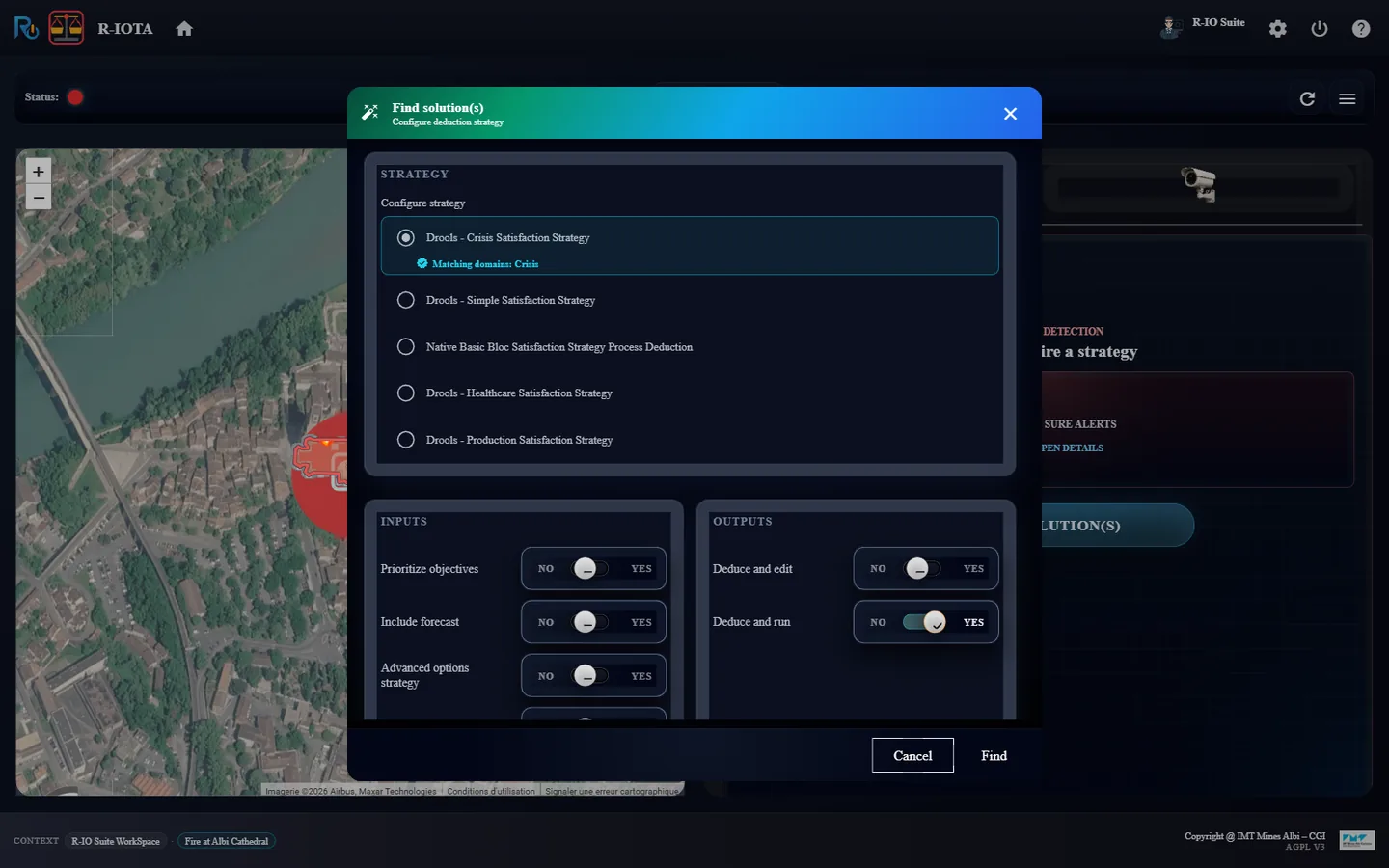
In r-iota, check the sure alert and click FIND SOLUTION(S).
Keep the preselected strategy, leave Deduce and run on YES and click Find.
Wait for Deduction, deployment and supervision completed, then open the second tab of the dashboard, Execution graph.
Hover the CE badges of the two flows leaving Confirm Fire to read the condition each one carries.
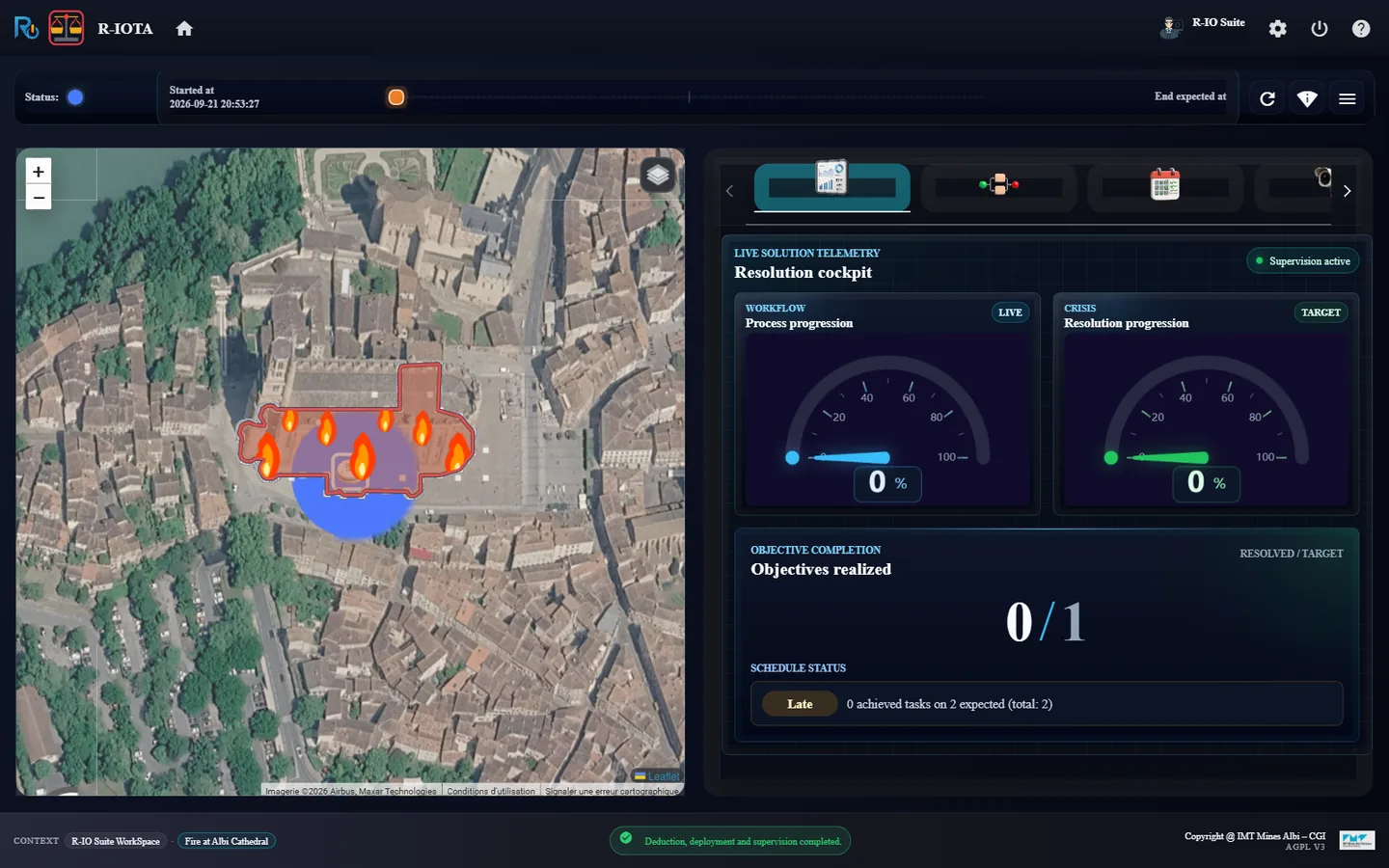
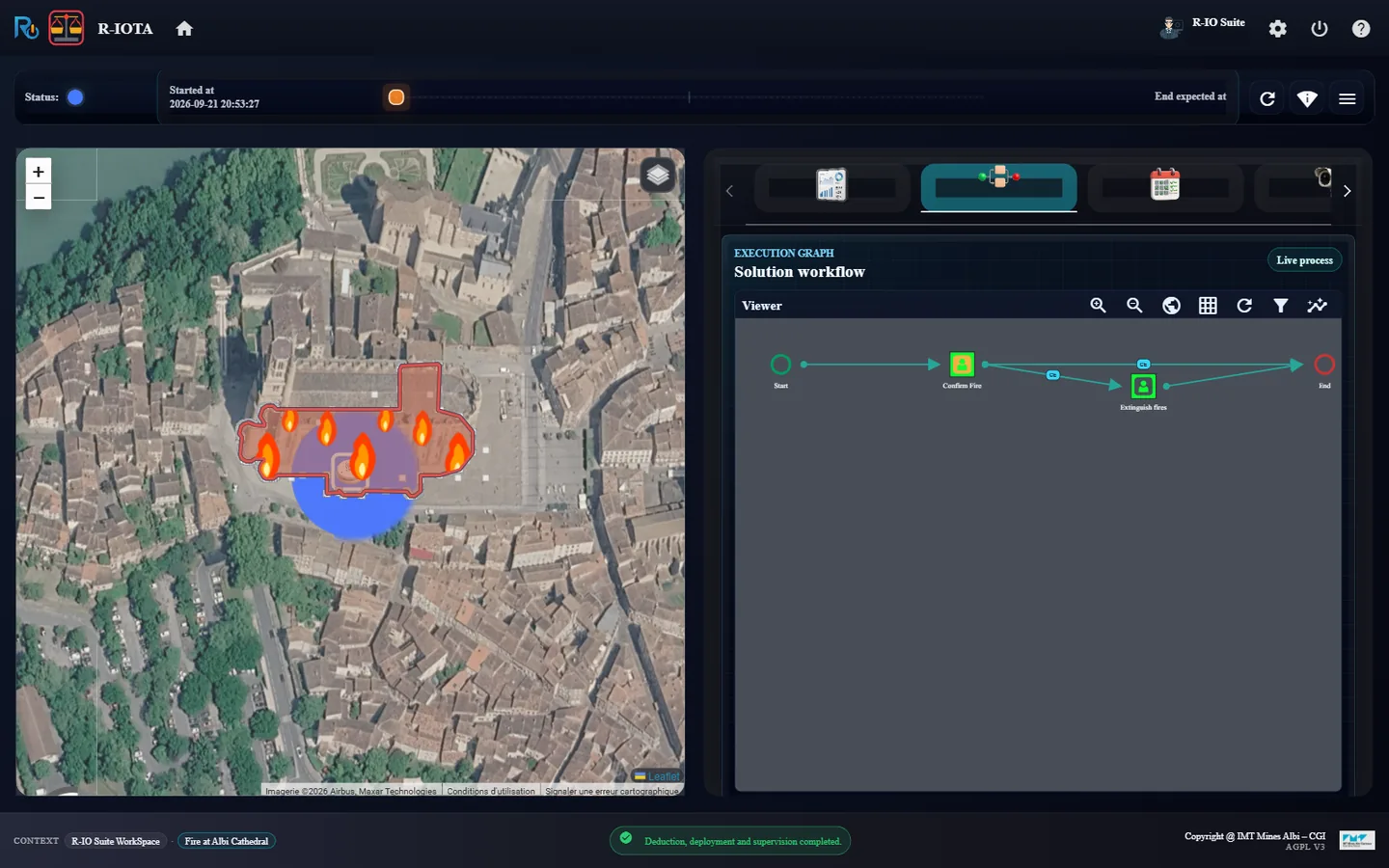
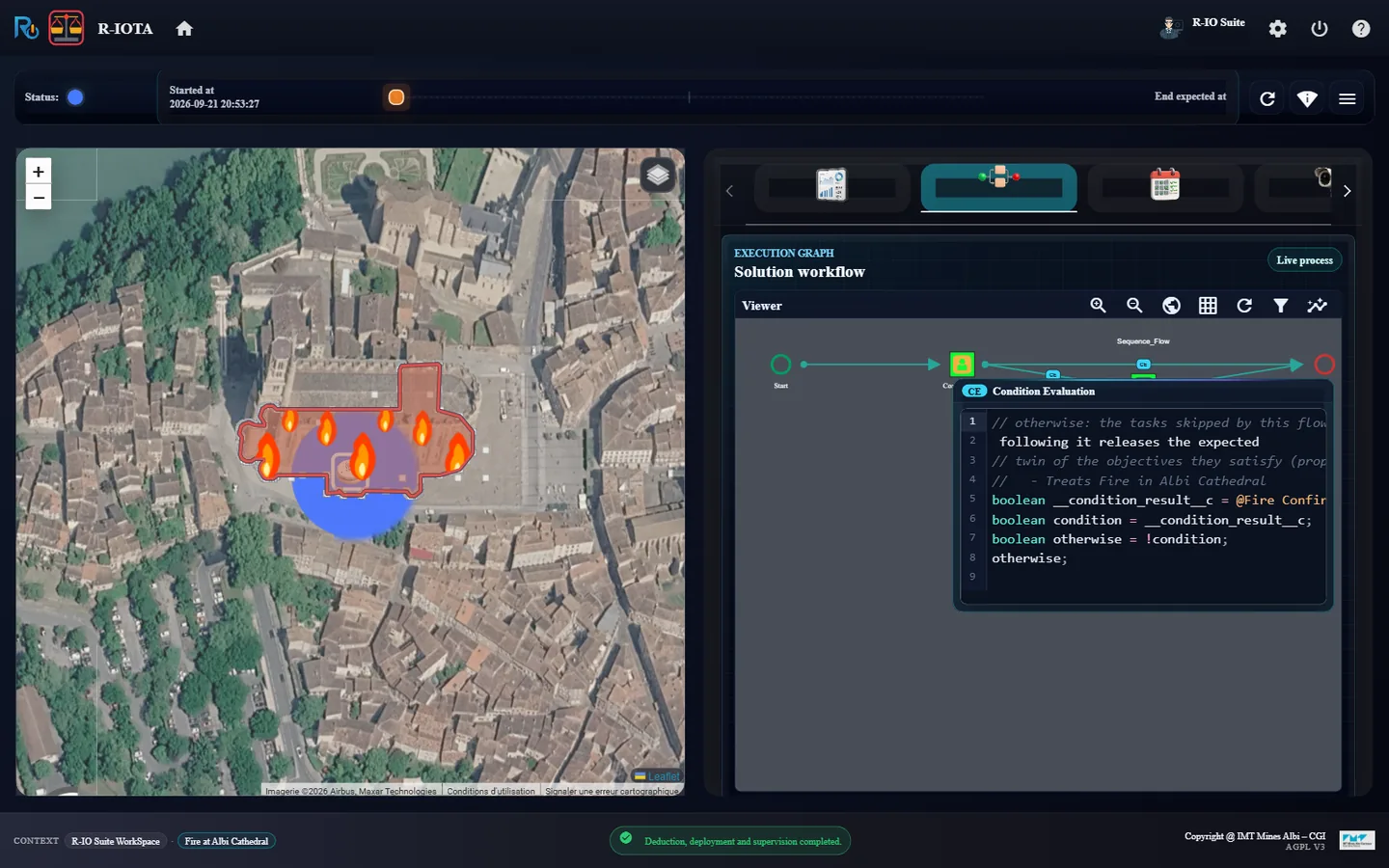
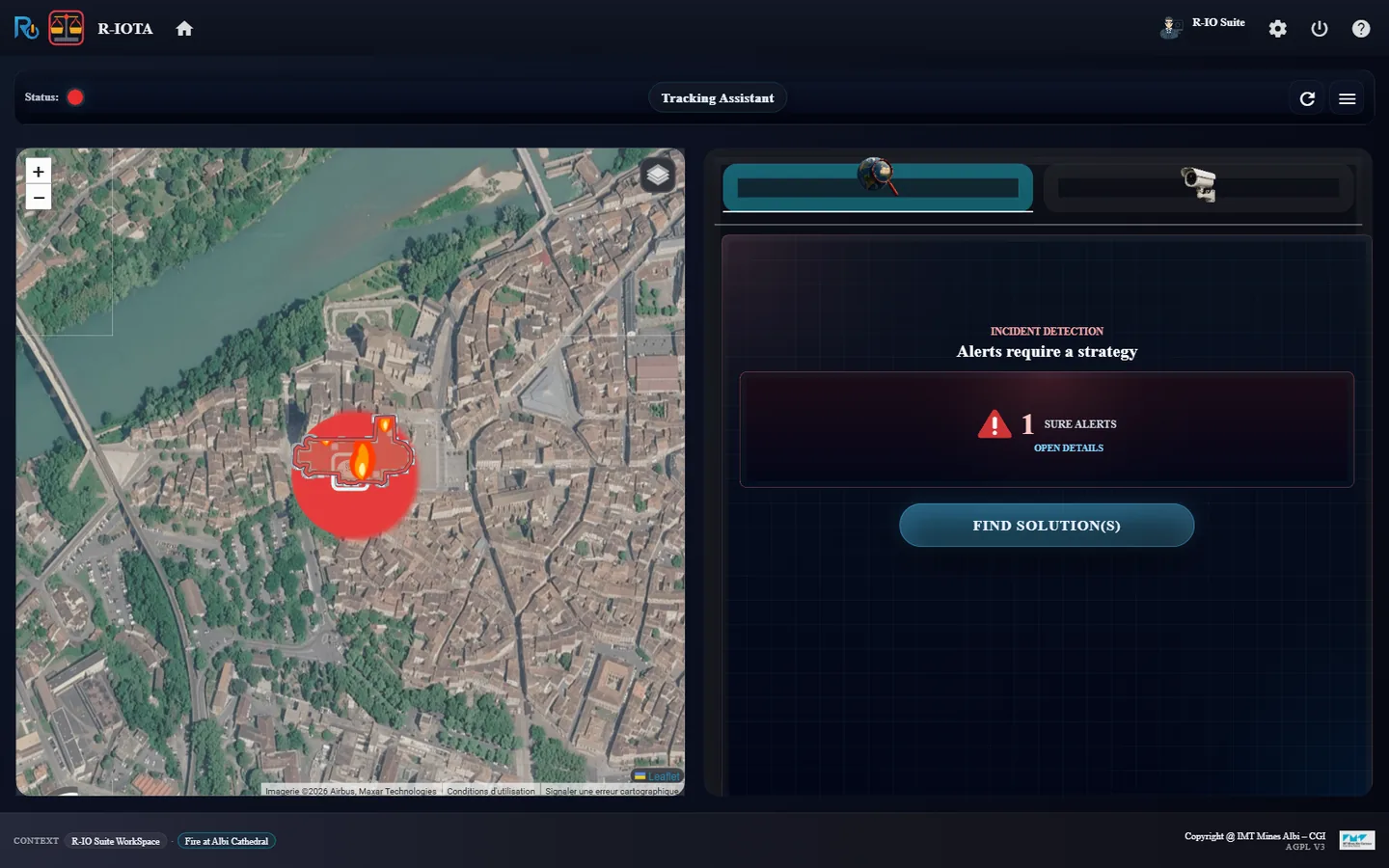
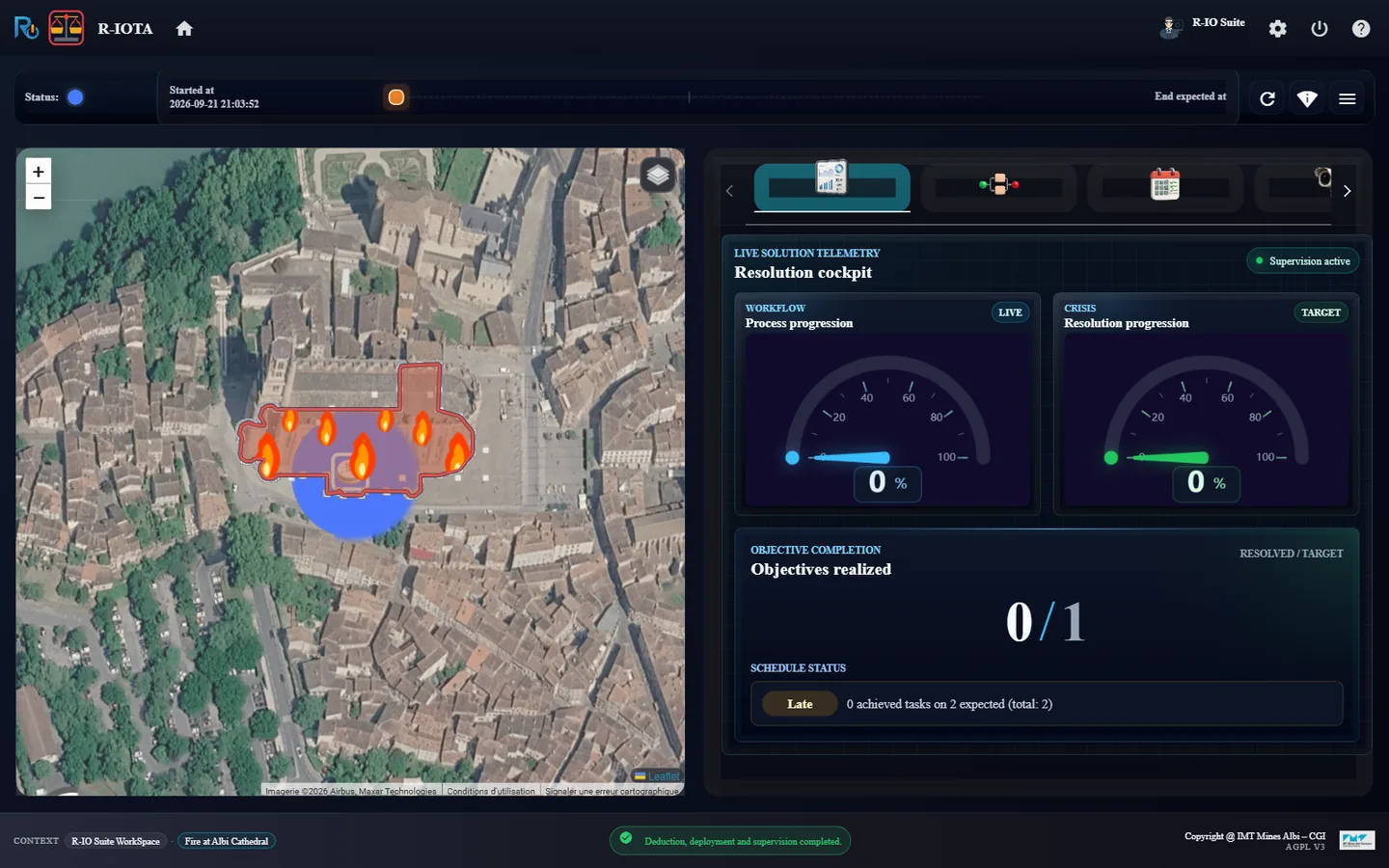
r-iota - one sure alert, red status and a red pulsar on the cathedral.Drools - Crisis Satisfaction Strategy, preselected for the Crisis domain.Solution deployed and supervised: objective 0 of 1, 2 tasks.The process: Start, Confirm Fire, Fire Suppression, End, and the otherwise flow; CE badges on the two conditioned flows.The Sequence_Flow to Fire Suppression carries the condition copied from the Needs edge.The otherwise flow to the end carries its negation.
ResultThe status turns blue and the pulsar blue: the fire is handled. The deduction started from Fire Suppression, which satisfies the objective, and placed its prerequisite Confirm Fire before it: the process chains the two, both assigned to the firefighters. It copied the condition of the Needs edge onto the Sequence_Flow Confirm Fire → Fire Suppression, and added a second flow, otherwise, from Confirm Fire to the end, carrying its negation: exactly one of the two is followed. The schedule shows Late because the generated functions have no duration.
13 · Step
Confirm and extinguish the fire from r-io4U
The tasks of the process are human tasks assigned to the firefighter: he receives them in r-io4U, the mobile application, and completes them there, typing the output the process expects.
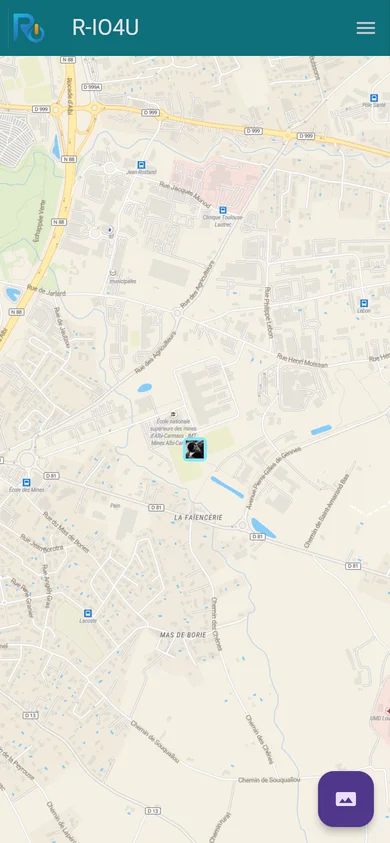
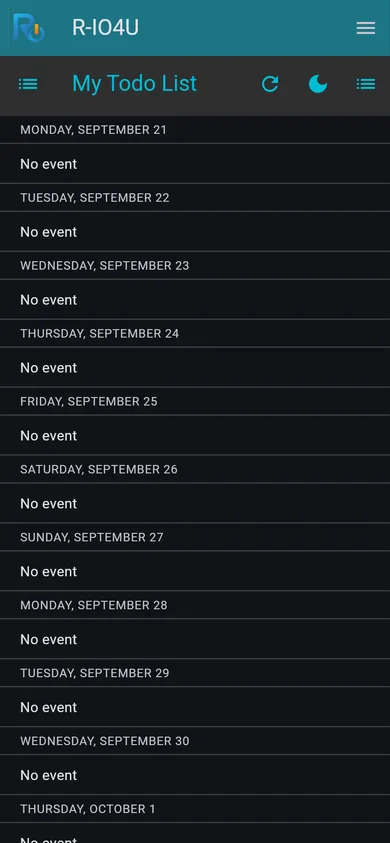
Open r-io4U and log in as ohartley (the web build can do it on its own with ?autologin=ohartley and a local web/autologin_ohartley.json, see the r-io4U README). The map shows Owen Hartley; menu → Tasks opens his to-do list, empty before the deduction. Leave it open.
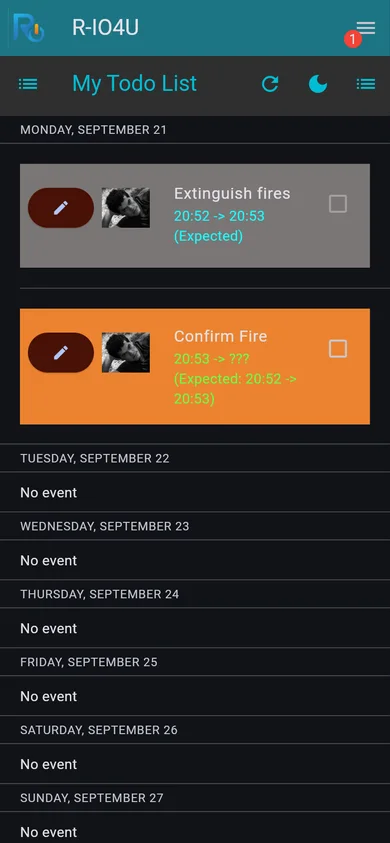
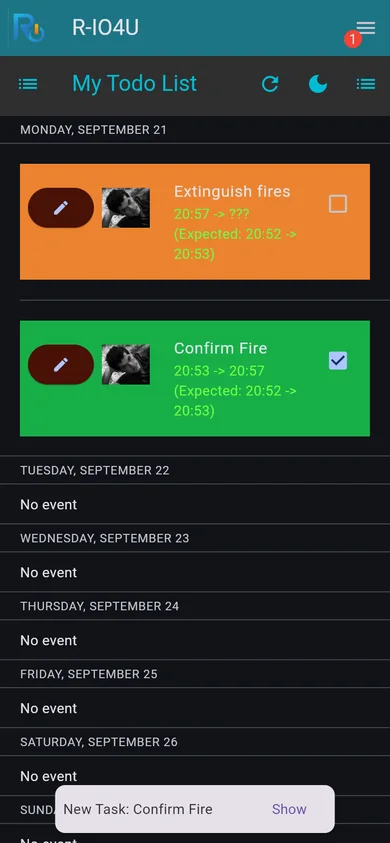
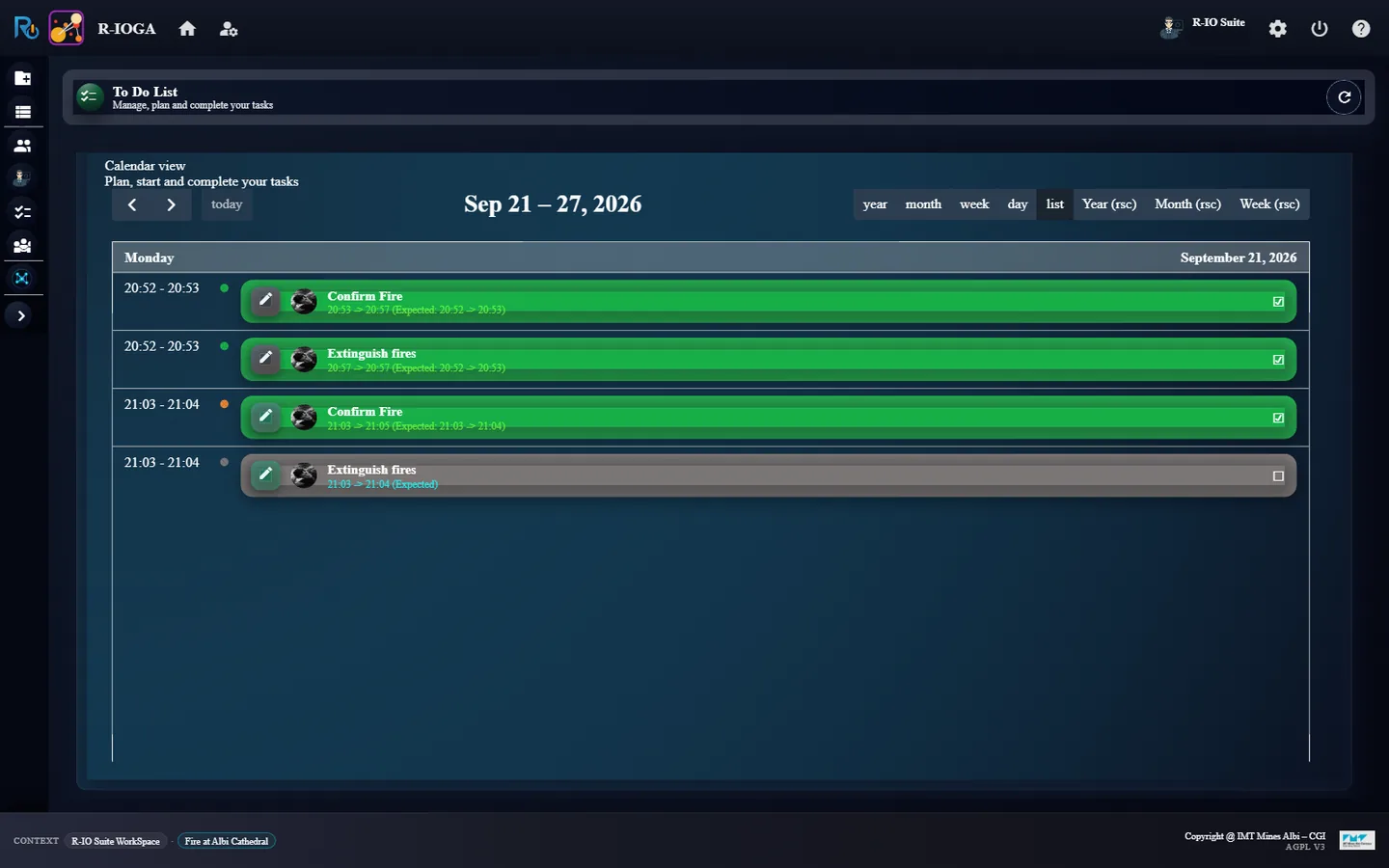
Once the solution is supervised in r-iota, the tasks appear in the to-do list on their own: Confirm Fire is started (orange), Fire Suppression expected (grey).
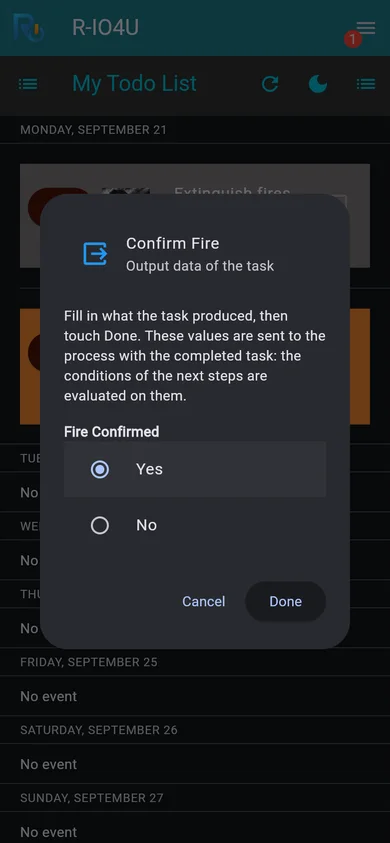
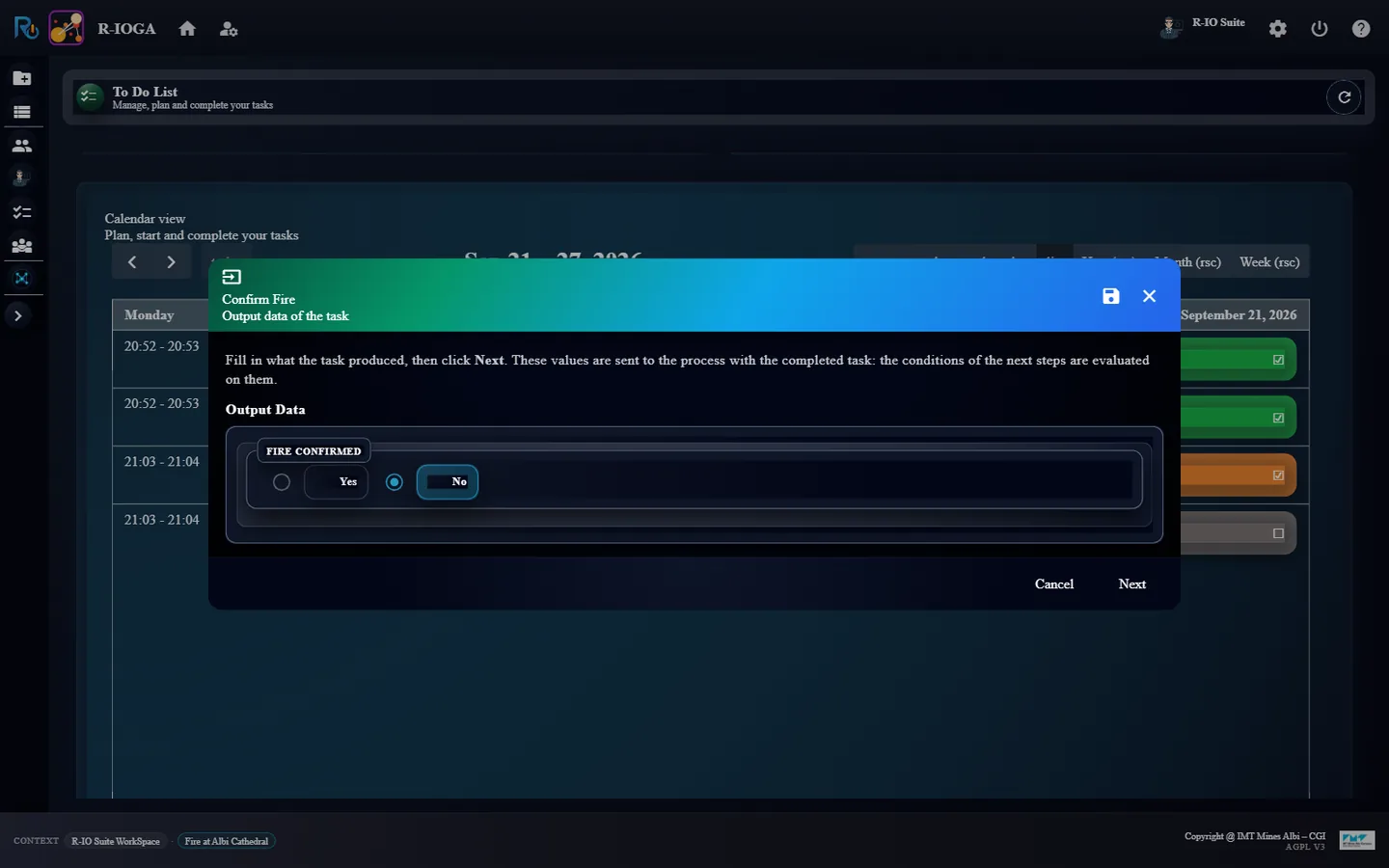
Tick Confirm Fire: a form titled with the task name asks for its output, Fire Confirmed, and recalls what to do. Choose Yes and touch Done.
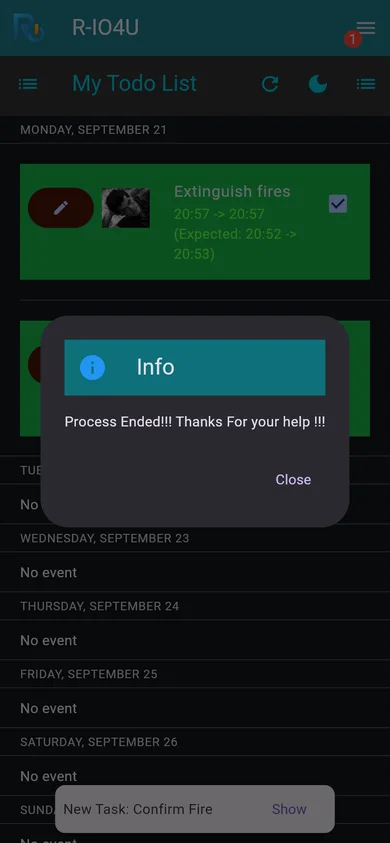
Tick Fire Suppression once it has started (it has no output): r-io4U announces that the process is over. Then look at r-iota.
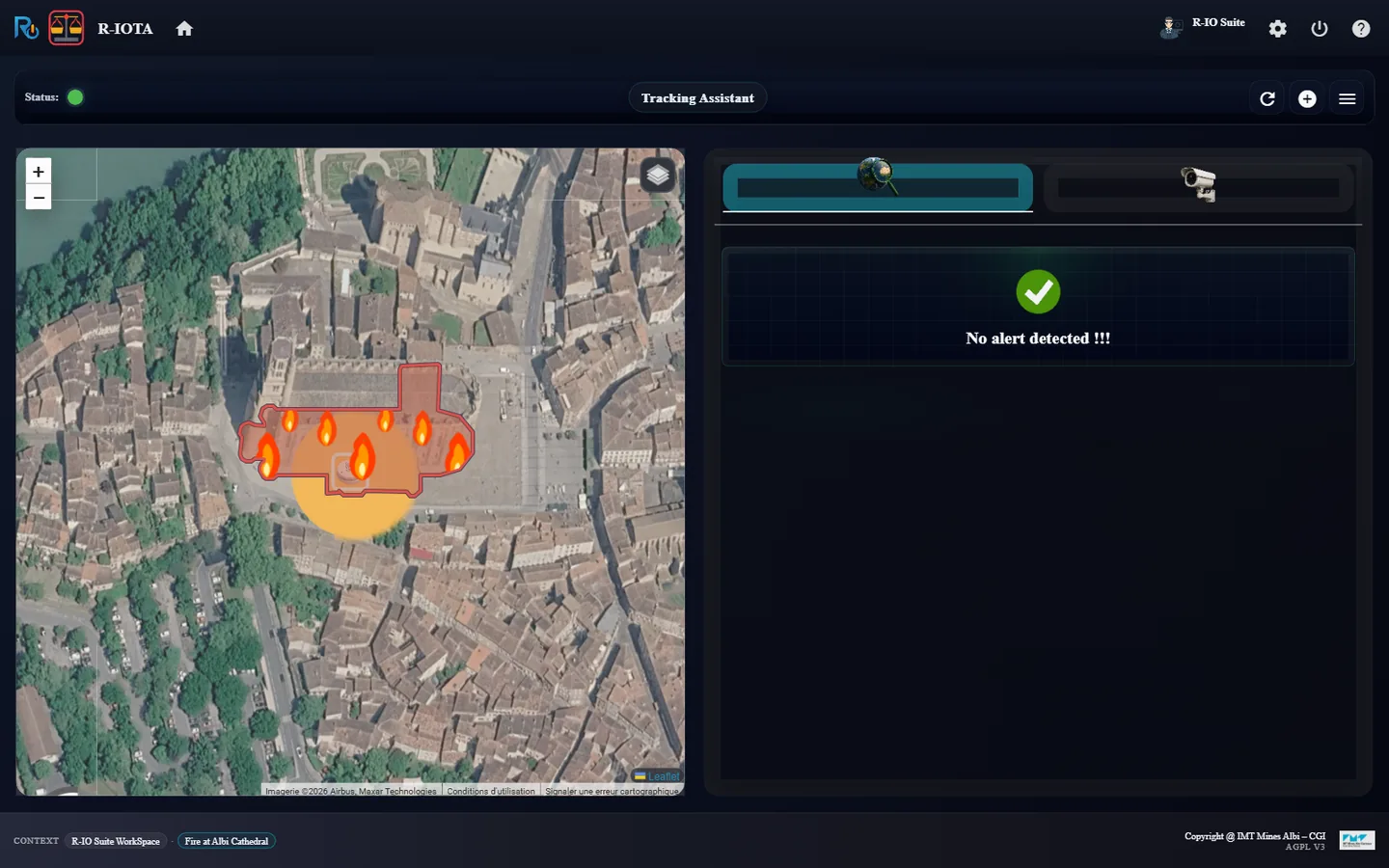
r-io4U - logged in as Owen Hartley, on his map.His to-do list, empty before the deduction.After the deduction, without refreshing: Confirm Fire started, Fire Suppression expected.Ticking Confirm Fire opens its output form, titled with the task name: Fire Confirmed = Yes.Fire confirmed: Confirm Fire done (green), Fire Suppression started (orange).Both tasks done: the process is over.r-iota - no more alert to handle, green status; the fire zone is still drawn until the resolution is validated.
ResultThe output typed in r-io4U is sent to the engine with the completed task: Yes makes the condition true and Fire Suppression starts as soon as Confirm Fire is done. When both are done, r-iota shows No alert detected with a green status: the process is over. The flames stay on the cathedral, though: the process only says that the tasks were done, not that the fire is out. With No, the otherwise flow would have ended the process without sending anyone to fight the fire. The same tasks are also visible, for the administrator, in the r-ioga to-do list.
14 · Step
Validate the resolution
The fire zone is the active objective and its alert, drawn with the FIRE effect of Fire_Alert. During the process the objective is cloned as EXPECTED; the clone disappears at the end, the active objective stays. Only the expert, once the field has confirmed that the fire is out, closes the crisis.
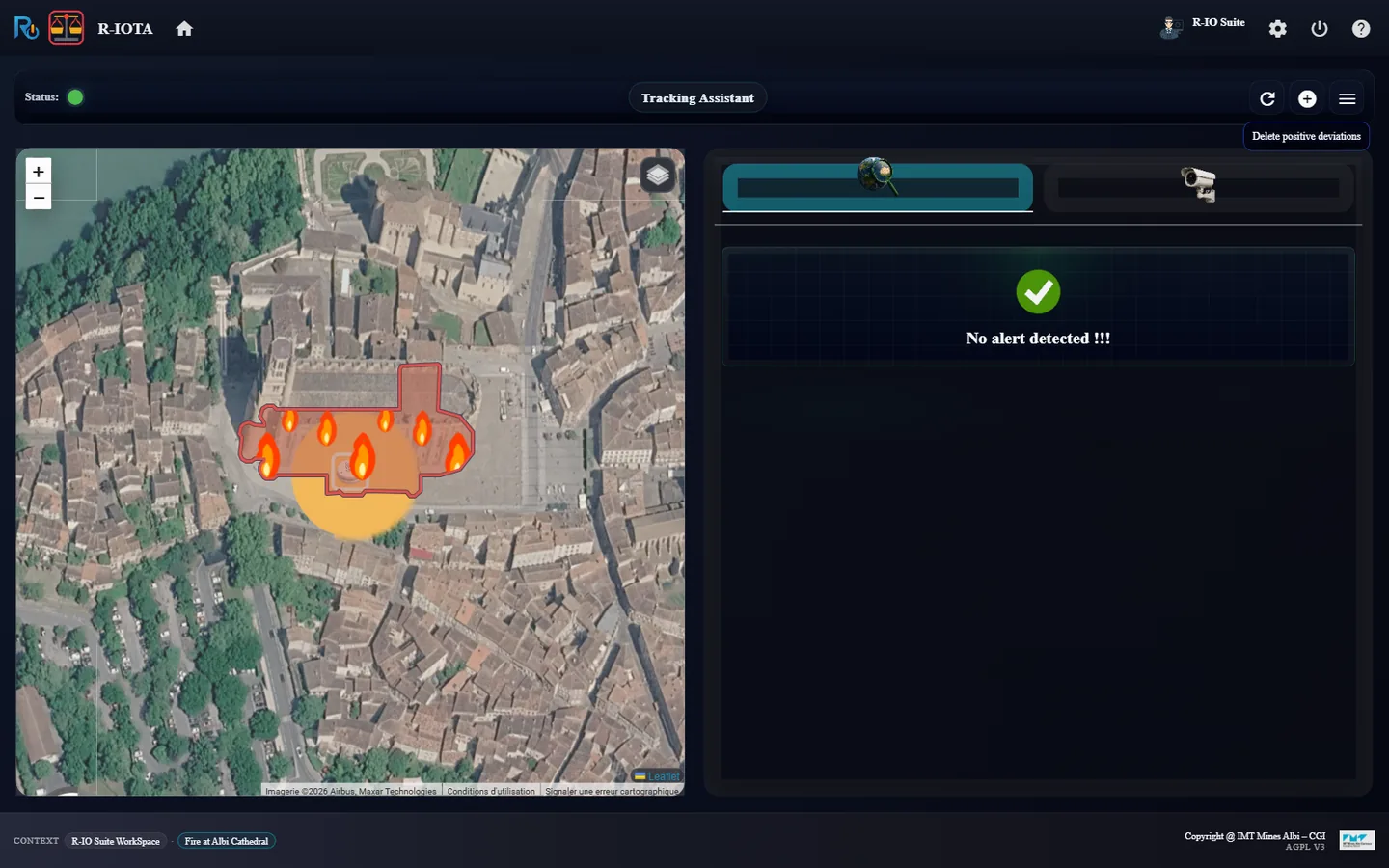
In the r-iota toolbar, click Delete positive deviations (the plus icon next to Refresh).
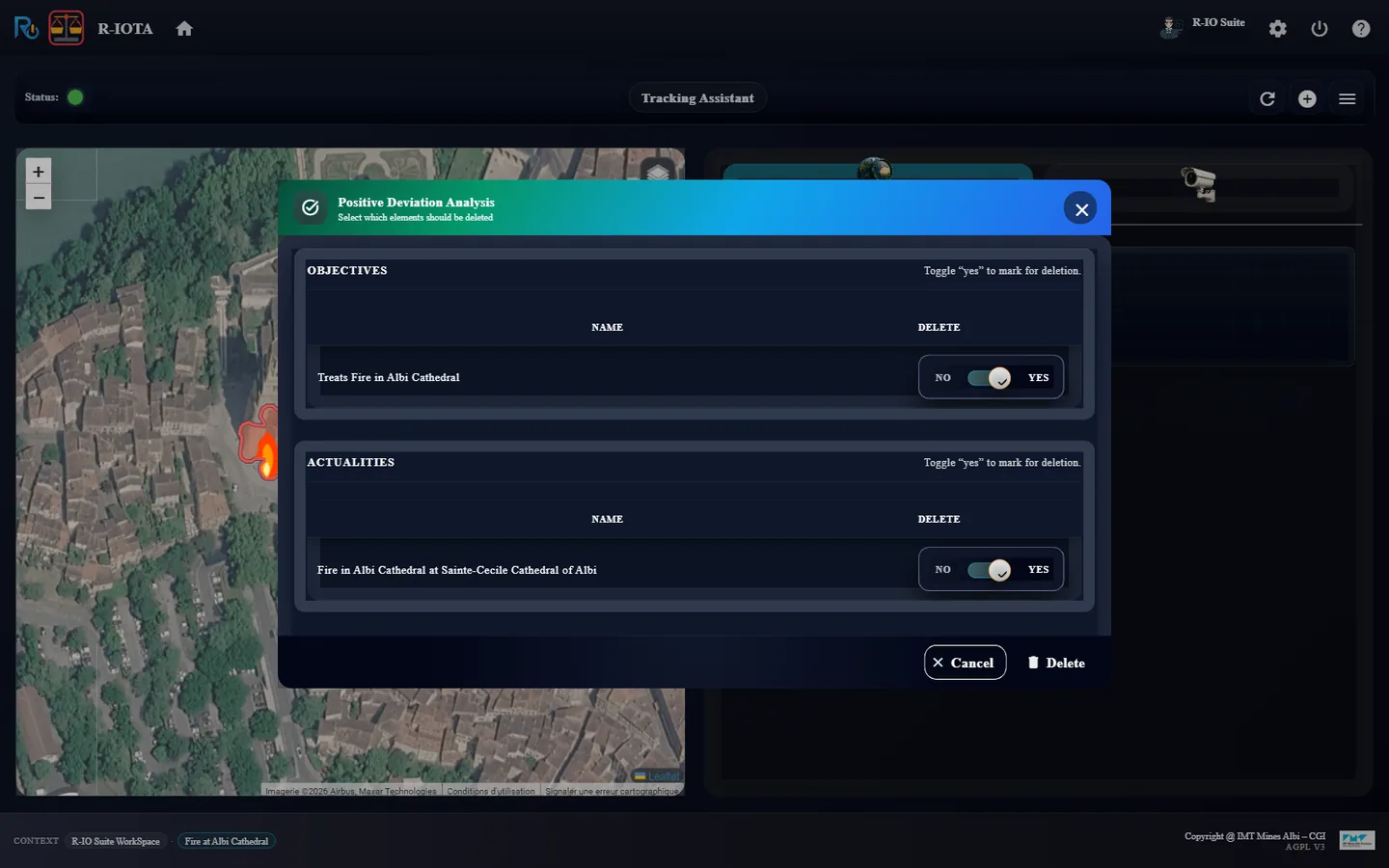
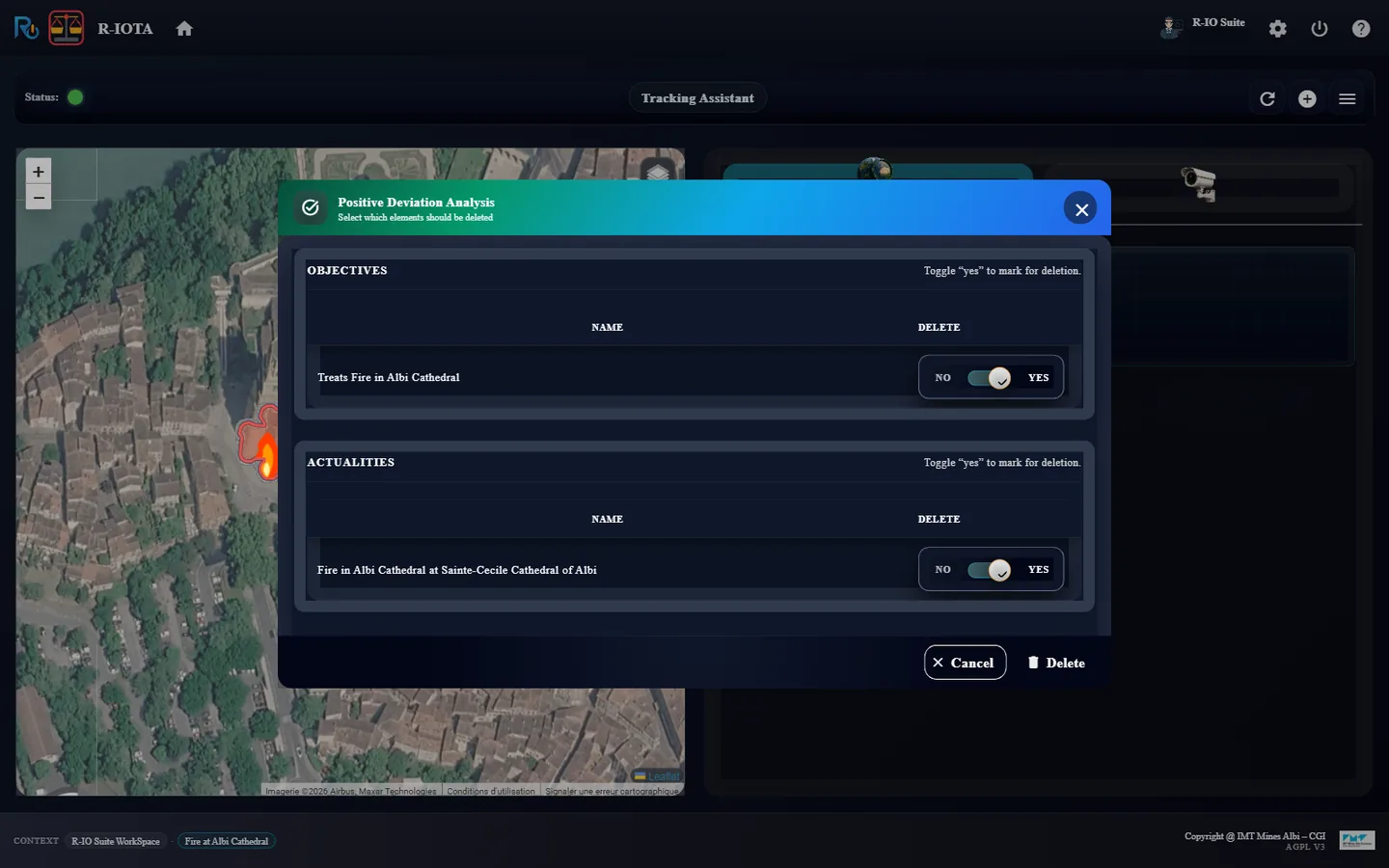
The Positive Deviation Analysis dialog lists the objective Treats Fire in Albi Cathedral and the actuality Fire in Albi Cathedral, both marked YES. Keep them and click Delete.
Click Refresh.
Delete positive deviations, in the r-iota toolbar.The active objective and its alert, marked for deletion.The crisis is closed: the cathedral is back, without flames.
ResultThe active objective and alert are deleted: the flames disappear and the cathedral is drawn as a building again. The frozen alert and objective remain in the Freeze space. The supervision of the solution ends with this validation: the process is over and no active objective is left, so a new detection will be a new alert.
15 · Step
The fire starts again: a false alarm
The anticipated crisis is still frozen, so the sensor can raise the fire again. This time the firefighter finds no fire: the process takes the otherwise flow.
In r-iosemit, click Restart, then Next step: the scenario starts again and the smoke comes back.
In r-iota, a new sure alert shows the cathedral on fire. Click FIND SOLUTION(S) and Find as before: the same process is deduced.
This time answer as the administrator, from the r-ioga to-do list, which lists the tasks of every actor: click the new Confirm Fire, then Accept, choose No for Fire Confirmed and click Done. (The same task also appears, live, in Owen Hartley’s r-io4U.)
In r-iota, validate the end of this false alarm with Delete positive deviations, Delete, then Refresh.
r-iosemit - the scenario restarted and played again: the smoke is back.r-iota - a new sure alert, red pulsar on the cathedral.The same process is deduced and deployed again; r-iota starts its supervision.The dialog is titled with the task name and explains what to fill in: Fire Confirmed = No.The second Confirm Fire is done; the second Fire Suppression never starts (grey).The process ended through the otherwise flow; the pulsar is no longer blue: the expected objective was released.The expert closes the false alarm.Back to calm; the anticipated crisis is still frozen.
ResultNo makes the condition false: the engine follows the otherwise flow to the end and Fire Suppression never runs. Because that task satisfies the objective, its expected twin would otherwise never be released: the otherwise flow lists the objectives of the tasks it skips (set at deduction), and the engine releases them when it follows the flow. r-iota then shows the same end state as after a completed process, and the expert closes the incident.
16 · Step
Export the project
The project now holds a complete, reusable crisis model. It can leave this server as a single archive.
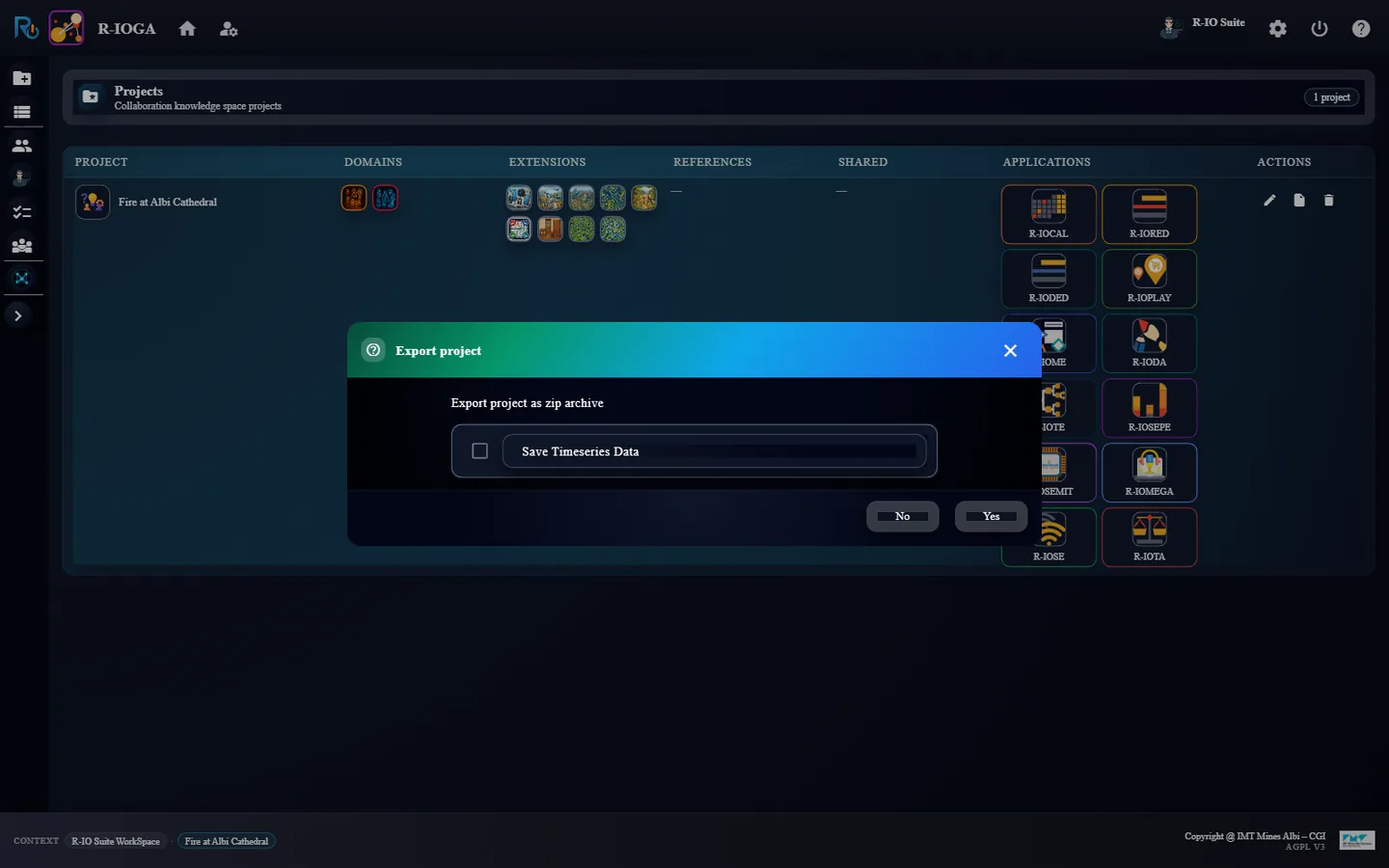
In r-ioga, Project List, click Export project (.zip) in the Actions column.
Choose whether to include the time series data and confirm with Yes: the browser downloads Fire at Albi Cathedral.zip.
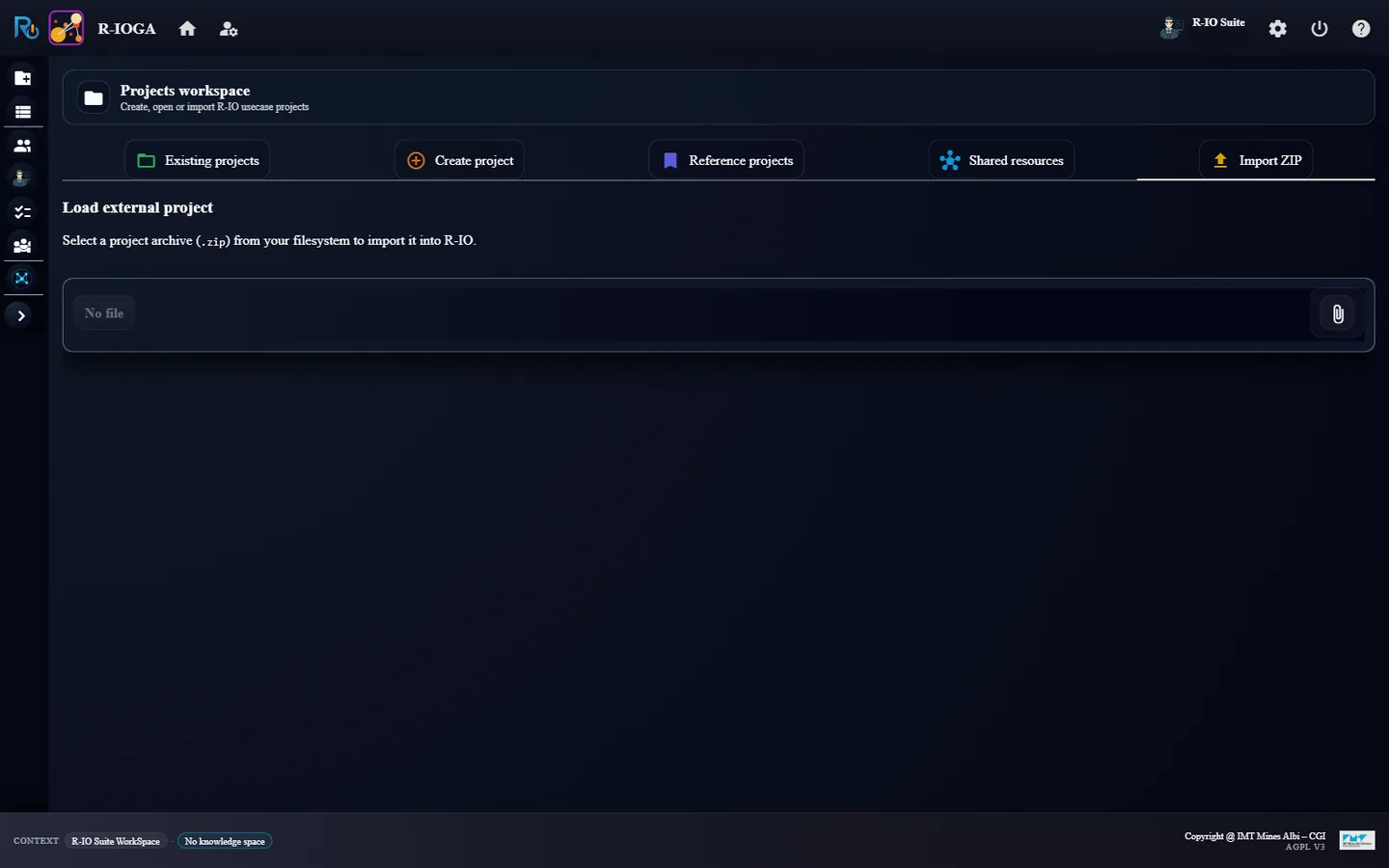
On another server, open the Projects workspace, tab Import ZIP, and select the archive.
The Export project action of the project row.Export confirmation, with the time series option.Import ZIP: loading the archive into another r-io.
ResultThe archive holds the models (context, objectives, collaborative process, in the active and frozen spaces), the CEP rule of the sensor, the game scenario and its dataset, and the photos of the nodes. The import restores the project as it was when exported: export it before playing the sensor to hand over a crisis that is still to come, or at the end to hand over the resolved situation.
In depth
How the condition reaches the process
The Condition Evaluation of a Needs or Implies edge is written in 2L. It guards the dependent function: the source of B Needs A, the target of A Implies B. The token @variable[Function] designates a variable of the task deduced from that function, output first, then input. A single boolean expression is enough; longer conditions may declare variables first, the last statement giving the result:
@Fire Confirmed[Confirm Fire] == "Yes"
At deduction time the condition is copied as is onto every Sequence_Flow entering the dependent task. An otherwiseSequence_Flow goes from the same source to the End_Event, carrying the negated condition, which the deduction writes out in full, headed by a comment naming the objectives the flow releases:
// otherwise: the tasks skipped by this flow never complete; following it releases the expected
// twin of the objectives they satisfy (property releasesObjectives):
//   - Treats Fire in Albi Cathedral
boolean __condition_result__c = @Fire Confirmed[Confirm Fire] == "Yes";
boolean condition = __condition_result__c;
boolean otherwise = !condition;
otherwise;
Both flows show a CE badge in the execution graph of r-iota; hovering one displays its code. When the source task completes, the workflow engine evaluates the flows: exactly one of them is followed. The otherwise flow also lists, in its releasesObjectives property (declared on the Sequence_Flow in the metamodel, read-only), the objectives satisfied by the tasks it skips: when the engine follows it, their expected twins are released, as if those tasks had completed. The value typed in r-io4U (or in the r-ioga to-do list) is sent to the engine with the completed task and stored in its Confirm Fire__outputs variable.
Un projet de crise construit à partir de rien, sans cas d’usage ni base de référence : décrire Albi et sa cathédrale avec les assistants IA, ajouter un pompier et son compte r-io4U, une alerte feu gelée et un détecteur de fumée, puis laisser r-io détecter le feu, déduire une solution, piloter les tâches jusqu’à la disparition de l’alerte, et exporter le projet.
Ce que ce scénario démontre
Les cas d’usage livrés avec r-io sont des modèles terminés. Ce parcours montre comment un tel modèle se construit : le contexte (un territoire, un bâtiment, un rôle, ses fonctions, les acteurs), la crise anticipée (une alerte et son objectif, gardés gelés) et le capteur qui transforme l’anticipation en incident. À partir de là, le reste de la plateforme travaille seul : détection, déduction, tâches humaines, supervision.
Il montre aussi un processus conditionnel : une donnée de sortie saisie par un pompier décide si la fonction suivante s’exécute.
01 · Étape
Créer le projet de crise
Tout part d’un r-io vide : aucun cas d’usage n’est chargé. Le projet est créé à partir du domaine Crisis, sans aucune base de référence, pour que chaque nœud de la situation soit construit pendant ce parcours.
Dans r-ioga, ouvrez le Projects workspace, onglet Create project, et cliquez sur la carte Crisis.
Remplacez le nom par défaut My project par Fire at Albi Cathedral. Choisissez-le dès maintenant : il identifie l’espace de connaissance et ne peut plus être modifié ensuite.
Dans la carte Reference projects, cliquez sur Clear all references.
Dans IA & RAG Knowledge documents, choisissez le fournisseur d’IA Albert (son modèle gemma-4-31b-it est proposé par défaut), puis cliquez sur Create project. Si sa clé s’avère refusée (un assistant échoue sur une clé d’API invalide), passez le projet sur OpenAI : Project List, Edit project, IA Provider, Save changes.
r-ioga - les domaines proposés pour créer un projet.Le formulaire de création, renommé Fire at Albi Cathedral, avec les extensions du domaine Crisis présélectionnées.Clear all references : aucune base de référence n’est rattachée.Le fournisseur d’IA utilisé par les assistants du projet : Albert, avec le modèle gemma-4-31b-it.Project List : le nouveau projet, sans référence, et ses douze lanceurs d’applications.
RésultatProject List affiche Fire at Albi Cathedral avec les domaines Collaborative et Crisis, une colonne References vide et douze lanceurs dans Applications. Chaque application ouverte depuis cette ligne travaille dans le contexte du projet.
02 · Étape
Décrire la ville avec l’assistant IA
L’AI Creator Assistant de r-ioda crée des instances du métamodèle à partir d’une courte description. Pour un lieu, il géocode l’adresse et rapporte le contour et une photo.
Lancez r-ioda depuis la colonne Applications et ouvrez l’onglet Context And Partners.
Cliquez sur l’icône robot AI Creator Assistant, puis sur Territory.
Saisissez Albi, type City, et cliquez sur Find territories.
Gardez le lieu proposé Albi, France, cliquez sur Select, puis sur Push.
r-ioda - les concepts que l’assistant sait créer dans Context And Partners.Albi, en tant que ville.La correspondance de géocodage à confirmer.Le territoire Albi, avec sa photo.
RésultatLe territoire Albi est créé dans l’espace Active, avec le contour de la ville et une photo.
03 · Étape
Ajouter la cathédrale et la fixer sur Albi
Le bâtiment se crée de la même façon. Une relation Fixed_Onto indique ensuite où il se trouve.
Rouvrez l’AI Creator Assistant, choisissez Building, saisissez Albi Cathedral et cliquez sur Find buildings.
Sélectionnez Sainte-Cecile Cathedral of Albi et poussez-la.
Faites un clic droit sur la cathédrale : le menu Connexions disponibles liste les relations qu’elle peut porter. Cliquez sur Fixed_Onto.
Faites glisser l’extrémité libre de la nouvelle flèche sur Albi.
La cathédrale trouvée par le géocodage.Les relations disponibles depuis la cathédrale.Sainte-Cecile Cathedral of Albi, Fixed_Onto Albi.
RésultatLa cathédrale est fixée sur Albi : sa géométrie placera plus tard le capteur et l’alerte sur la carte.
04 · Étape
Vérifier la géolocalisation dans r-ioplay
Les deux lieux créés par l’assistant sont de vraies formes géographiques, pas seulement des icônes sur un diagramme. r-ioplay, la carte du projet, les affiche sur la vue satellite.
Depuis Project List, lancez r-ioplay : la carte s’ouvre sur le territoire du projet.
Zoomez sur la vieille ville, au bord du Tarn, pour retrouver la cathédrale.
r-ioplay - le contour de la commune d’Albi ; la petite forme dans la vieille ville, au bord du Tarn, est la cathédrale.L’emprise de la cathédrale Sainte-Cécile, au bord du Tarn. Cette fois le service OpenStreetMap n’a pas répondu : l’emprise est le rectangle renvoyé par Google autour du bâtiment.
RésultatAlbi est le contour de la commune et la cathédrale l’emprise du bâtiment, tous deux rapportés par le géocodage. Quand le service OpenStreetMap ne répond pas, le bâtiment se replie sur le rectangle renvoyé par Google, un peu plus large que le bâtiment. Le capteur fixé sur la cathédrale et l’alerte feu seront dessinés à cet endroit précis. L’assistant donne à chaque zone une teinte grisée tirée au hasard, plus marquée à mesure que la zone rétrécit : la ville très pâle et très transparente, un site un peu plus marqué, un bâtiment plus encore, pour que le bâtiment reste lisible sur la ville.
05 · Étape
Demander un rôle de pompier à l’assistant
Un rôle regroupe les fonctions qu’un acteur sait réaliser. L’assistant demande au LLM configuré quelles fonctions assure un pompier : la liste exacte varie d’une exécution à l’autre.
Ouvrez l’AI Creator Assistant, choisissez Role, gardez le type Person et saisissez Firefighter, puis cliquez sur Find.
Cliquez sur Push. r-ioda recommande de ranger rôles et fonctions dans l’espace Freeze, la connaissance dans laquelle puise la déduction : répondez Yes.
Cochez uniquement le filtre de statut Freeze pour les voir.
Un rôle Person nommé Firefighter.Les fonctions proposées par le LLM.La recommandation de pousser dans l’espace Freeze.Firefighter et ses fonctions, dans l’espace Freeze.
RésultatLe rôle Firefighter assure quatre fonctions, toutes gelées : Fire Suppression, Search and Rescue, Emergency Medical Response et Hazardous Materials Mitigation. Les noms viennent du LLM : avec OpenAI, la fonction d’extinction s’appelle en général Extinguish fires. La suite du parcours utilise la fonction d’extinction proposée ici, Fire Suppression.
06 · Étape
Ajouter Confirm Fire et sa condition
Avant de combattre un feu, un pompier doit le confirmer. Cette fonction s’ajoute à la main, avec une variable de sortie, et Fire Suppression en a besoin : le feu n’est combattu qu’une fois confirmé.
Faites un clic droit sur Firefighter et choisissez Provides → Function. Double-cliquez sur la nouvelle fonction et nommez-la Confirm Fire.
Dans DATA, Output variables declaration, déclarez une variable Fire Confirmed de type Radio, de valeurs possibles Yes et No, puis Save.
Faites un clic droit sur Fire Suppression, choisissez Needs et déposez la flèche sur Confirm Fire.
Double-cliquez sur l’arête Needs. Dans Condition Evaluation, tapez @ : l’éditeur propose @Fire Confirmed[Confirm Fire]. Complétez en @Fire Confirmed[Confirm Fire] == "Yes" et cliquez sur Save.
Provides → Function depuis le rôle.La variable de sortie Radio Fire Confirmed, Yes ou No.L’éditeur propose les variables de sortie des fonctions liées.La condition de l’arête Needs, une simple expression 2L.Fire Suppression a besoin de Confirm Fire ; le badge CE signale l’arête qui porte une condition, et son survol affiche le code.
RésultatFire SuppressionNeedsConfirm Fire : dès que la déduction retient l’extinction, elle ajoute la confirmation avant elle. La condition de l’arête, une simple expression booléenne, @Fire Confirmed[Confirm Fire] == "Yes", garde Fire Suppression : la variable est lue sur la tâche déduite de Confirm Fire quand le processus s’exécute. Dans le diagramme, un badge CE (Condition Evaluation) signale l’arête, et son survol affiche le code.
07 · Étape
Ajouter le pompier et son compte r-io4U
Les acteurs sont des personnes qui tiennent un rôle. L’assistant en crée une avec un visage et la positionne dans le territoire choisi ; la personne est ensuite renommée avec un nom fixe pour que son identifiant soit connu d’avance, puis reliée à un utilisateur applicatif qui réalisera ses tâches dans r-io4U, l’application mobile.
Recochez le filtre Active (gardez Freeze) et ouvrez l’AI Creator Assistant, Person.
Réglez Number of persons in group sur 1, Roles sur Firefighter, Located in sur Albi, cliquez sur Find, puis sur Push.
Ouvrez la personne et renommez-la Owen Hartley si la personne générée est un homme (firstName Owen, lastName Hartley), Olivia Hartley si c’est une femme : l’identifiant est le même. Cliquez sur Save, puis rouvrez la personne : le nom et le titre du dialogue suivent le prénom et le nom une fois enregistrés. Dans REQUIRED INFORMATION, ACTIONS, cliquez sur Generate corresponding user.
Le dialogue Register … as user propose l’identifiant ohartley (initiale du prénom suivie du nom) et le mot de passe par défaut affiché en haut du dialogue : cliquez sur Save, puis enregistrez la personne par Save.
Une personne au rôle Firefighter, située à Albi.Le contexte actif : Albi, la cathédrale et le pompier généré avec son rôle, encore sous le nom inventé par le LLM.Renommé Owen Hartley, le titre du dialogue suit le nouveau nom ; l’action Generate corresponding user dans REQUIRED INFORMATION.L’utilisateur à enregistrer : identifiant ohartley, mot de passe prérempli (e-mail masqué).La personne est désormais Assigned_To son utilisateur (relations brisées, avant enregistrement).
RésultatUne personne active tient le rôle Firefighter et possède un compte r-io4U : les tâches déduites pour les pompiers lui seront attribuées et apparaîtront sur son téléphone.
08 · Étape
Préparer l’alerte feu et son objectif
Une crise s’anticipe avant d’arriver : une alerte gelée décrit le feu qui pourrait se déclarer, et un objectif gelé décrit comment le traiter. Tous deux restent gelés : chaque fois qu’un capteur détecte le feu, une copie active en est créée, et le couple gelé demeure pour la fois suivante.
Ouvrez l’onglet Objectives et cochez uniquement le filtre Freeze.
Dans le menu Palette de l’en-tête, cliquez sur Fire_Alert. Double-cliquez sur le nouveau nœud, nommez-le Fire in Albi Cathedral et cliquez sur Save.
Double-cliquez de nouveau dessus et, dans ACTIONS, cliquez sur Generate associated objective.
Double-cliquez sur l’objectif Treats Fire in Albi Cathedral. Dans Broken relations (target [me] <- source), table Satisfies, cliquez sur Add, choisissez l’instance source Fire Suppression et enregistrez chaque dialogue.
Le concept Fire_Alert dans la palette.L’alerte gelée, nommée Fire in Albi Cathedral.Generate associated objective.Treats Fire in Albi Cathedral, gelé, relié par Treats.Choix d’Fire Suppression comme source de Satisfies.L’objectif est satisfait par Fire Suppression.La vue des objectifs gelés : l’alerte et son objectif Treats. Satisfies est une arête brisée : sa source, Fire Suppression, vit dans Context And Partners.
RésultatDeux nœuds gelés : l’alerte Fire in Albi Cathedral et son objectif Treats Fire in Albi Cathedral, qu’Fire Suppression satisfait : l’objectif est traité par l’action qui éteint le feu, et la confirmation l’accompagne par Needs. La satisfaction est une arête brisée, car la fonction vit dans une autre vue.
09 · Étape
Installer un détecteur de fumée sur la cathédrale
La dernière pièce est le capteur qui surveille l’alerte gelée. Un capteur dédié émet un booléen ; sa règle lève une alerte active proche de l’alerte gelée qu’il référence quand la valeur devient vraie.
De retour dans Context And Partners, filtre Active coché, ouvrez l’AI Creator Assistant, Sensor.
Choisissez le type Dedicated (nature Smoke), le type d’événement Fire In Albi Cathedral, le mode Fixed Onto Asset et l’actif Sainte-Cecile Cathedral of Albi, puis Find et Push.
Double-cliquez sur le capteur et renommez-le Smoke sensor of Albi Cathedral.
Un détecteur de fumée dédié qui référence l’alerte gelée.Le capteur, fixé sur la cathédrale.Son seuil référence Fire in Albi Cathedral (FREEZE, Fire_Alert).
RésultatLe capteur porte un seuil MAX qui référence Fire in Albi Cathedral (FREEZE, Fire_Alert). Son enregistrement déploie sa règle CEP.
10 · Étape
Vérifier que rien ne brûle encore
La situation est décrite, mais rien n’est arrivé.
Lancez r-iota depuis Project List.
r-iota - aucune alerte, statut vert, Albi, le capteur et le pompier sur la carte.
Résultatr-iota affiche No alert detected et un statut vert. L’alerte gelée est une connaissance, pas un incident.
11 · Étape
Allumer le détecteur de fumée
r-iosemit joue des scénarios de jeu : des dates sur une frise, chacune portant les actualités ou les valeurs de capteur à émettre. L’actualité capteur vient de la règle CEP du capteur : la planifier à une date fait franchir son seuil au capteur à cette date.
Lancez r-iosemit : il n’y a pas encore de scénario de jeu. Cliquez sur Create a scenario, nommez-le Fire at Albi Cathedral et cliquez sur Save. L’onglet DATA montre le détecteur de fumée et le jeu de données généré pour le scénario.
Dans TIMELINE, cliquez sur Add an actuality or a message…, réglez une date quelques minutes après le début, choisissez l’actualité capteur Fire in Albi Cathedral at Sainte-Cecile Cathedral of Albi (règle R1, false → true), cliquez sur Save, puis enregistrez le scénario (icône disquette).
Cliquez sur Next step : le capteur démarre et reçoit les deux valeurs de la date.
r-iosemit - le détecteur de fumée et le jeu de données généré pour le scénario Fire at Albi Cathedral.Planification de l’actualité capteur : Fire in Albi Cathedral at Sainte-Cecile Cathedral of Albi, règle R1, de faux à vrai.Après Next step : le capteur est démarré et a reçu ses deux valeurs ; la valeur de fumée est vraie.
RésultatQuand la date est jouée, la valeur passe de faux à vrai. La règle CEP du capteur se déclenche. L’alerte gelée n’impacte aucun bien sous le capteur : c’est une crise anticipée, pas l’incident lui-même. La règle crée donc une nouvelle alerte active, Fire in Albi Cathedral at Sainte-Cecile Cathedral of Albi, qui impacte la cathédrale et est Near l’alerte gelée ; son objectif est une copie active de l’objectif gelé, Near lui aussi, par lequel la déduction retrouve Fire Suppression. L’alerte et l’objectif gelés restent intacts. (Une alerte gelée qui impacte un bien sur lequel le capteur est fixé serait, elle, activée sur place.)
12 · Étape
Trouver une solution
Le feu est une alerte sûre. La déduction cherche les fonctions qui satisfont son objectif et les acteurs capables de les réaliser, puis déploie et supervise le processus.
Dans r-iota, constatez l’alerte sûre et cliquez sur FIND SOLUTION(S).
Gardez la stratégie présélectionnée, laissez Deduce and run sur YES et cliquez sur Find.
Attendez Deduction, deployment and supervision completed, puis ouvrez le deuxième onglet du tableau de bord, Execution graph.
Survolez les badges CE des deux flux qui partent de Confirm Fire pour lire la condition que porte chacun.
r-iota - une alerte sûre, statut rouge et pulsar rouge sur la cathédrale.Drools - Crisis Satisfaction Strategy, présélectionnée pour le domaine Crisis.Solution déployée et supervisée : objectif 0 sur 1, 2 tâches.Le processus : Start, Confirm Fire, Fire Suppression, End, et le flux otherwise ; badges CE sur les deux flux conditionnés.Le Sequence_Flow vers Fire Suppression porte la condition recopiée de l’arête Needs.Le flux otherwise vers la fin en porte la négation.
RésultatLe statut et le pulsar passent au bleu : le feu est pris en charge. La déduction est partie d’Fire Suppression, qui satisfait l’objectif, et a placé son prérequis Confirm Fire avant elle : le processus enchaîne les deux, attribuées aux pompiers. Elle a recopié la condition de l’arête Needs sur le Sequence_Flow Confirm Fire → Fire Suppression, et ajouté un second flux, otherwise, de Confirm Fire vers la fin, qui en porte la négation : un seul des deux est suivi. Le planning indique Late, car les fonctions générées n’ont pas de durée.
13 · Étape
Confirmer et éteindre le feu depuis r-io4U
Les tâches du processus sont des tâches humaines attribuées au pompier : il les reçoit dans r-io4U, l’application mobile, et les y réalise en saisissant la sortie attendue par le processus.
Ouvrez r-io4U et connectez-vous en ohartley (la version web peut le faire seule avec ?autologin=ohartley et un fichier local web/autologin_ohartley.json, voir le README de r-io4U). La carte montre Owen Hartley ; menu → Tasks ouvre sa liste de tâches, vide avant la déduction. Laissez-la ouverte.
Une fois la solution supervisée dans r-iota, les tâches apparaissent d’elles-mêmes dans la liste : Confirm Fire est démarrée (orange), Fire Suppression prévue (gris).
Cochez Confirm Fire : un formulaire titré du nom de la tâche demande sa sortie, Fire Confirmed, et rappelle quoi faire. Choisissez Yes et touchez Done.
Cochez Fire Suppression une fois démarrée (elle n’a pas de sortie) : r-io4U annonce que le processus est terminé. Regardez ensuite r-iota.
r-io4U - connecté en Owen Hartley, sur sa carte.Sa liste de tâches, vide avant la déduction.Après la déduction, sans rafraîchir : Confirm Fire démarrée, Fire Suppression prévue.Cocher Confirm Fire ouvre le formulaire de sa sortie, titré du nom de la tâche : Fire Confirmed = Yes.Feu confirmé : Confirm Fire réalisée (vert), Fire Suppression démarrée (orange).Les deux tâches réalisées : le processus est terminé.r-iota - plus aucune alerte à traiter, statut vert ; la zone en feu reste dessinée tant que la résolution n’est pas validée.
RésultatLa sortie saisie dans r-io4U part vers le moteur avec la tâche réalisée : Yes rend la condition vraie et Fire Suppression démarre dès que Confirm Fire est réalisée. Quand les deux sont faites, r-iota affiche No alert detected avec un statut vert : le processus est terminé. Les flammes restent pourtant sur la cathédrale : le processus dit seulement que les tâches ont été faites, pas que le feu est éteint. Avec No, le flux otherwise aurait terminé le processus sans envoyer personne combattre le feu. Les mêmes tâches sont aussi visibles, pour l’administrateur, dans la todo-list de r-ioga.
14 · Étape
Valider la résolution
La zone en feu, ce sont l’objectif actif et son alerte, dessinés avec l’effet FIRE de Fire_Alert. Pendant le processus, l’objectif est cloné en EXPECTED ; le clone disparaît à la fin, l’objectif actif reste. Seul l’expert, une fois que le terrain a confirmé que le feu est éteint, clôt la crise.
Dans la barre d’outils de r-iota, cliquez sur Delete positive deviations (l’icône plus, à côté de Refresh).
Le dialogue Positive Deviation Analysis liste l’objectif Treats Fire in Albi Cathedral et l’actualité Fire in Albi Cathedral, tous deux marqués YES. Gardez-les et cliquez sur Delete.
Cliquez sur Refresh.
Delete positive deviations, dans la barre d’outils de r-iota.L’objectif actif et son alerte, marqués pour suppression.La crise est close : la cathédrale revient, sans flammes.
RésultatL’objectif et l’alerte actifs sont supprimés : les flammes disparaissent et la cathédrale est de nouveau dessinée comme un bâtiment. L’alerte et l’objectif gelés restent dans l’espace Freeze. Cette validation clôt la supervision de la solution : le processus est terminé et il ne reste aucun objectif actif, si bien qu’une nouvelle détection sera une nouvelle alerte.
15 · Étape
Le feu reprend : une fausse alerte
La crise anticipée est toujours gelée : le capteur peut de nouveau signaler le feu. Cette fois, le pompier ne trouve pas de feu : le processus prend le flux otherwise.
Dans r-iosemit, cliquez sur Restart, puis sur Next step : le scénario repart du début et la fumée revient.
Dans r-iota, une nouvelle alerte sûre montre la cathédrale en feu. Cliquez sur FIND SOLUTION(S) puis Find comme la première fois : le même processus est déduit.
Cette fois, répondez en administrateur, depuis la todo-list de r-ioga qui liste les tâches de tous les acteurs : cliquez sur la nouvelle Confirm Fire, puis sur Accept, choisissez No pour Fire Confirmed et cliquez sur Done. (La même tâche apparaît aussi, en direct, dans le r-io4U d’Owen Hartley.)
Dans r-iota, validez la fin de cette fausse alerte par Delete positive deviations, Delete, puis Refresh.
r-iosemit - le scénario redémarré et rejoué : la fumée revient.r-iota - une nouvelle alerte sûre, pulsar rouge sur la cathédrale.Le même processus est de nouveau déduit et déployé ; r-iota démarre sa supervision.Le dialogue porte le nom de la tâche et explique quoi remplir : Fire Confirmed = No.La seconde Confirm Fire est réalisée ; la seconde Fire Suppression ne démarre jamais (gris).Le processus s’est terminé par le flux otherwise ; le pulsar n’est plus bleu : l’objectif attendu a été libéré.L’expert clôt la fausse alerte.Retour au calme ; la crise anticipée est toujours gelée.
RésultatNo rend la condition fausse : le moteur suit le flux otherwise vers la fin et Fire Suppression ne s’exécute jamais. Comme c’est elle qui satisfait l’objectif, son jumeau attendu ne serait sinon jamais libéré : le flux otherwise liste les objectifs des tâches qu’il contourne (posés à la déduction), et le moteur les libère quand il suit le flux. r-iota montre alors le même état final qu’après un processus mené à terme, et l’expert clôt l’incident.
16 · Étape
Exporter le projet
Le projet contient désormais un modèle de crise complet et réutilisable. Il peut quitter ce serveur sous la forme d’une seule archive.
Dans r-ioga, Project List, cliquez sur Export project (.zip) dans la colonne Actions.
Choisissez d’inclure ou non les séries temporelles et confirmez par Yes : le navigateur télécharge Fire at Albi Cathedral.zip.
Sur un autre serveur, ouvrez le Projects workspace, onglet Import ZIP, et sélectionnez l’archive.
L’action Export project de la ligne du projet.Confirmation de l’export, avec l’option des séries temporelles.Import ZIP : charger l’archive dans un autre r-io.
RésultatL’archive contient les modèles (contexte, objectifs, processus collaboratif, dans les espaces actif et gelé), la règle CEP du capteur, le scénario de jeu et son jeu de données, et les photos des nœuds. L’import restitue le projet tel qu’il était au moment de l’export : exportez-le avant de jouer le capteur pour transmettre une crise encore à venir, ou à la fin pour transmettre la situation résolue.
Pour aller plus loin
Comment la condition arrive dans le processus
La Condition Evaluation d’une arête Needs ou Implies s’écrit en 2L. Elle garde la fonction dépendante : la source de B Needs A, la cible de A Implies B. Le jeton @variable[Fonction] désigne une variable de la tâche déduite de cette fonction, en sortie d’abord, puis en entrée. Une simple expression booléenne suffit ; une condition plus longue peut d’abord déclarer des variables, la dernière instruction donnant le résultat :
@Fire Confirmed[Confirm Fire] == "Yes"
À la déduction, la condition est recopiée telle quelle sur chaque Sequence_Flow qui entre dans la tâche dépendante. Un Sequence_Flowotherwise part de la même source vers l’End_Event et porte la condition niée, que la déduction écrit en entier, précédée d’un commentaire qui nomme les objectifs libérés par le flux :
// otherwise: the tasks skipped by this flow never complete; following it releases the expected
// twin of the objectives they satisfy (property releasesObjectives):
//   - Treats Fire in Albi Cathedral
boolean __condition_result__c = @Fire Confirmed[Confirm Fire] == "Yes";
boolean condition = __condition_result__c;
boolean otherwise = !condition;
otherwise;
Les deux flux affichent un badge CE dans le graphe d’exécution de r-iota ; le survol de l’un d’eux affiche son code. Quand la tâche source se termine, le moteur de workflow évalue les flux : un seul est suivi. Le flux otherwise liste aussi, dans sa propriété releasesObjectives (déclarée sur le Sequence_Flow dans le métamodèle, en lecture seule), les objectifs satisfaits par les tâches qu’il contourne : quand le moteur le suit, leurs jumeaux attendus sont libérés, comme si ces tâches s’étaient terminées. La valeur saisie dans r-io4U (ou dans la todo-list de r-ioga) est transmise au moteur avec la tâche terminée et rangée dans sa variable Confirm Fire__outputs.